
The right barcode type depends on what the barcode is for and what your values look like. In most cases you can leave it to BarcodePop: when you click a column, the Barcode type list shows the automatic choice, for example Auto · Code 128, and for a digit type the reason under it, for example 13 digits with a valid check digit. This guide explains the choices, so you can tell when to pick another type.
The short answer #
| Your values | Use |
|---|---|
| Product numbers for retail (13 digits, outside the US and Canada) | EAN-13 |
| Product numbers for retail in the US and Canada (12 digits) | UPC-A |
| Your own SKUs, item numbers, asset tags, order or ticket numbers, with letters or digits | Code 128 |
| A 14-digit number for an outer carton or case | ITF-14 |
| Batch, expiry date, serial number or weight on a case or pallet | GS1-128 (Pro) |
| Long text, or a small square for small items | DataMatrix or PDF417 (Pro) |
| An older system that asks for it | Code 39 or Codabar |
How Auto decides #
BarcodePop looks at all values of the column, not just the first one:
- 13 digits with a valid check digit: EAN-13 (13 digits with a valid check digit).
- 12 digits with a valid UPC check digit: UPC-A. 12 digits without one: EAN-13 with the check digit added (12 digits, the check digit is added).
- 8 digits with a valid check digit: EAN-8. 14 digits with a valid check digit: ITF-14.
- Numbers one digit short, because Excel dropped a leading zero: the type they belong to, with the zero added (12 digits, the leading zero Excel dropped is added).
- GS1 data written with the Application Identifiers in parentheses: GS1-128 (GS1 data with Application Identifiers), a Pro type.
- Anything else, mixed lengths or letters: Code 128, shown as Auto · Code 128 with no reason line under it.
When most numbers in a column have a valid check digit and a few do not, Auto still picks the retail type and skips the rows with a wrong one: 13 digits, most with a valid check digit. Rows with a wrong one are skipped. Auto never picks Code 39, Codabar or a 2D type; choose those yourself.
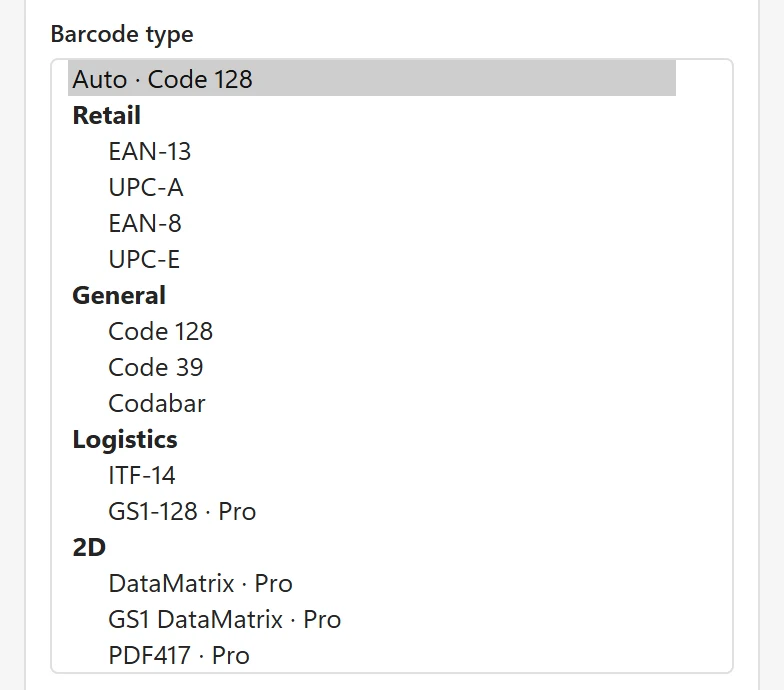
Retail: EAN-13, UPC-A, EAN-8, UPC-E #
These carry a GTIN, the number that identifies a product at the checkout. Use them when the number came from GS1 or from your retailer; see Do I need numbers from GS1? They hold digits only and end with a check digit. EAN-8 and UPC-E are the short forms for small packs. UPC and EAN barcodes for products has the details.
General: Code 128, Code 39, Codabar #
Code 128 is the everyday choice for your own numbers: it holds letters, digits and the usual symbols, up to 80 characters, and is compact. Every common scanner reads it. Code 39 holds digits, capital letters, spaces and – . $ / + %, and is wider; pick it only when a system asks for it. Lower-case letters are offered in upper case (Use upper case). Codabar holds digits and – $ : / . +, and is still used by some libraries and older systems.
Logistics: ITF-14 and GS1-128 #
ITF-14 carries the 14-digit number of an outer carton, with the bearer bars (the frame) that keep it readable on corrugated board. GS1-128 (Pro) carries several pieces of data at once, such as the GTIN, a batch number and an expiry date. See GS1-128 barcodes for cases and pallets.
2D: DataMatrix, GS1 DataMatrix, PDF417 #
The 2D types (Pro) hold much more text in less space: DataMatrix up to 1,500 characters in a small square, including accents, and PDF417 up to 1,000 characters in a wide, stacked barcode. A 2D barcode needs a 2D (imager) scanner or a phone; a laser scanner cannot read it. See DataMatrix and PDF417.
Change the default type #
In Settings, Default barcode type sets the type the Create card starts with. Auto is the default and the best choice for most lists.