
You can turn a column of SKUs, product numbers or codes into barcodes in about a minute: click a cell in the column, check the barcode type and the preview, and click Create barcodes. BarcodePop places one barcode picture next to each value, in the first empty column to the right.
Before you start #
- Put the values in one column, one value per row, with or without a header row above them. Empty rows end the list.
- Type numbers with leading zeros (UPC, EAN, ITF-14) into cells formatted as Text, or with a number format that shows the zeros. See Leading zeros or scientific notation.
- The pane is open: Home tab, BarcodePop group, BarcodePop.
1. Click a cell in the column #
Click any cell in the column of values. BarcodePop reads the whole column around it, down to the first empty cell, and the card shows what it found, for example Values: Products!A2:A51 · 50 values. You do not need to select the range yourself.
- A header row is found by itself and left out. If BarcodePop guessed wrong, tick or untick First row is a header. A header of an Excel table always counts as the header.
- If you select several columns, BarcodePop uses the first one and says so: Several columns are selected. BarcodePop uses the first one, column A.
- Hidden rows are left out (3 hidden rows are left out.), and in a filtered list only the visible rows are used (Filtered list: only the visible rows are used.).
- BarcodePop reads up to 5,000 values at a time; the card says where it stopped.
2. Check the barcode type #
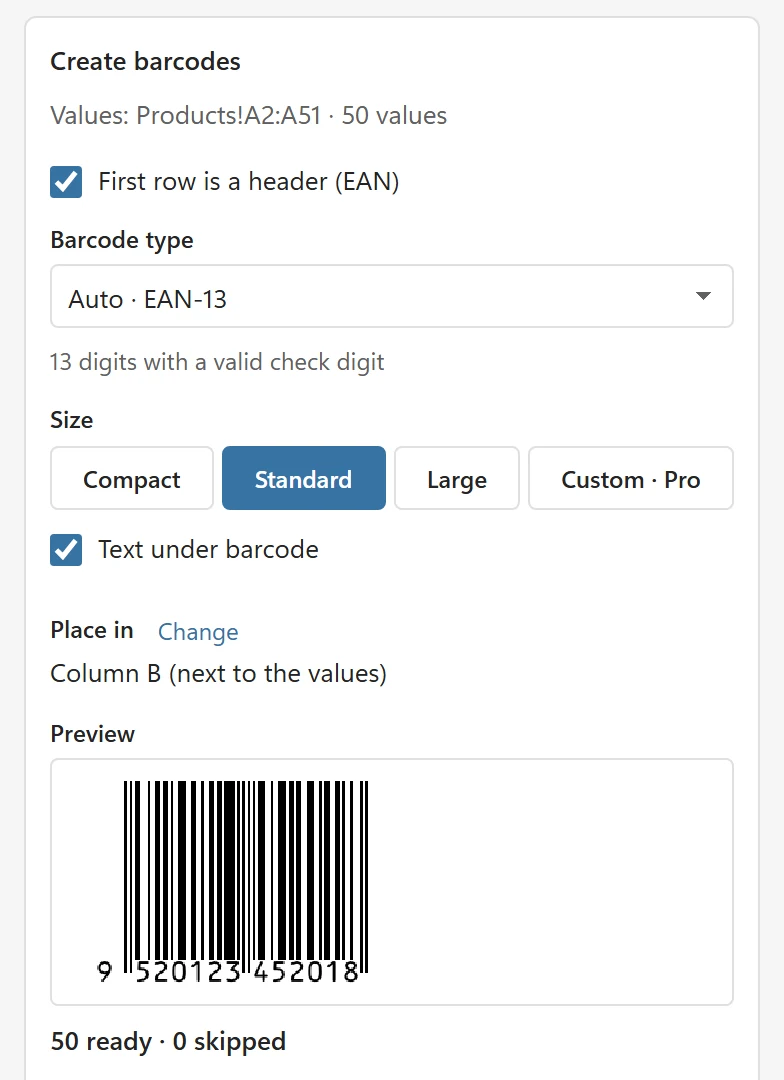
The Barcode type list starts with the automatic choice, for example Auto · EAN-13, and for a digit type the reason under it, for example 13 digits with a valid check digit (Code 128 needs no reason line). The rules are simple: 13 digits with a valid check digit become EAN-13, 12 digits UPC-A, 8 digits EAN-8, 14 digits ITF-14, GS1 data in parentheses GS1-128 (Pro), and everything else Code 128. You can always pick another type from the list; the types are grouped as Retail, General, Logistics and 2D. Choose the right barcode type explains when to use which.
3. Check the size and the text #
Under Size, Standard suits most uses; Compact makes narrower barcodes for small cells and shelf labels, and Large bigger ones for warehouse scanning. Text under barcode prints the value under the bars. Print barcodes from Excel gives the exact sizes.
4. Check where the barcodes go #
Place in shows the column for the barcodes, for example Column B (next to the values): the first empty column to the right of your values. To use another column, click Change, then click a cell in that column (Click a cell in the column for the barcodes.), or click Cancel.
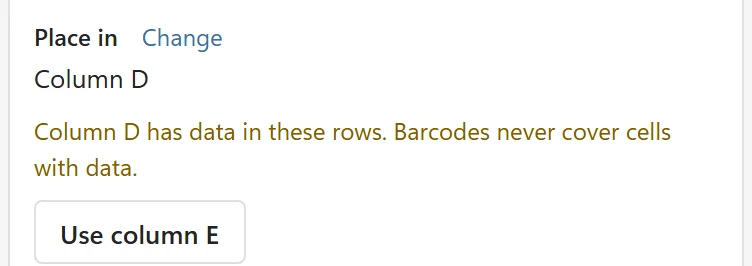
Barcodes never cover cells with data. If the column you chose has data in the rows of your values, the card says Column D has data in these rows. Barcodes never cover cells with data. and offers Use column E, the next empty one.
5. Check the preview #
The Preview shows the first barcode at its real proportions and a summary, for example 48 ready · 2 skipped. Every value is checked before anything is drawn. Rows that would not give a good barcode are listed under Skipped rows with the reason, for example Row 7: the check digit should be 3, not 5. Click a row to select that cell in the sheet and fix it. Empty cells are skipped quietly and counted (48 ready · 2 skipped · 3 empty).
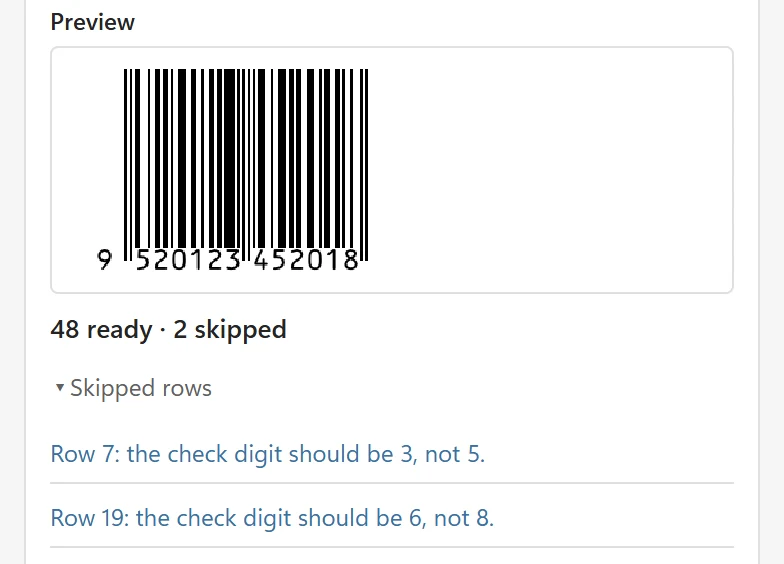
BarcodePop never changes a value to make it fit. A wrong check digit is skipped, not corrected, because the right digit may be a typo somewhere else in the number.
6. Click Create barcodes #
Click Create barcodes. BarcodePop draws the barcodes, places one picture in the middle of the cell next to each value, and raises the row height and the column width where a picture would not fit (it never makes them smaller). The status line says, for example, Created 48 barcodes in column B · 2 skipped.
What you get #
Each barcode is a picture that belongs to its cell: it moves with the cell when you insert rows or columns, and it is never stretched. Its alt text names the type and the value, for example Barcode EAN-13: 9520123452018. The new set appears under Barcodes in this workbook, the card right under the Create card, with the sheet, the column, the type and the count, and the buttons Update, Remove and Select.
When the values change or you sort the list, see Update barcodes after changes. On the free version a workbook holds up to 50 barcodes; see Plans and licensing.