
Barcodes made with BarcodePop remember the values they belong to. When you change a value, add rows, delete rows or sort the list, click Update on the set and BarcodePop brings the barcodes back in line: new values get a barcode, changed ones are redrawn, barcodes of deleted values are removed, and the rest are moved next to their values. Nothing else on the sheet is touched.
Steps #
- Change your values as usual: edit cells, add rows below the list, delete rows, sort or filter.
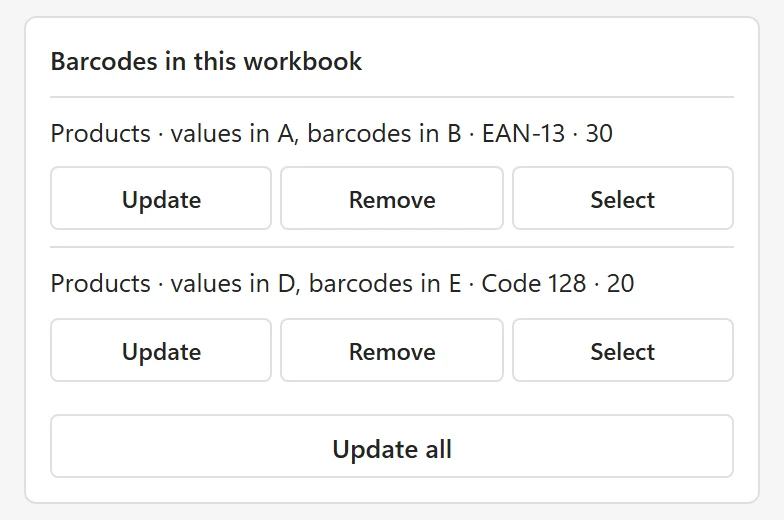
- In the pane, find the set under Barcodes in this workbook, the card right under the Create card. Each row shows the sheet, the columns of the values and of the barcodes, the type and the count, for example Products · values in A, barcodes in B · EAN-13 · 50.
- Click Update on that row. With more than one set, Update all updates every set.
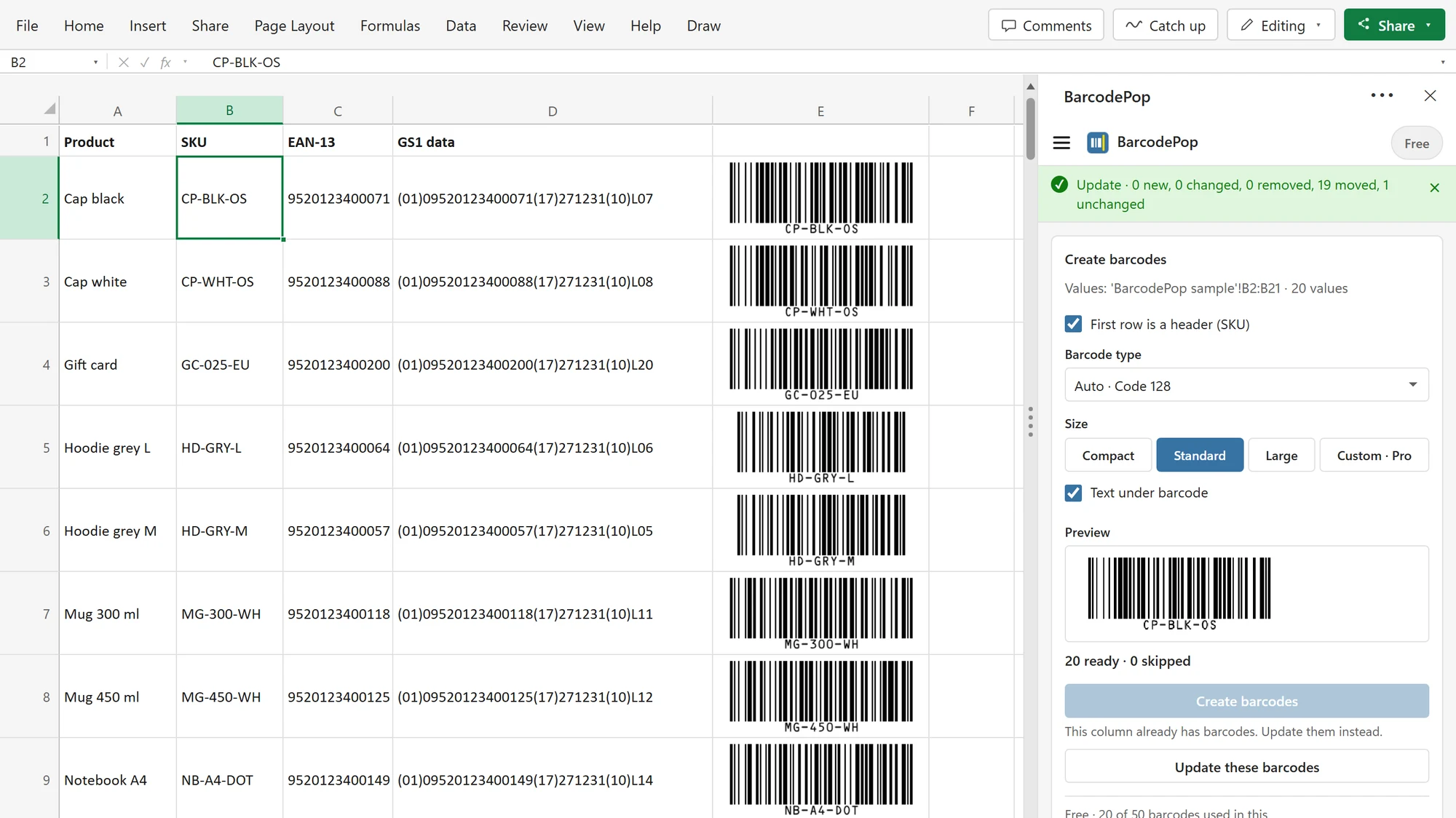
The status line says what happened, for example Update · 3 new, 2 changed, 1 removed, 44 unchanged. After a sort it also counts the moved barcodes: Update · 0 new, 0 changed, 0 removed, 50 moved, 0 unchanged.
What Update does #
- Changed values: the old picture is deleted and a new one is drawn. Only those rows are redrawn, so Update is quick even on a long list.
- New rows directly below the list, with no empty row in between, become part of the set and get a barcode.
- Deleted values: their barcodes are removed. A barcode you deleted by hand is drawn again.
- Sorting: each barcode is moved back next to its own value. The pictures move with their cells when you insert rows or columns, so most edits do not even need an Update.
- Filtered rows: barcodes of hidden rows are left alone.
- Update uses the type, size and text setting the set was created with.
How it works in the Create card says it in one line: Update redraws what changed, also after a sort or filter. On the free version, Update never counts a barcode twice: a redrawn barcode replaces the old one.
Change the type or size of a set #
Update keeps the settings of the set. To use another type or size, remove the set and create the barcodes again with the new settings.
Find a set #
Select on a set row goes to the sheet of the set and selects its values, so you can see which list it belongs to. If the values of a set are gone (for example, their rows were deleted), the row says The values of this set are gone. Remove the set to tidy up.