
To delete the barcodes of a column, use Remove on its set. BarcodePop deletes only the pictures it made for that set; your values, other sets and any other pictures, charts or shapes on the sheet stay.
Steps #
- In the pane, find the set under Barcodes in this workbook.
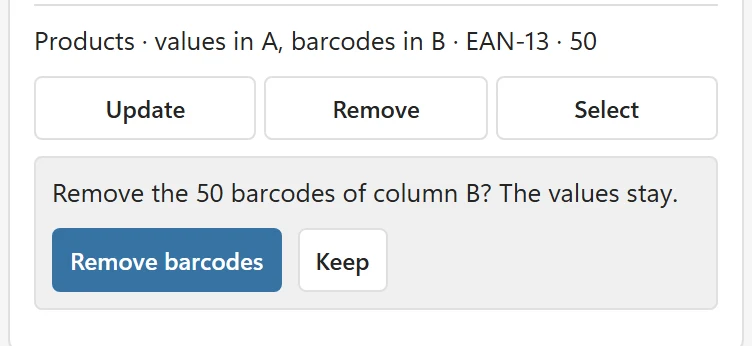
- Click Remove. BarcodePop asks, for example, Remove the 50 barcodes of column B? The values stay.
- Click Remove barcodes to confirm, or Keep to stop.
The status line says, for example, Removed 50 barcodes from column B. The row heights and column widths BarcodePop raised stay as they are; set them back with Home > Format if you like.
Good to know #
- Remove also deletes the workbook name BarcodePop kept over the values (it starts with
BarcodePop_) and the set’s entry in the workbook, so nothing is left behind. - On the free version, removing a set frees its barcodes from the count of 50 per workbook.
- Deleting single barcode pictures by hand works too, but Update draws them again while the set exists. To get rid of a set for good, use Remove.