
Save as images (Pro) saves one image file per barcode, named after its value, in a ZIP file together with a CSV list. Use it when the barcodes go into label software, a design program, a web shop or to a print shop.
Formats #
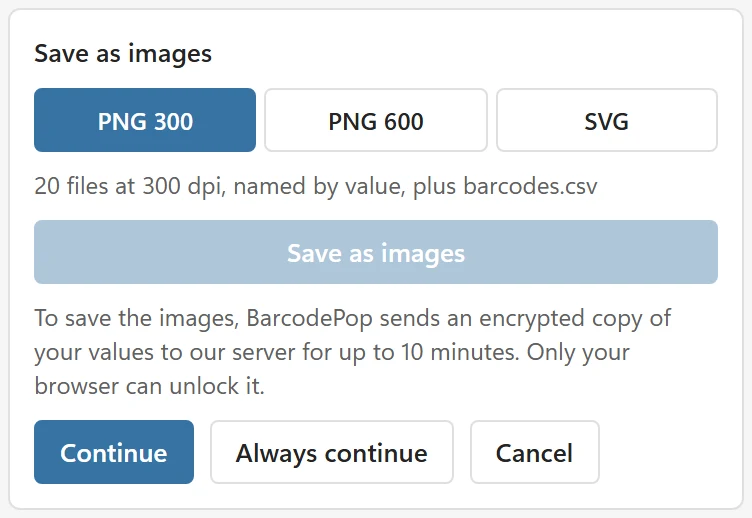
- PNG 300 (300 dpi): for most printing and label software.
- PNG 600 (600 dpi): for high-resolution printers and large prints.
- SVG: a vector file that stays sharp at any size, for design programs.
Each file is named after its value, with characters that are not allowed in file names replaced; duplicates get -2, -3 and so on. The ZIP also holds barcodes.csv with the file, value, type and row of each barcode. Opening it with a double-click in Excel drops leading zeros and shows long numbers like 9.52E+12; to keep them exact, use Data > From Text/CSV and set the column to Text, or open it in a text editor. The bars are drawn exactly like the pictures in the sheet, at the size you chose.
Steps #
- Click a cell in the column of values and set the type and size as for Create barcodes.
- In the Save as images card, the last card of the pane, choose the format. The line under the formats says what you get, for example 20 files at 300 dpi, named by value, plus barcodes.csv.
- Click Save as images.
What happens next depends on where you use Excel. Up to 5,000 barcodes go in one export. On the free version the card is one button, Save as images · Pro, which opens the Free and Pro view.
On Excel for the web #
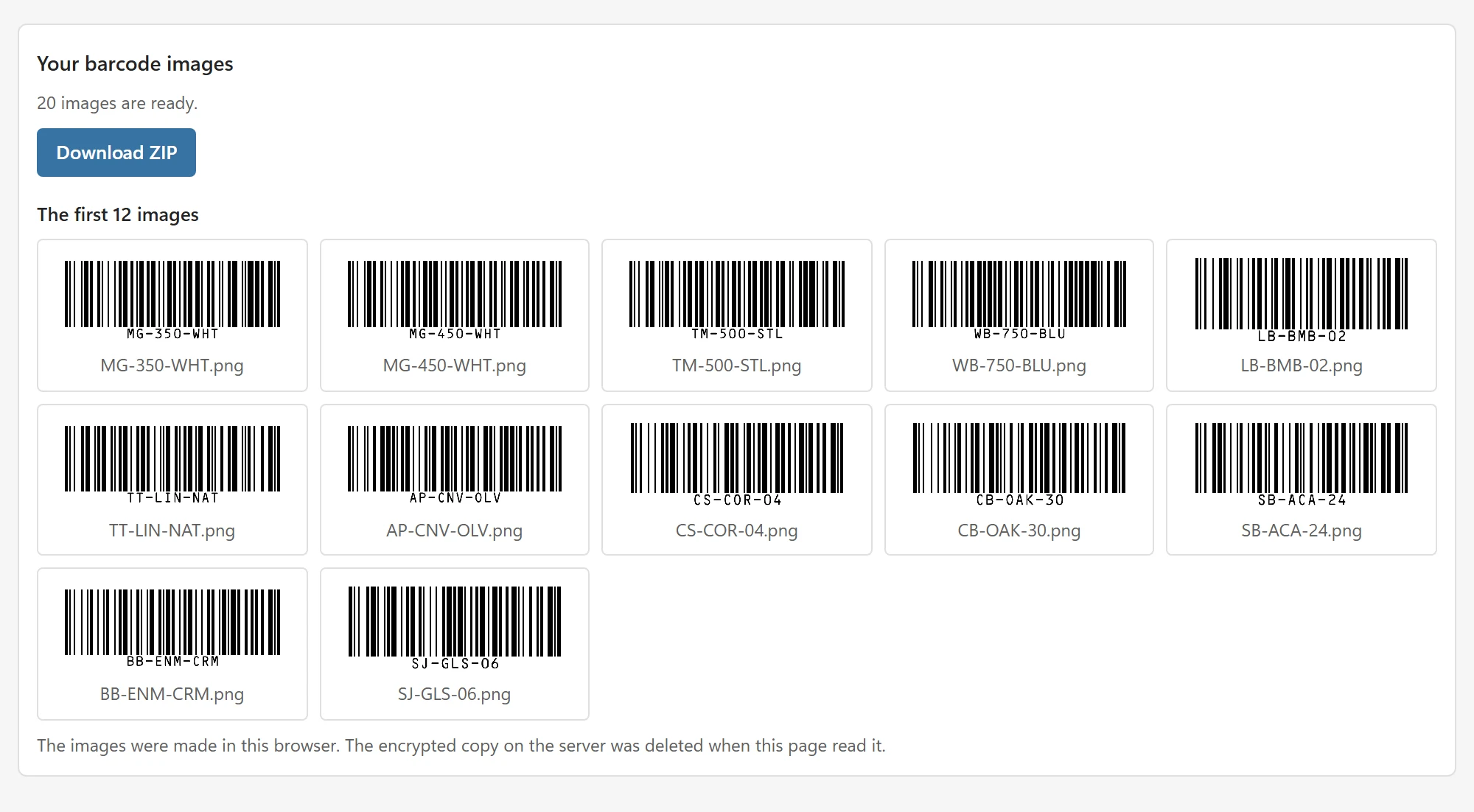
BarcodePop builds the ZIP in your browser and downloads it. Nothing is uploaded. The status line says, for example, 20 images saved in BarcodePop barcodes 2026-11-12.zip. If your browser does not start the download, click Download ZIP in the card.
On Excel for Windows and Mac #
The desktop apps cannot save a file from inside the pane, so BarcodePop opens an export page in your default browser, which makes the ZIP there. The first time, BarcodePop shows a short notice: To save the images, BarcodePop sends an encrypted copy of your values to our server for up to 10 minutes. Only your browser can unlock it. Choose Continue, or Always continue to go on and not be asked again on this computer.
The export page shows the first barcodes and a Download ZIP button. If no browser window appears, use Copy link and paste the link into any browser. The link works once, for 10 minutes; after that the page says This link has expired. Click Save as images in Excel again. How this works, and why the server cannot read your values, is explained in Where is my data?
If something goes wrong #
- The export service did not answer. Check your internet connection, then try again. The export on Windows and Mac needs the internet.
- This export is too large to send. Save fewer barcodes at a time. Save the list in parts.
- Too many exports in a short time. Wait a minute, then try again.