
EAN-13 and UPC-A are the barcodes on retail products. BarcodePop draws them from the product numbers (GTINs) in your list, checks every check digit, keeps the leading zeros and uses the bar height the standard asks for. It does not issue the numbers; those come from GS1 (see Do I need numbers from GS1?).
Which one #
- EAN-13: 13 digits. The standard outside the US and Canada, and read by checkouts everywhere.
- UPC-A: 12 digits. The usual barcode for retail in the US and Canada. A UPC-A number is an EAN-13 number with a leading 0.
- EAN-8: 8 digits, for small packs. The number is a separate GS1 number, not a shortened EAN-13.
- UPC-E: 6 to 8 digits, a compressed UPC-A for small packs. It only works for UPC-A numbers with enough zeros in the right places, and it starts with 0 or 1.
Steps #
- Put your product numbers in one column. Type them as text, or format the column as Text before you type, so Excel keeps the leading zeros.
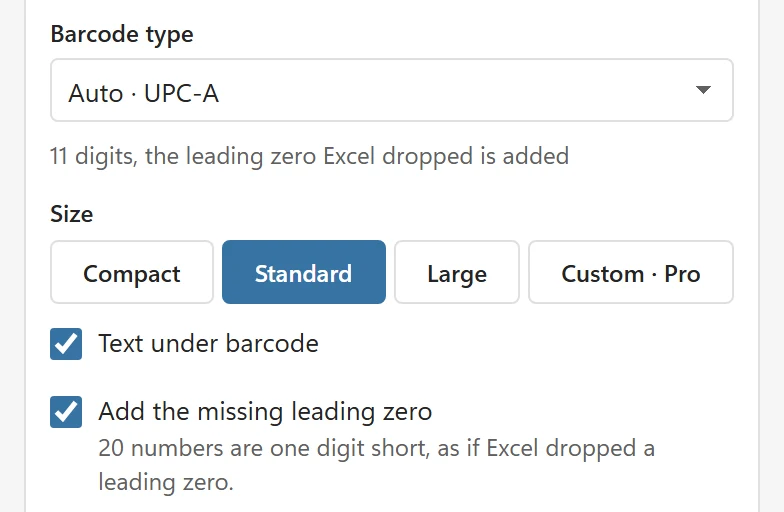
- Click a cell in the column. BarcodePop picks Auto · EAN-13 or Auto · UPC-A with the reason, for example 12 digits with a valid UPC check digit.
- Check the preview and the Skipped rows.
- Click Create barcodes.
Check digits #
The last digit of an EAN or UPC is a check digit, calculated from the others. A scanner uses it to catch a misread, so a barcode with a wrong check digit scans as an error or not at all.
- Numbers with their check digit (13 digits for EAN-13, 12 for UPC-A, 8 for EAN-8): BarcodePop verifies it. A wrong one is skipped with the right digit named, for example Row 7: the check digit should be 3, not 5. BarcodePop never corrects it for you, because the mistake may be in another digit.
- Numbers without their check digit (12 digits for EAN-13, 11 for UPC-A, 7 for EAN-8): choose the type yourself and BarcodePop adds the check digit. A column of 12-digit numbers whose last digit is not a UPC check digit becomes Auto · EAN-13 with 12 digits, the check digit is added.
Leading zeros #
Excel drops the leading zero of a number: 012345678905 becomes 12345678905. BarcodePop notices numbers that are one digit short of UPC-A, EAN-13, ITF-14 or UPC-E and adds the zero back. The card shows the switch Add the missing leading zero with a line such as 20 numbers are one digit short, as if Excel dropped a leading zero. It is on by default. If your numbers have no check digit yet and are simply shorter, turn it off. A number that only verifies without the zero is reported: with the leading zero added, the check digit should be 4, not 1. If these numbers have no check digit yet, turn off Add the missing leading zero.
Long numbers can also be rounded or shown as 1.23E+12. See Leading zeros or scientific notation.
Size for retail #
At Standard, EAN and UPC barcodes get bars of 0.339 mm (about 103% of the nominal size) and the full bar height the standard sets for that size, about 23.5 mm. Large is about 150%. Compact keeps the bars at 10 mm high for shelf labels and small cells; it reads well with most scanners, but use Standard for products that go through a retail checkout. The quiet zones (the white margins left and right) are part of the picture, so keep other things away from its edges. See Print barcodes from Excel.