
How to Send Personalized WhatsApp Messages From an Excel List
To send WhatsApp messages from Excel, keep one row per person with a phone number (with country code) and a first name column. Import the sheet into SendCommander, a Windows app that sends through your own WhatsApp account. Write one message with placeholders, preview each person, send yourself a test, then let it send slowly, one message at a time.
Table of contents
The workflow
Sending WhatsApp messages from Excel takes three parts: you clean up the list in Excel, import it into a sending app, and write one message that pulls names and details from your columns. The app then sends each person their own WhatsApp message from your account, one at a time, at a slow pace.
Pasting the same text into fifty chats is slow. A group chat is worse, because everyone sees everyone else’s number.
The workflow I use has six steps:
- Prepare the Excel sheet: one row per person, clean numbers, a first name column.
- Import the .xlsx or .csv file into SendCommander.
- Write one message with placeholders like
{{first_name}}and a few wording variations. - Preview the exact message each person will get.
- Send yourself a test, then review and send at a slow pace.
- Read the replies and honor anyone who asks to stop.
SendCommander is the Windows app I built for this. It is independent and not affiliated with WhatsApp or Meta. Each message goes out from your own account, so people see your name and number.
The old WhatsApp Blaster template
WhatsApp Blaster, the Excel template from my older video, is now SendCommander, a Windows desktop app. You no longer need Excel or macros to send, but the app still imports your Excel list, so the sheet you already have keeps working.
The template did its job for years, but it needed desktop Excel, a browser driver and constant updates whenever the WhatsApp interface changed. So I moved the sending into a proper app and kept Excel for what it does well, which is holding and cleaning the list.
If you still have the old workbook, your numbers are not wasted. The old sheet used one row per message, often repeating a number for a text row and an attachment row. SendCommander wants one row per person. Delete the repeated rows, save the sheet as .xlsx or .csv, and add attachments in the app.
What you need
You need a Windows 10 or 11 PC, SendCommander from the Microsoft Store, a phone with WhatsApp on Android or iPhone, and your contact list as an Excel, CSV or vCard file. You do not need an API account, approvals or Meta business verification.
Personal WhatsApp and WhatsApp Business both work. There is no API key and no business approval, because the app does not use the WhatsApp Business API. It drives WhatsApp Web inside the app, logged in to your own account. That keeps setup to a few minutes. It also means your account follows the normal WhatsApp rules, so this suits people who already know you, not cold outreach.
The official API is the better fit for a company sending large automated volumes, and it comes with a verification process and costs of its own. If you are not sure which route fits, I compare the options in WhatsApp personal vs Business vs API.
Connect WhatsApp
Open the WhatsApp screen in SendCommander and scan the QR code with your phone, exactly like linking WhatsApp Web in a browser. You do this once. The app then sends from your own account, and your phone keeps working as normal.
- Install SendCommander from the Microsoft Store and open it.
- Open the WhatsApp screen in the left sidebar. It shows a QR code.
- On your phone, open WhatsApp, then Linked devices and Link a device.
- Scan the code. The status turns green once you are logged in.
The WhatsApp window inside the app is locked by default, so a stray click does not land in a chat. If you want to hide your chats while you work, switch on Privacy blur on the same page. Your contacts, templates and send history stay on your PC.
Set up the Excel sheet
Use one header row and one row per person. Put the phone number in its own column with the country code, add a first name column, and add any extra columns you want in the message, such as an appointment time or a city.
| phone | first_name | appointment | city |
|---|---|---|---|
| +12025550123 | Anna | Friday at 10 am | Denver |
| +447700900456 | Daniel | Monday at 2 pm | Leeds |
Short, lowercase headers help, because each extra column becomes a placeholder with that name. Write values the way they should read: “Friday at 10 am” works inside a sentence, 2026-10-02 does not.
Excel drops leading zeros, strips the plus sign and turns long numbers into things like 4.47701E+11. Format the phone column as Text before you paste numbers in. The safest format is a plus, the country code, then the number with no spaces. Local numbers still work if you pick the right country during the import.
Every row is a message that goes out, so clean the list first. Use Data, Remove Duplicates on the phone column, delete rows without a number, and run =TRIM() over the names. Also fix names typed in capitals, since “Hi ANNA” reads like a machine sent it.
Import the list
On the Contacts page, drag your .xlsx or .csv file into the import area. A short wizard asks which column holds the phone numbers and which country local numbers belong to. Every other column you keep becomes a contact detail you can use in the message.
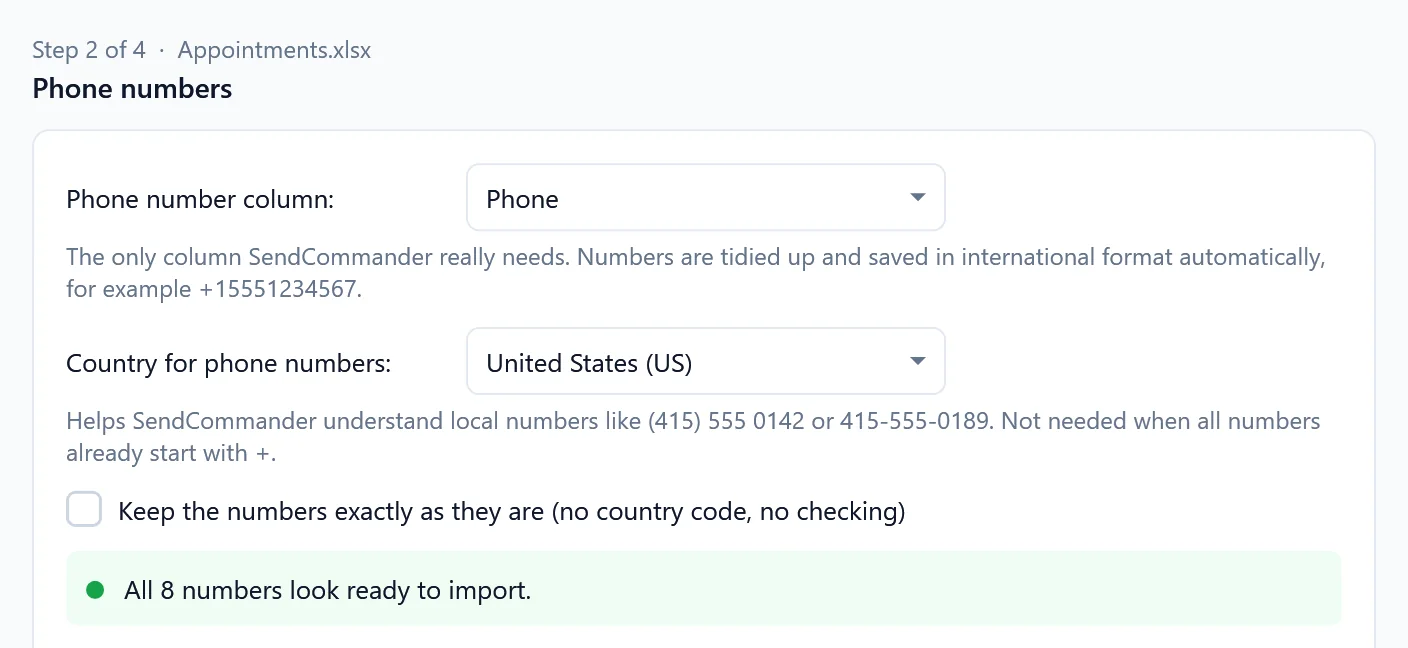
On the Phone numbers step you pick the phone column and the country for local numbers. The green line below tells you how many numbers look ready to import. The validator checks that a number looks correct, not whether it is on WhatsApp.
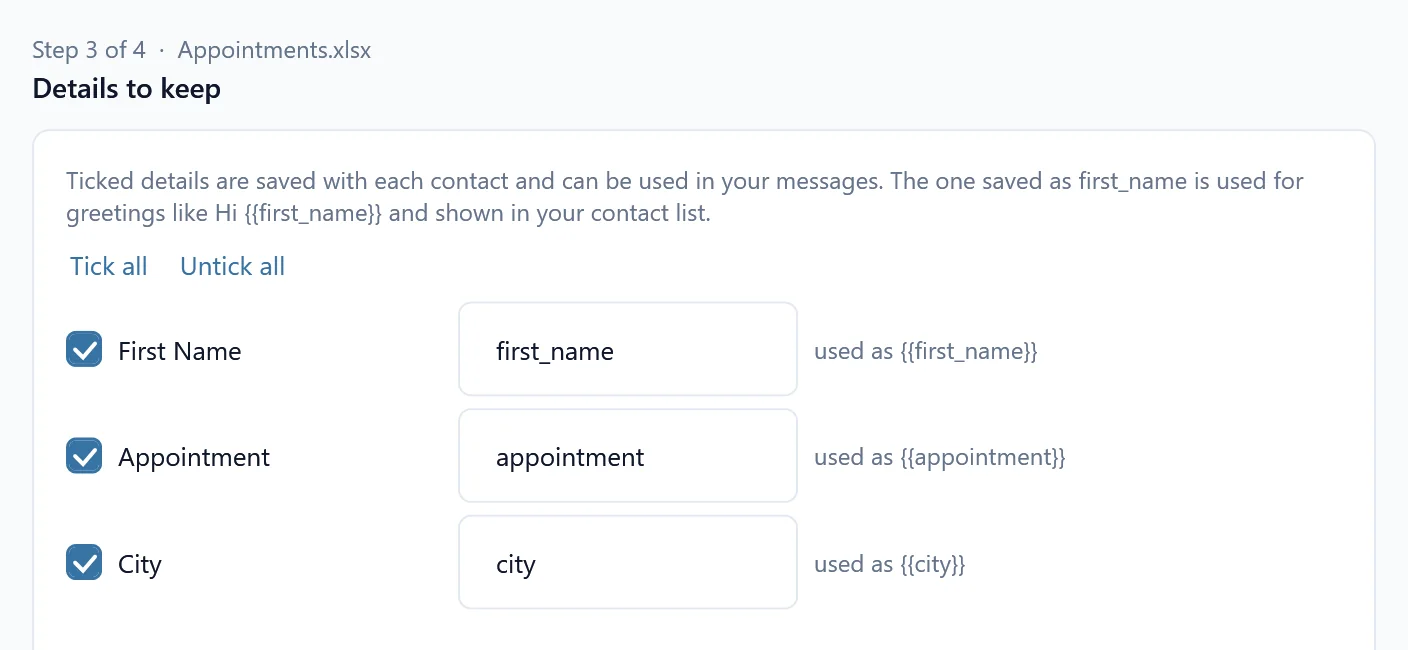
On the Details to keep step, each column you tick becomes a placeholder, and you can put everyone into a list. In this sheet, First Name, Appointment and City turn into {{first_name}}, {{appointment}} and {{city}}.
Without a spreadsheet, Import from WhatsApp on the same page brings in your saved WhatsApp contacts or the members of a WhatsApp group, and you can export them to Excel from there.
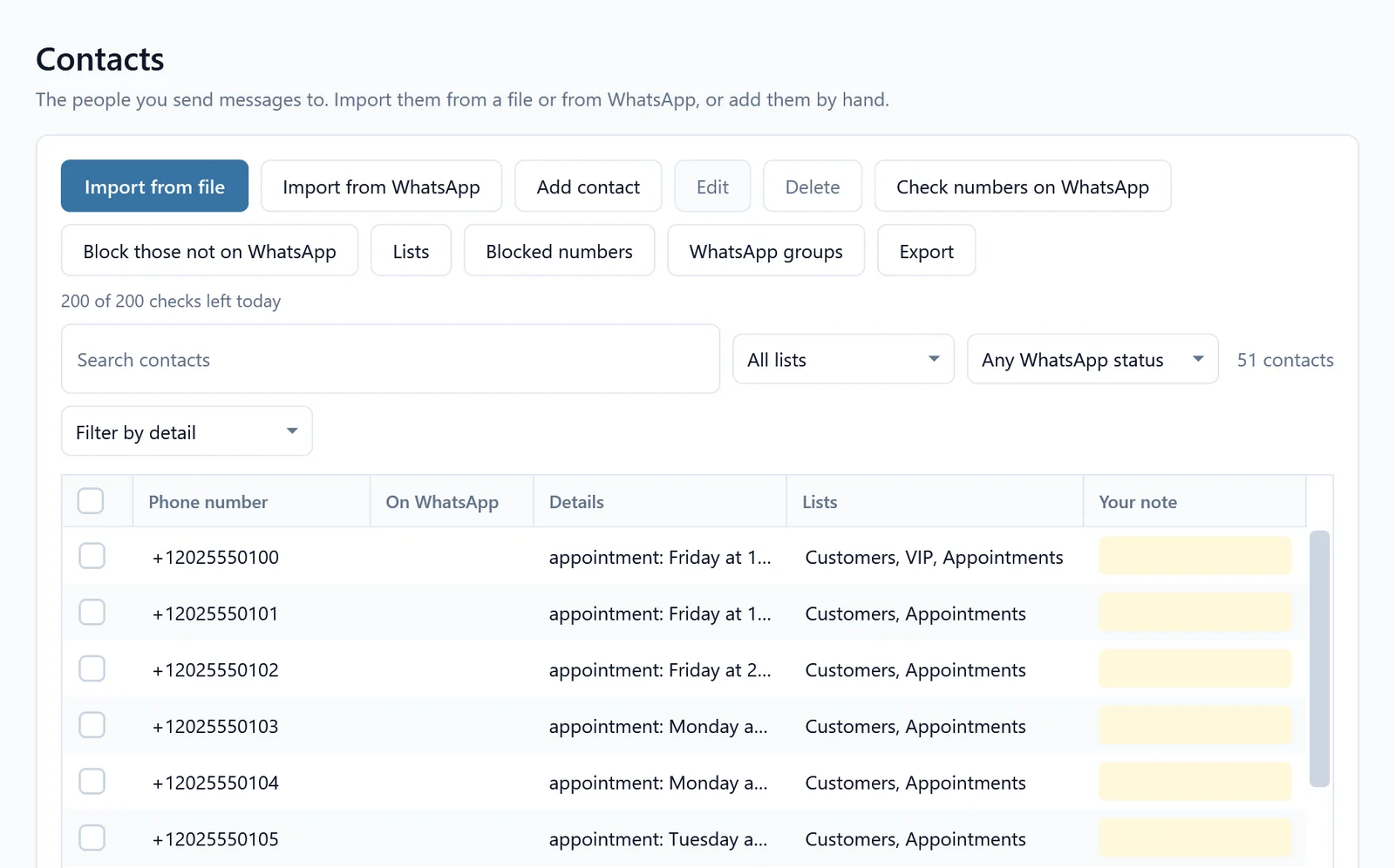
After the import, your sheet’s columns show up in the Details column of the Contacts page, and the Lists column shows where each person belongs. I put each import into its own list, such as “Appointments” or “Workshop”, so I can message one group without touching the others.
Personalize each message
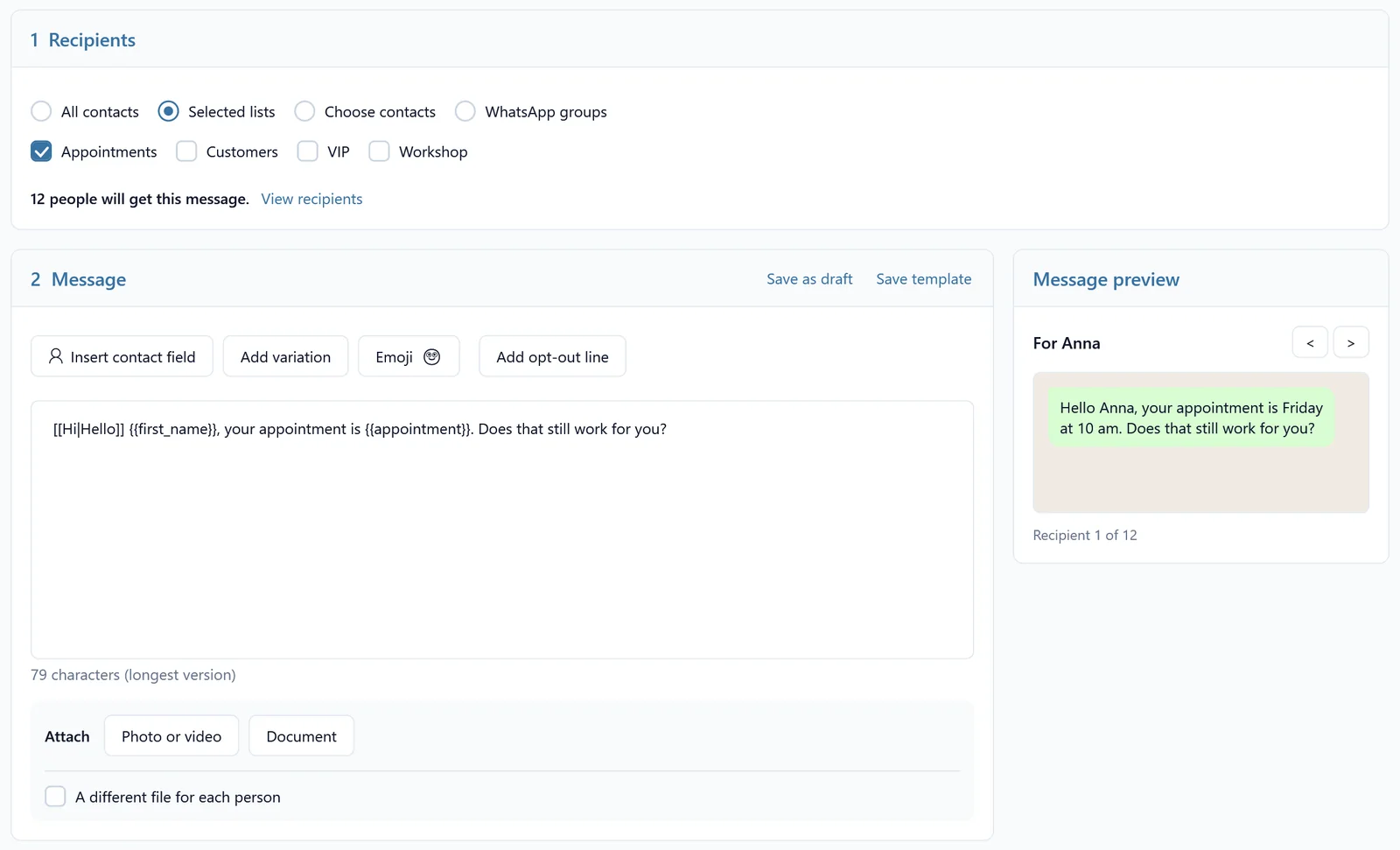
On the Compose page, write one message and use Insert contact field to add placeholders like {{first_name}}. Each placeholder is filled from that person’s Excel column. Add variation mixes the wording, and the live preview shows each person’s finished message.
Under Recipients you pick who gets the message: all contacts, selected lists, contacts you choose by hand, or WhatsApp groups. Above the message box are the writing buttons: Insert contact field, Add variation, Emoji and Add opt-out line. A variation is written like [[Hi|Hello]], and the app picks one option per message.
The message in the screenshot is [[Hi|Hello]] {{first_name}}, your appointment is {{appointment}}. Does that still work for you? The preview on the right is a green WhatsApp-style bubble. For Anna it reads “Hello Anna, your appointment is Friday at 10 am. Does that still work for you?” Click through a few recipients to catch an empty name or an odd date. For people without a name, {{first_name|there}} turns into “Hi there”.
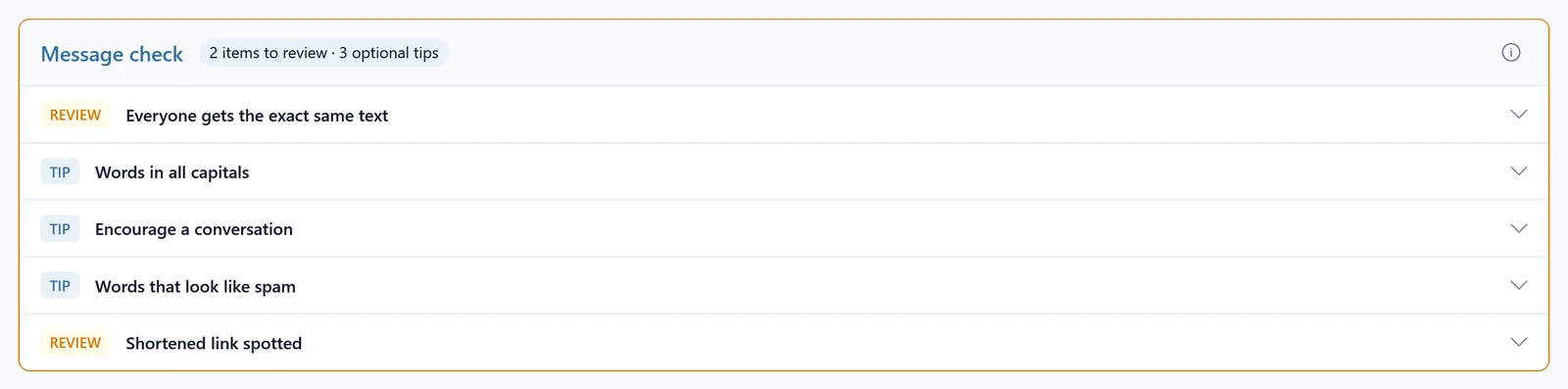
While you type, the message check reviews the draft. The one below is deliberately bad: everyone gets the exact same text, and it contains a shortened link. The check also flags words in all capitals and words that look like spam, and suggests inviting a reply. It is advice, and you can still send.
Attach photos and PDFs
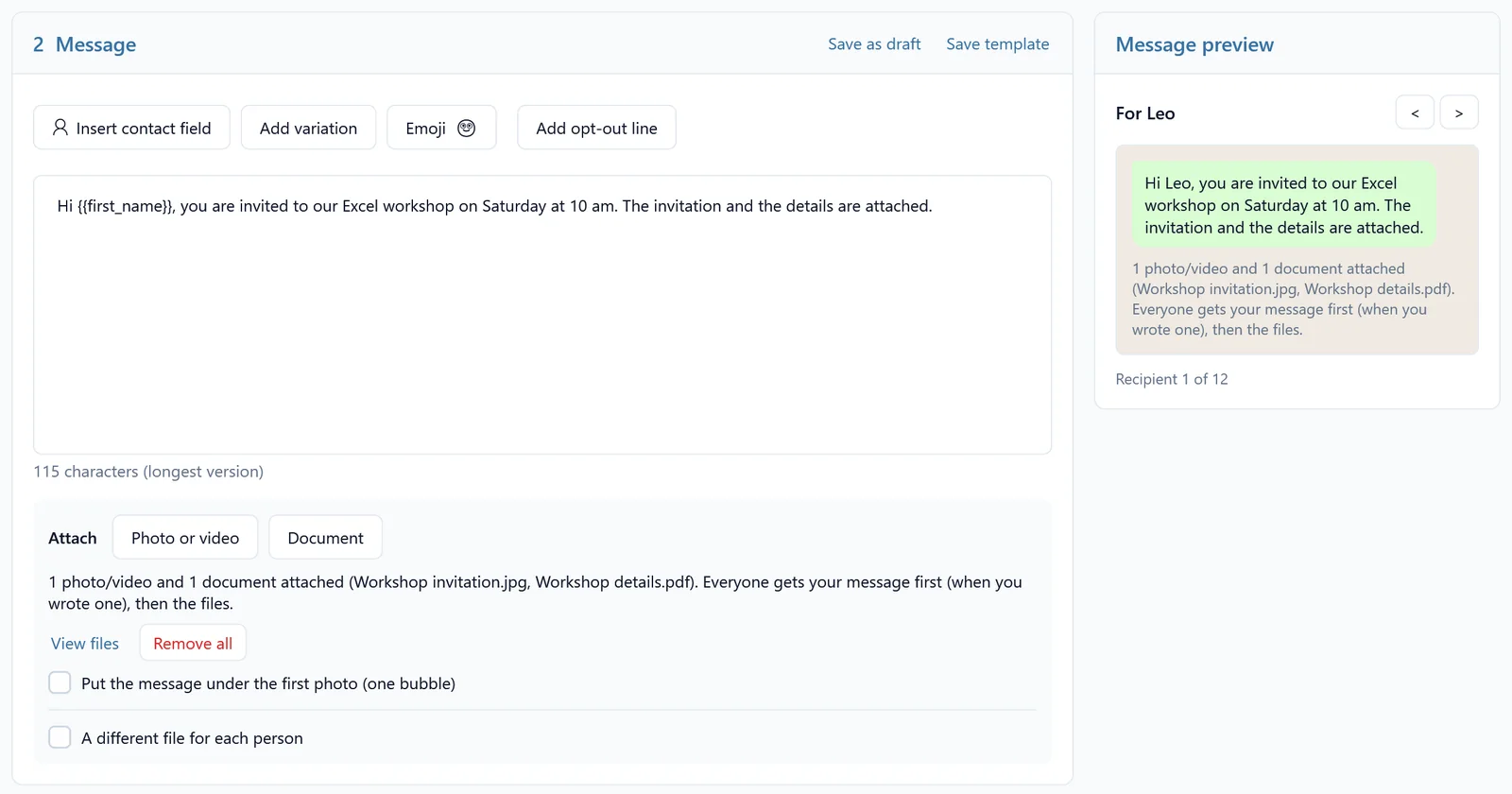
A message can carry photos, videos and documents such as a PDF. Everyone gets the text first and then the files. The preview shows that order before you send, so you can see exactly what each person receives.
In the example, the Attach area holds a photo, Workshop invitation.jpg, and a document, Workshop details.pdf. The preview notes that everyone gets the message first, then the files. If you would rather send the text as the caption of the photo, tick Put the message under the first photo.
Every text and every file counts toward the sending limits below, so a message with two attachments uses three sends. You can also save templates and set a scheduled start time, up to a week ahead. A scheduled start runs from your PC, so the app has to be open at that time. My guide on how to schedule WhatsApp messages walks through it with appointment reminders.
Message examples to copy
Good bulk WhatsApp messages are short, say who is writing and ask for one thing. Here are four I would send: an appointment reminder, an event invitation with a photo, a customer update and a workshop follow-up with a PDF.
Appointment reminder:
[[Hi|Hello]] {{first_name}}, it’s Maria from Bright Smile Dental. Your appointment is {{appointment}}. Does that still work for you? Just reply here if you need a different time.
Event invitation, with the invitation photo attached:
Hi {{first_name|there}}, Tom from Oakridge Tennis Club here. We are holding a summer open day on Saturday from 11 am, and the details are in the picture below. Would you like to bring your family? Reply STOP if you prefer not to get club news.
Customer update:
[[Hi|Hello]] {{first_name}}, this is Sara at Riverside Bikes. Your bike service is done and ready for pickup. We are open until 6 pm today and 9 to 5 tomorrow. Which day suits you?
Workshop follow-up, with a PDF attached:
Hi {{first_name}}, thanks for joining the Excel workshop yesterday. As promised, the slides and exercises are in the PDF below. Which topic would you like me to cover next time?
Sending pace
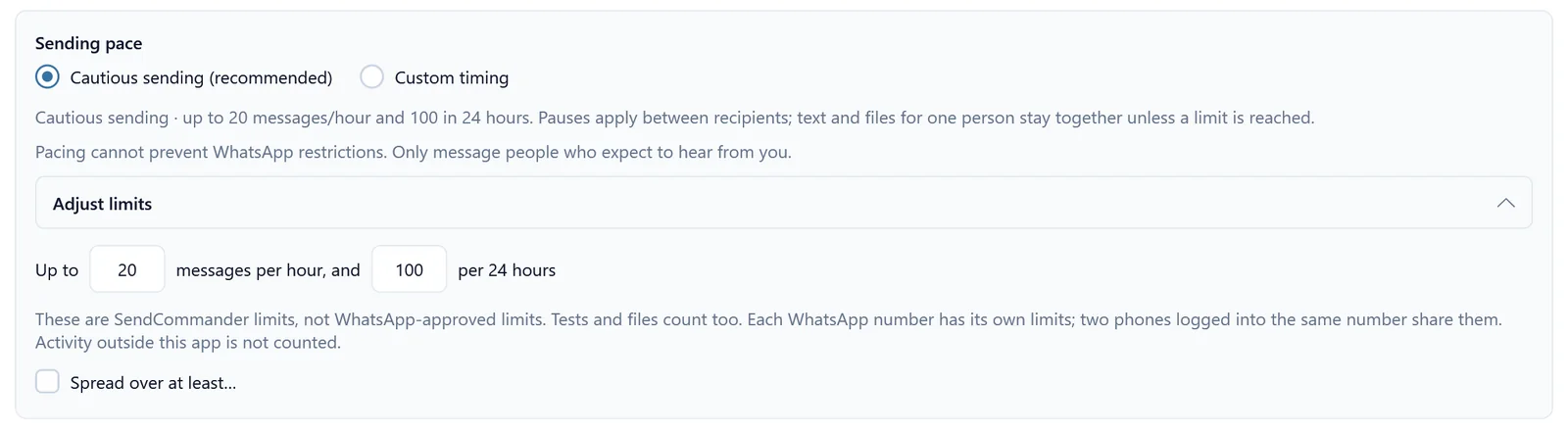
No pace is guaranteed to be safe. SendCommander’s cautious sending waits at least three minutes between messages and caps sends at 20 per rolling hour and 100 per rolling 24 hours for each WhatsApp number. These are app defaults, not WhatsApp-approved rates.
WhatsApp restricts automated and bulk messaging, and pace is only one of its signals. Who you message, whether they expect you and how they react matter as much. Message people who know you, personalize the text, keep the pace slow and respect opt-outs.
Cautious sending is on by default. You can lower the limits or spread the send over more time. Custom timing lets you set your own pause, but it turns the cautious limits off. Manual batches are optional.
The pace lives under Sending options. Cautious sending is selected, and Adjust limits shows the 20 per hour and 100 per 24 hours defaults, which you can lower.
The bottom bar on Compose sums up the send. In the example, WhatsApp is connected, the send reaches 12 people and takes about 34 minutes, with a finish time in your local time. Send myself a test goes to your own number first. Review and send opens a review, and nothing goes out until you confirm.

Keep the app open and the PC awake until the send finishes; minimizing is fine. To estimate a bigger list, try my send planner for pace and daily limits. The guide to sending WhatsApp messages safely covers pacing and wording in more depth.
Replies and opt-outs
Replies arrive in WhatsApp on your phone, like any other chat. SendCommander also collects them on its Replies page, and anyone who replies STOP goes on the block list automatically. You can switch that off in Settings.
Every person gets their own one-to-one message. Nobody sees who else received it, and each reply comes back only to you. That is a big reason people answer. The guide to reading replies and handling STOP covers both pages.
Not everyone writes STOP. If someone writes “please remove me” or “no more messages”, add their number to the block list yourself. Blocked numbers stay in your contacts but are skipped on every future send.
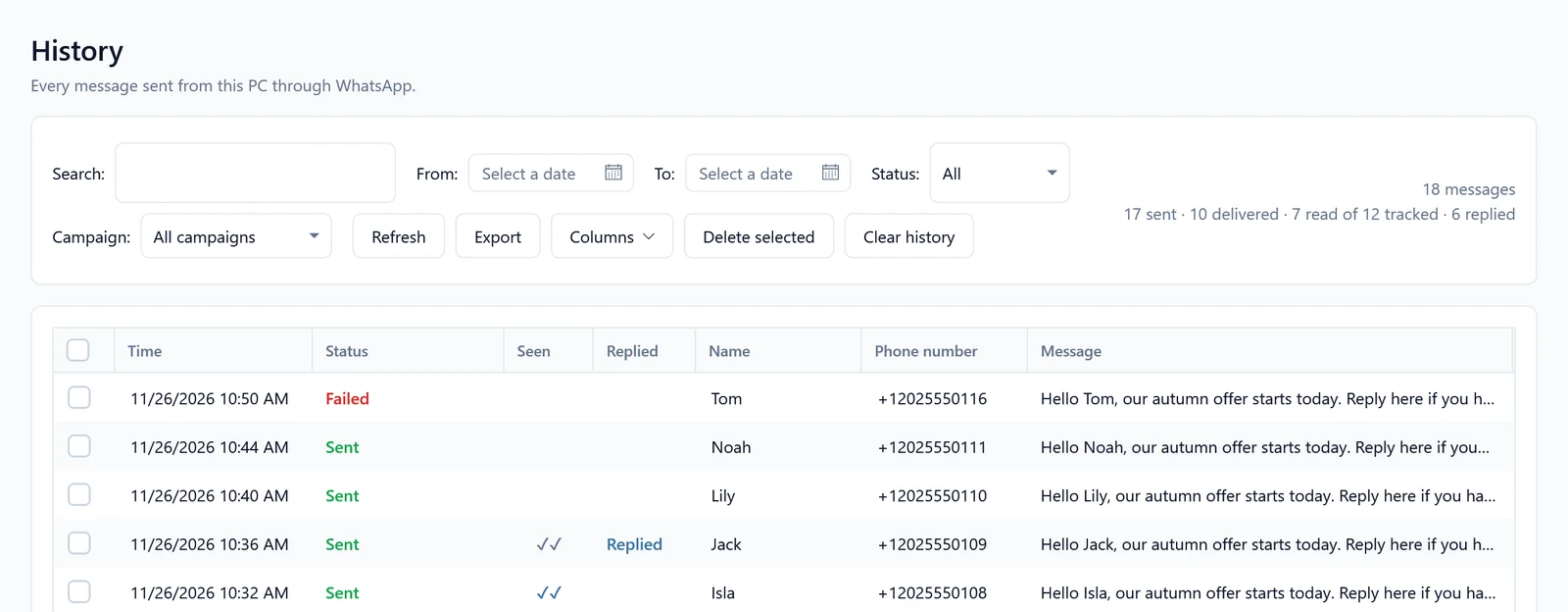
To avoid failed sends, you can check which numbers are on WhatsApp before you start. After a send, numbers that are not on WhatsApp show up on the result screen, and you can block them in one click. History logs every message with a Sent or Failed status. You can filter by campaign and export the list. In the screenshot, the top row failed because Tom’s number is not on WhatsApp. If you would rather let people start the chat themselves, my WhatsApp link generator builds a wa.me link with your message for each number.
If a send is interrupted, for example because the PC went to sleep, the app can restore the people who were not attempted for you to review. It does not resume on its own.
Limits
SendCommander runs on Windows 10 and 11 only, so there is no Mac version. It sends slowly on purpose, needs the app open and the PC awake during a send, and cannot protect your number from a WhatsApp restriction.
- Windows only. No Mac version.
- Slow on purpose. With cautious sending, 100 people take at least five hours.
- No guarantee. No sending mode protects you from a WhatsApp restriction.
- Not every opt-out is a STOP. STOP replies are blocked automatically; any other way of saying no is yours to handle.
- Free up to 100 messages. Every feature works on the free plan; a paid plan removes the limit.
- Not for cold marketing. Message people who expect to hear from you.
If your number does get restricted, read the notice in WhatsApp first. My page on what a WhatsApp restriction means explains what to check. For every screen of the app, see the SendCommander documentation.
The download includes 100 messages with every feature, once per computer, so you can test it with your own Excel list before you buy. Paid plans come with a 14-day money-back guarantee. If your list needs plain SMS instead, the same workflow works for bulk SMS from an Excel list, and my real estate texting guide shows it with buyer and open house lists.
Import your Excel list, personalize every WhatsApp message from its columns, and send from your own account at a slow, steady pace from your Windows PC.