
When people answer your messages, you want to see it, and when someone asks to stop, you want that respected. The Replies page collects the answers in one place and blocks people who reply STOP, so they are skipped on every later send. Both are free.
The Replies page #
Open Replies in the left sidebar. It lists what people answered to the messages you sent: the person, their reply, the campaign, and when it arrived. A number next to Replies in the sidebar shows how many replies are still waiting for you.
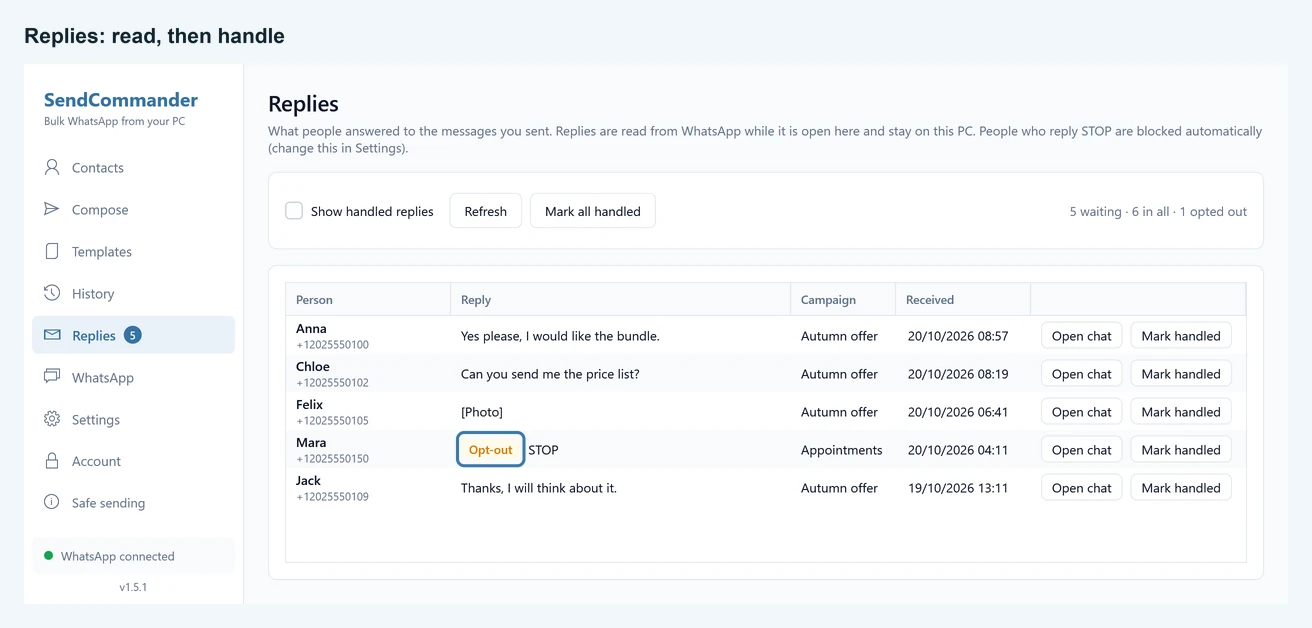
- Open chat shows that person’s chat on the WhatsApp screen so you can answer. Nothing is typed or sent for you. It does not work while a send is running or while WhatsApp is not connected. The page then tells you what to do.
- Mark handled takes a reply off the waiting list. Mark all handled does this for every reply. Handled replies stay in the list: tick Show handled replies to see them, and use Mark as open to put one back.
- Refresh reloads the list.
- An Opt-out tag marks replies that were a stop word.
Photos, voice messages and other media show as a short label such as [Photo] or [Voice message]. Their content is not stored.
History has a Replied column too, and the totals line there and on the finished card says how many people replied. See Delivered and read.
Who counts as a reply #
SendCommander keeps a reply only when it comes from a one-to-one chat with a person you messaged in the last 30 days. Messages from anyone else, and from groups, are never stored. Replies are read from WhatsApp while it is open in SendCommander. A message that arrived while the app was closed is found when WhatsApp holds it after you open the app, so check WhatsApp itself for anything important.
How STOP works #
With Automatically block people who reply STOP on, the number goes on your block list as soon as the reply arrives, with the reason Replied STOP. Every later send skips that person, even one that is already running. You can see and remove the entry under Contacts and Blocked numbers.
Only a reply that is exactly one of the stop words counts. Upper or lower case does not matter, and a trailing ! or . is ignored, so Stop! works. A longer message that contains a stop word, like “don’t stop” or “bus stop”, never counts: it is an ordinary message. Only text messages can opt someone out.
The words SendCommander starts with, by language, are:
- English:
STOP,STOP ALL,UNSUBSCRIBE - German:
STOPP,ABMELDEN - Spanish:
BAJA,CANCELAR - French:
ARRET,ARRÊT - Portuguese:
PARE
Messages that ask to stop in other words, such as “please remove me”, are not recognised unless you add that exact wording as one of your own stop words (see below). Otherwise, read them on the Replies page and add those numbers to your block list.
Change the stop words or the blocking #
Open Settings and find the Replies section. The Stop words line tells you how many words are active, for example Stop words: 12 active (2 of your own).
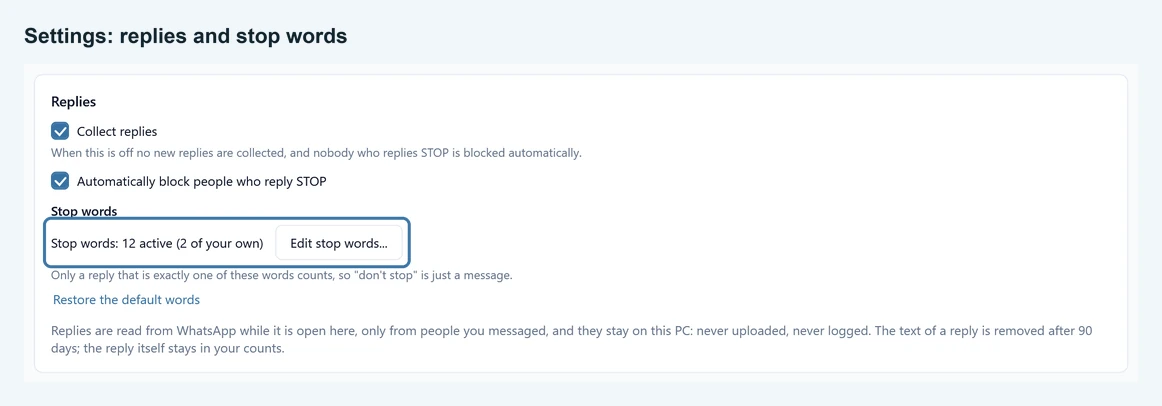
- Edit stop words… opens the Stop words window, described below.
- Restore the default words puts the original list back: every built-in word is on again and the words you added are removed.
- Automatically block people who reply STOP: untick it to only see the replies and decide yourself. Replies are still tagged Opt-out on the Replies page.
In the Stop words window:
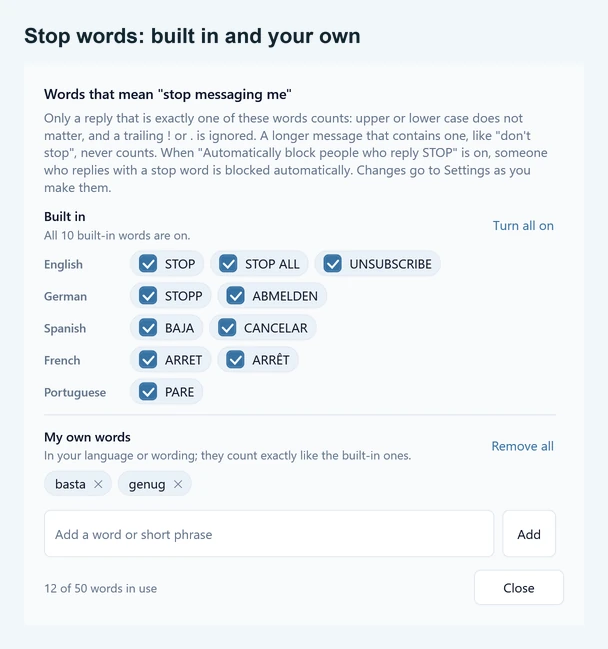
- Built in lists the words SendCommander starts with, grouped by language. A ticked word counts, and you can untick any word you do not want. Turn all on ticks every built-in word again.
- My own words are for your language or wording. Type a word or short phrase in the box, then click Add or press Enter, for example
bastaorgenug. One word at a time. Click the ✕ next to an own word to remove it, or Remove all to clear them. - The line at the bottom, such as 12 of 50 words in use, counts the words that are on. 50 is the limit. Own words follow the same matching rule as the built-in ones, so an own word only matches a reply that is exactly that word or phrase.
- Every change is applied as you make it and saved like any other setting. Close just closes the window.
The Add opt-out line button on Compose adds a sentence such as “Reply STOP to opt out” to your message. It uses the default word STOP, so keep STOP ticked if you use it.
Turn collecting replies off #
Untick Collect replies in the same section to stop SendCommander from reading replies at all. Then nothing is listened to or stored, no new replies appear, and nobody who replies STOP is blocked automatically. You would need to check WhatsApp for opt-outs yourself.
When you switch it on again, only replies that arrive from then on are collected. Replies from the time it was off do not appear later. Replies you already have stay in the list.
Where replies are kept #
Replies stay on your PC. They are never uploaded and never included in logs or support reports. The text of a reply is removed after 90 days. The reply itself stays in the list, marked (text removed after 90 days), so your counts and the Replied marks keep working. This cleanup runs even when collecting is off.
Automatic blocking helps, but it does not replace your own judgement. Check the Replies page regularly and respect every request to stop, whatever the wording. See sending safely.