
Some messages need a file that belongs to one person: an invoice, a certificate, a ticket or a personal report. A different file for each person lets you send all of them in one campaign. Each contact gets the file named in their own row. This is a Pro feature.
Add a file column to your contacts #
Add one more column to your contact file, for example Attachment, and import it like any other detail. Each cell holds the file for that person:
- a full path, such as
C:\Invoices\Mueller.pdf, or - just a file name, such as
Mueller.pdf. SendCommander then looks for it in the folder you choose on Compose.
To send more than one file to a person, separate the files with a semicolon: Invoice-1042.pdf;Terms.pdf.
Importing a file with a new column works the same as in Getting started. If your contacts are already in SendCommander, import the file again and choose Update for numbers you already have, so the new column is added to them. When your contacts have no extra column yet, the section in Compose says so and offers Import contacts and How it works.
Turn it on in Compose #
- Choose your recipients and write your message as usual.
- In the Attach area, tick A different file for each person.
- Under Column with the file, pick your column. Columns that look like file names are listed first and marked (looks like files).
- If your cells contain only file names, click Choose folder next to Folder with the files (optional) and pick the folder that holds them. Click Clear to remove it. You do not need a folder when every cell has a full path.
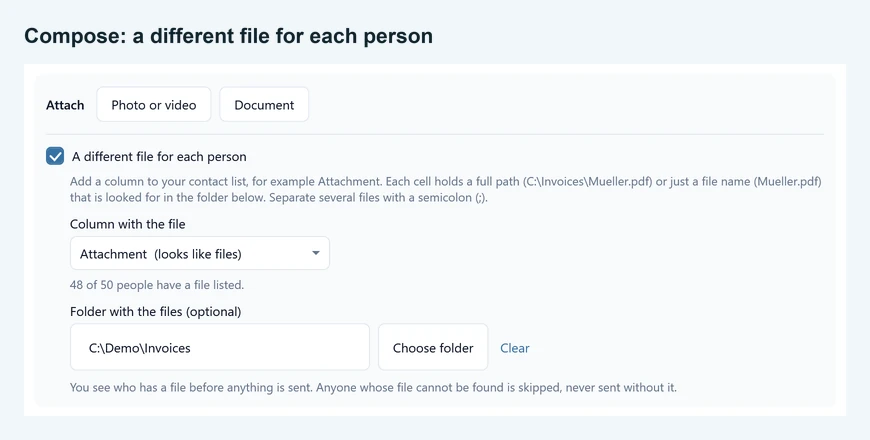
Compose shows a quick count such as “48 of 50 people have a file listed”. It only counts the cells. It does not open any file yet.
The message preview shows which file the person on screen would get. Use the preview arrows to check a few people. If a file cannot be found, the preview says so and tells you that person would be skipped.
This option is for people, not for WhatsApp groups. A group message goes to everyone in the group, so the option is hidden when you send to groups.
Review before anything is sent #
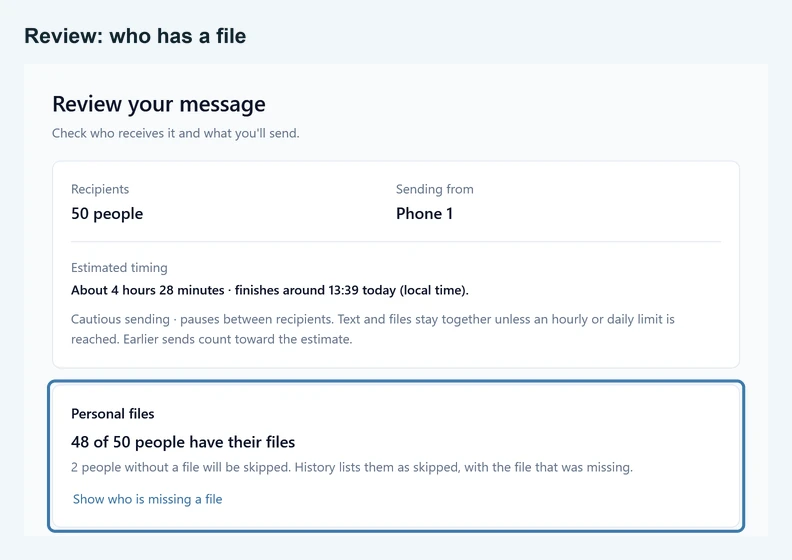
When you click Review and send, a Personal files card shows how many people have all their files, for example 48 of 50 people have their files. If some are missing, it says that those people will be skipped. Click Show who is missing a file to see their names and the files that could not be found. The confirm button also shows how many people will be skipped.
Use the arrows in the review to see each person’s message together with their own files. Personal files are listed after the shared attachments, which is also the order they are sent in.
When a file is missing #
Nobody gets a message without their file. A person whose file is missing is skipped. History lists them as Skipped and names the file that was missing, so you can fix the cell or the file and send to them later.
SendCommander checks again right before each person’s turn. If a file was moved or deleted while the campaign was waiting, that person is skipped instead of receiving the message alone.
These cases count as missing:
- the cell is empty, or no file with that name exists,
- the cell has only a file name and you have not chosen a folder,
- the name points outside your chosen folder, for example with
..in it, - the file is empty or larger than 2 GB.
Combine with shared attachments #
You can also attach files that everyone gets, such as terms or a price list, with Photo or video or Document. Each person receives your message first, then the shared attachments, then their own files. A file that is both shared and personal is sent once.
Photos and videos go as photos and videos. Everything else, such as PDF, Word and Excel files, goes as a document. Very large videos, over 64 MB, also go as documents.
Good to know #
- Every file counts towards your cautious sending limits, like any attachment. More files per person means a longer send. The estimated finish time on Compose includes them.
- Send myself a test uses the files of the person shown in the preview, so you can check a real file without contacting that person.
- The files stay on your PC until the moment they are sent to WhatsApp. Nothing is uploaded anywhere else.
- Keep the files in place until the campaign is finished. If a file is not available when its turn comes, the person is skipped.