
If your business already uses more than one WhatsApp number, SendCommander can send one campaign from several of them, in turns. Each number keeps its own cautious limits, so adding a number adds capacity without pushing any single number harder. This does not get around WhatsApp’s limits and it does not make sending safe. See Sending safely.
When this helps #
- You have a sales number and a support number, and a campaign should come from whichever one the customer already knows.
- Several staff members each use their own business phone, and one list should be shared between them.
- A single number reaches its daily limit before the list is finished, and you already have other numbers you use for real conversations.
It does not help if you only have one number. It is also not a reason to open new numbers just to send more. A new number has no history with your customers, so start it small (see below).
Link the phones #
- Open the WhatsApp screen in the left sidebar.
- Click Add phone. A new QR code appears.
- On that phone, open WhatsApp > Linked devices > Link a device and scan the code. You scan once per phone; SendCommander keeps each one logged in for next time.
- Repeat for every phone you want to use. There is no limit on how many you link.
- Check the number line for each phone on the WhatsApp screen. It shows the phone’s number and how many messages it sent in the last 24 hours. Make sure each phone shows its own number.
Trouble with a QR code? See Login issues.
Send in turns #
Once two or more phones are linked, Compose > Sending options shows a Send from choice. With only one phone linked, it is not shown.
- One phone sends the whole campaign from the phone you pick.
- Several phones, in turns shows a checkbox for each phone, with its number and how many messages it has left today. Tick at least two. Two phones that are logged in to the same WhatsApp number cannot both be ticked.
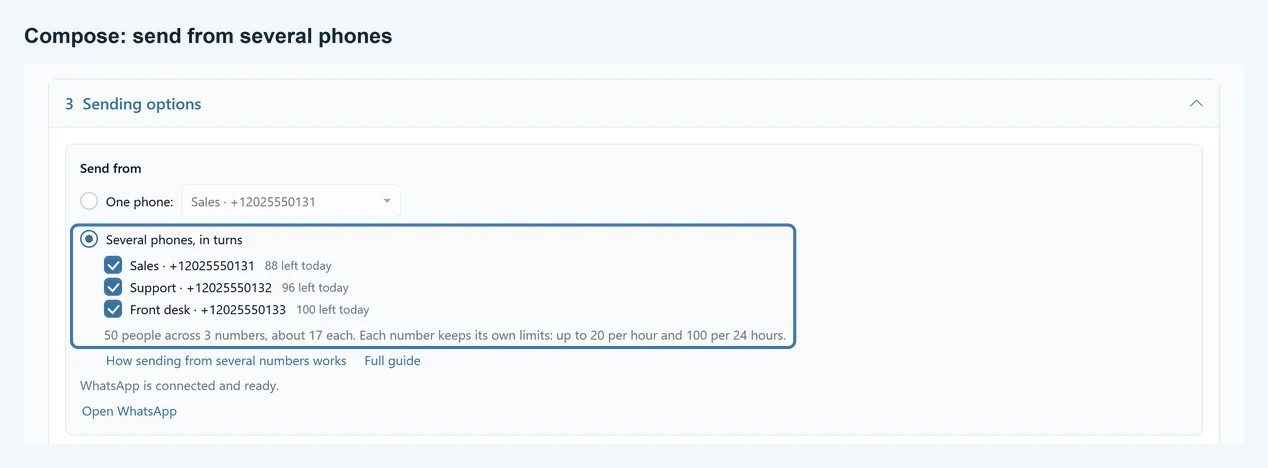
While the campaign runs, SendCommander switches the WhatsApp screen between the ticked phones by itself, between messages. A switch takes a few seconds, so a send from several phones is not faster per message. It finishes sooner overall only because each number can keep sending within its own limits. Leave the app open and the PC awake. If you open another page during the run, SendCommander brings the WhatsApp screen back when it is time to switch phones.
Groups are always sent from one phone, because another phone may not be in the group. To send to groups, choose One phone.
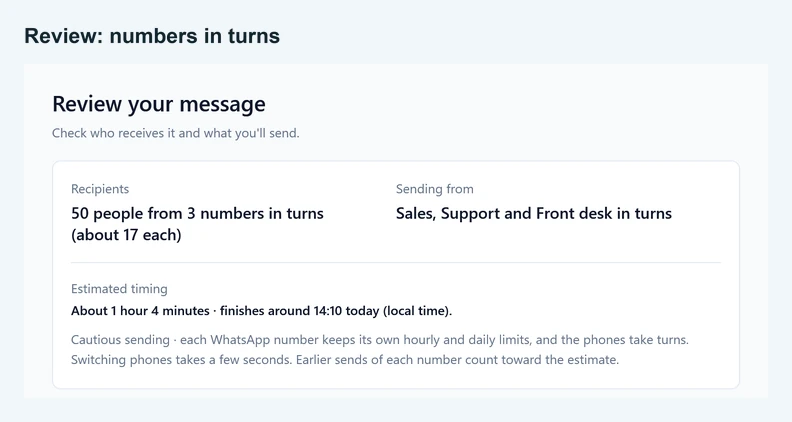
The estimated finish time in Compose takes every number’s own limits into account. The Send Planner has a WhatsApp numbers field to try it out.
Limits are per number #
Cautious sending is on by default: at least three minutes between recipients, up to 20 per rolling hour and 100 per rolling 24 hours. These limits now count for each WhatsApp number. Three numbers can send about three times as much in a day, and none of them goes above its own limit.
- Two phones that are logged in to the same number share that number’s limits.
- Messages sent from the phone itself, another PC or another app are not counted.
- With Custom timing the cautious limits are off. With several phones, each number then sends its share in one block, and the next number takes over.
These are SendCommander defaults, not WhatsApp-approved safe rates. You can lower them with Adjust limits.
Start a new number small #
A number that has never sent to your customers should not start with a full campaign. Begin with a few messages a day to people who know you and want to hear from you, and build up over days or weeks. Replies from real people are what make a number look normal to WhatsApp.
WhatsApp can connect numbers that send from the same PC, so a restriction on one number may affect the others. Sending from several numbers does not make any one number safer. Each one still needs real conversations with people who expect your messages.
Replies and STOP #
SendCommander reads the replies that reached a number whenever its phone is shown, including on its turns during a run, so a person who replied STOP ends up on the block list. Replies to a phone that is not shown are read the next time that phone is shown, so open each phone on the WhatsApp screen now and then. See Read replies and handle STOP.
When a phone sits out #
A phone that is logged out, does not load, keeps failing, turns out to be on another number (or the same number as a ticked phone), or whose number cannot be read, sits out the rest of the run. The other phones take over its people. If no phone can send, the run stops, and the people who have not been sent to stay saved, so you can use Continue sending after fixing the problem. Check the WhatsApp screen to see which phone needs attention.
History, ticks and Delete for everyone #
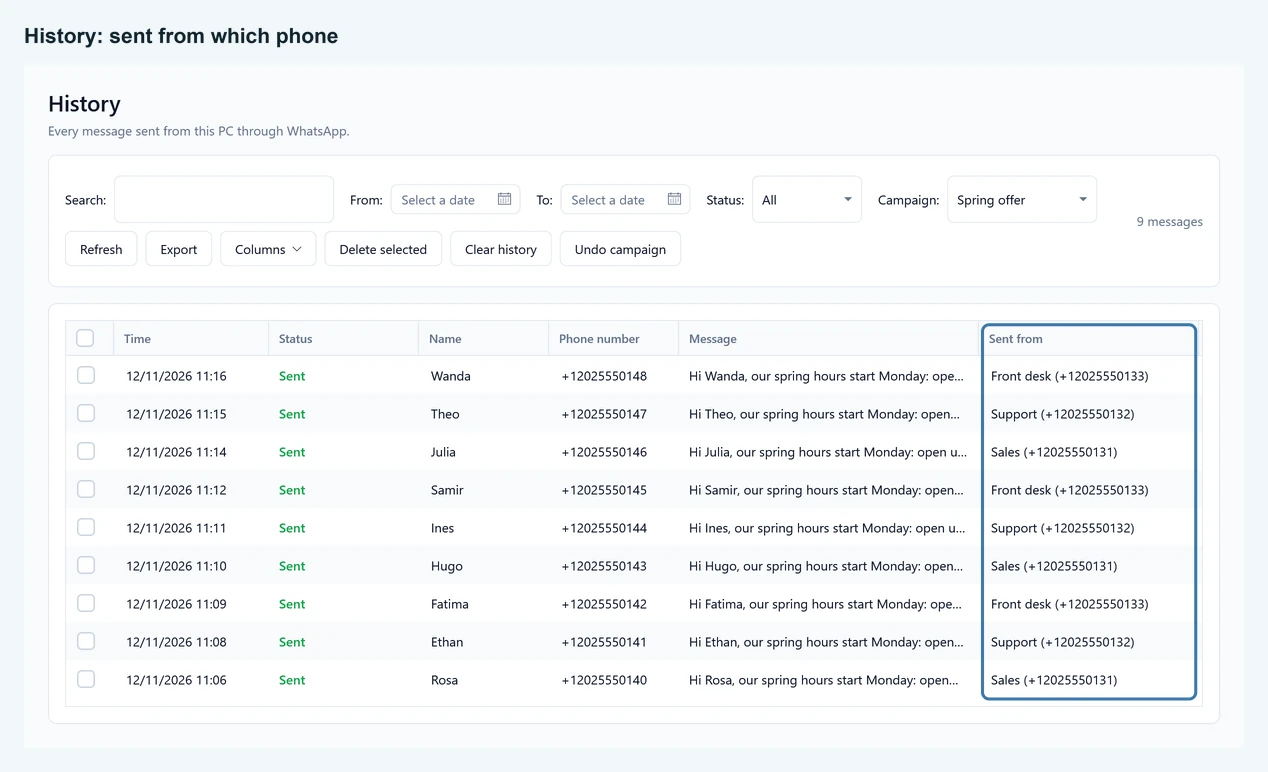
- History and the results export show which phone and number each message went out from, for example Phone 2 (+15551230200).
- Delivered and read ticks for a phone update while that phone is shown on the WhatsApp screen. See Delivered and read.
- Delete for everyone deletes the messages of the phone that is shown. For another phone’s messages, choose that phone on the WhatsApp screen and run it again. See Undo a campaign.
Questions #
Does each number need its own license? No. One license covers 3 computers, and linked phones are not counted. The free plan has 100 free messages in total, however many phones you use.
Can I link more than three phones? Yes. The 3 is about computers, not phones. There is no limit on linked phones.
Is this available on the free plan? Yes, on every plan.