
SendCommander works through WhatsApp Web, and WhatsApp changes how that page looks and behaves several times a year. A button moves, gets a new name or opens a different panel. SendCommander is built to cope with this, and to be honest with you when it cannot be sure what happened.
How sending keeps working #
- It finds buttons that moved. When a button is not where SendCommander expects it, the app looks for the best match on the page and tries it carefully. It keeps a match only after it has proved that it does the right thing, for example that the typed text appears or the message box clears. You do not have to do anything.
- Fixes arrive without an update. The app downloads small instruction files with the latest ways to find things. Most WhatsApp changes are handled this way within a day.
- A backup sending engine takes over. If the usual way of sending fails before anything has gone out, a second way is used automatically, for text and for files. You see nothing different, except that the WhatsApp check lists a Backup route (see below). The backup is never used after a message has already been handed to WhatsApp, so nobody gets the same message twice.
A known-issue notice #
Sometimes WhatsApp breaks something that takes a little while to fix. SendCommander then shows a note on the Compose and WhatsApp screens that starts with Known WhatsApp issue: and says what is affected. You can dismiss it. It only comes back when the note changes.
Check in WhatsApp #
Sometimes SendCommander cannot tell whether a message went out. For example, the connection dropped at the moment of sending, or WhatsApp marked the message as not sent. That person is shown as Check in WhatsApp in amber, in History and on the result card.
SendCommander never sends to that person again by itself, because the first message may have arrived and a second one would be a duplicate. Open the chat in WhatsApp and look:
- If the message is there, nothing is left to do.
- If it is not there, send it yourself in WhatsApp, or include the person in a new campaign.
Partly sent #
Partly sent means part of a conversation arrived and the rest did not. For example, the message and a photo arrived, but a document did not. SendCommander does not retry, so nobody receives the first part twice. Check the chat in WhatsApp and send the missing part by hand.
Both statuses are shown separately from Failed, which means the message did not go out. See also My number was restricted if you suspect WhatsApp itself stopped the messages.
Run the WhatsApp check #
Open the WhatsApp screen, then choose Tools > Run WhatsApp check. It tests whether SendCommander can open chats, prepare messages and attach files on your version of WhatsApp Web. Nothing is sent. Read the headline at the top first. It tells you in plain words whether sending works and what to do.
Below it, the Live test lists the steps the app tried, each marked Passed or FAILED. Then each lookup has a label:
- Found: the usual way works.
- Found another way: WhatsApp moved something, and SendCommander found it by itself. Sending works and you do not need to do anything.
- Not needed: this lookup was not required on this run. For example, “the row count works” means the app has another reliable way to tell.
- Hidden or Not seen: the item was not visible at that moment. This is often normal.
- Not checked: the right moment for the test never came. A closing line, Not checked this run, lists these.
- Missing (red): something SendCommander needs was not found on your WhatsApp version. This is the one to act on.
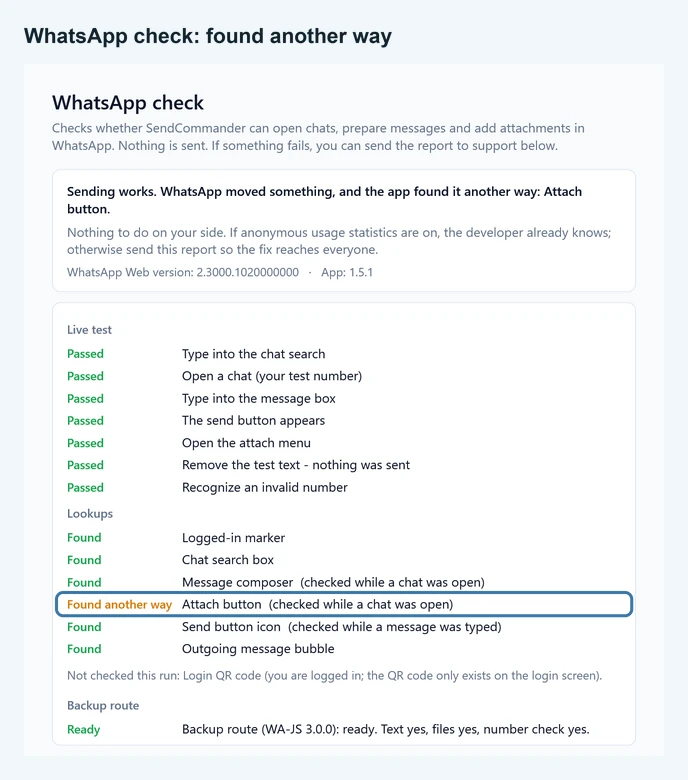
At the end, a Backup route section tells you whether the backup sending engine is ready. Ready lists what it can do, such as “Text yes, files yes, number check yes”. Not available, Switched off or Not checked only means no backup is on standby. It never changes the result of the check above it, and sending with the usual way still works.
If the check shows a problem #
- Click Update checks and try again. It downloads the latest fixes and runs the check again.
- Choose Tools > Reload WhatsApp Web. If it still fails, choose Tools > Clear cache and reload. You stay logged in.
- Click Check for updates under Settings to get the newest version from the Microsoft Store.
- If it stays red, use Email report to support in the check window. Describe what you were trying to do. See Support. A fix is usually ready within a day.
WhatsApp Web sometimes raises a Leave site? prompt when a page reloads. SendCommander 1.5 and later accepts it by itself, so it cannot block a reload. See Login issues if you still see it.