
Don’t see these options? Update Sheet2JSON through the Microsoft Store. New features arrive there after Microsoft’s review, usually within a few days.
Combine worksheet tabs into one file #
- Open your Excel workbook.
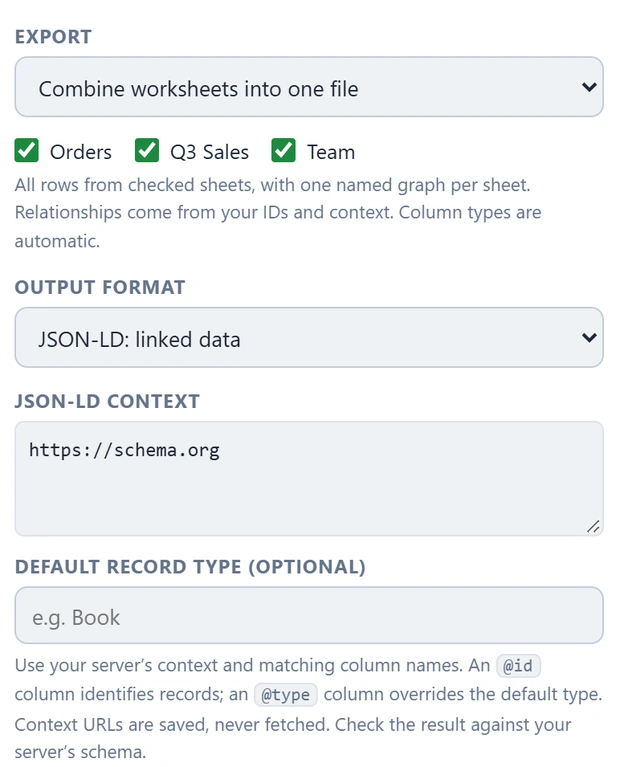
- Under Export, choose Combine worksheets into one file.
- Check the worksheets you want to include. All worksheets are checked initially.
- Choose your output format and header position, then click Save.
The export includes the full used range of each checked sheet, regardless of which cells are highlighted in the grid. Each sheet uses its own headers. Header position, blank handling and nested mode apply to every checked sheet. Column types are automatic for combined exports; switch back to a selected range for per-column overrides. CSV and TSV export one selected range at a time.
This combines tabs within one workbook. It does not combine separate workbook files or automatically join records based on matching IDs.
Choose a format your destination accepts #
- JSON: one object with a property for each worksheet, such as
{"Books": [...], "Chapters": [...]}. The selected JSON layout applies within each sheet. - NDJSON: one object per line. A combined export wraps each record as
{"sheet":"Books","data":{...}}so the worksheet name cannot overwrite a column in your data. A single-range NDJSON export has no wrapper. - JSON-LD: one document with your
@contextand an@graph. When combining worksheets, each sheet becomes a named graph whose identifier contains the workbook and worksheet names. Your destination must support this structure.
Set up JSON-LD #
Select JSON-LD: linked data. Paste the context supplied by your receiving service into JSON-LD context. This can be a JSON object, an HTTP(S) context URL, an array of those contexts, or an object containing only @context. Context URLs are copied into the output and never fetched by the app.
Your column names must match terms in the context, or use full property IRIs. JSON key transformations are disabled in JSON-LD mode to keep those names intact. The app checks the context’s input syntax; it does not check remote contexts, validate your vocabulary, or guarantee acceptance by a particular server.
Use an @id column with text identifiers to identify records across sheets. Use an @type column to set each record’s type, or enter a Default record type to fill in missing types. A type supplied in the sheet takes precedence. Enable Nested objects when your headers contain dot or bracket paths.
Example: link chapters to a book #
In a Books sheet, use columns @id, @type and name, with a row such as urn:book:1, Book, My book. In a Chapters sheet, use columns @id, @type, name and book, with a row such as urn:chapter:1, Chapter, Introduction, urn:book:1.
This example context defines book as a link to another record rather than a plain text value:
{
  "@vocab": "https://schema.org/",
  "book": {
    "@id": "https://schema.org/isPartOf",
    "@type": "@id"
  }
}
Check both sheets and export as JSON-LD. The matching identifiers and the context express the relationship; the app does not infer it from the worksheet names. Use your destination’s required vocabulary and identifiers for real data.
Large workbooks and AI uploads #
There is no fixed input file-size, row or cell limit. All loaded rows remain available for export, with practical capacity determined by your PC’s memory. Very long output is shortened in the preview only; Copy and Save use the complete result.
The free browser converter still has a 5 MB input limit and a limit of approximately 2,000 data rows per sheet. Those limits are separate from the desktop app and from any receiving server’s upload limits.
Combining sheets or using JSON-LD does not guarantee that an AI service processes every record. Check the service’s accepted schema, file size, named-graph support and ingestion behavior. If it requires smaller files, select a range or split the source into sections before exporting, and retain stable IDs for related records.