
Spreadsheets are loose about types; JSON is not. Two option groups keep the output exactly as your code expects it.
Column types #
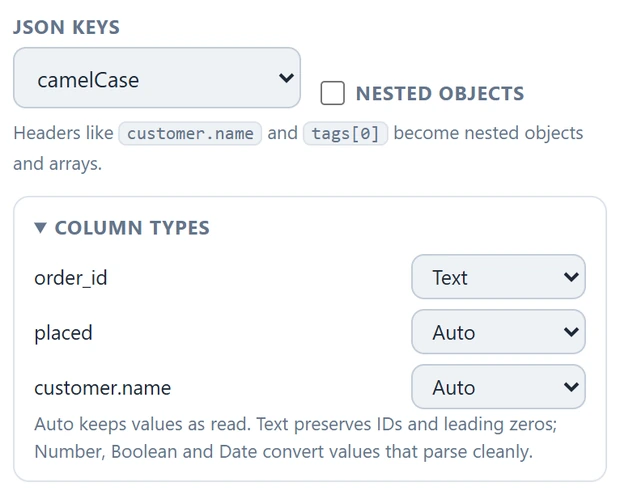
Open Column types in the options panel to see one row per column of your selection. The default, Auto, keeps values as the file stores them (whole numbers stay integers, dates become YYYY-MM-DD). Force a column when Auto is not what you want:
- Text – everything becomes a string. Use this for ID columns whose source values contain leading zeros, such as
007. If the source already stores the number7, choosing Text produces"7"; it cannot recover zeros that are no longer in the value. - Number – parses plain numbers, decimal commas (
1,5→1.5) and thousands separators (1,234.56→1234.56). - Boolean –
TRUE/FALSE,yes/no,y/n,1/0become realtrue/false. - Date – Excel date serials and common date strings become ISO
YYYY-MM-DD.
Coercion is deliberately lenient: a value that does not parse (say N/A in a Number column) keeps its original value instead of silently turning into null. You never lose data to a type setting.
Key transforms #
The JSON keys dropdown rewrites header-derived keys for the Objects, NDJSON and headers+rows layouts:
- As in header –
Unit Pricestays"Unit Price" - camelCase –
Unit Price→unitPrice,Order ID→orderId - snake_case –
Unit Price→unit_price,orderId→order_id
In nested mode the transform applies to each path segment separately.
Two small notes: column types are not offered for the cell-map layout (it mirrors the sheet exactly) or with first-column headers, and the choices reset when you select a differently-shaped range.