
The Status column in Twilio Blaster provides updates on your messages. After sending, you can check the latest status by clicking Refresh Status. Initially, messages are marked as Queued, meaning they have been successfully sent to Twilio for processing. Twilio then updates the status accordingly.
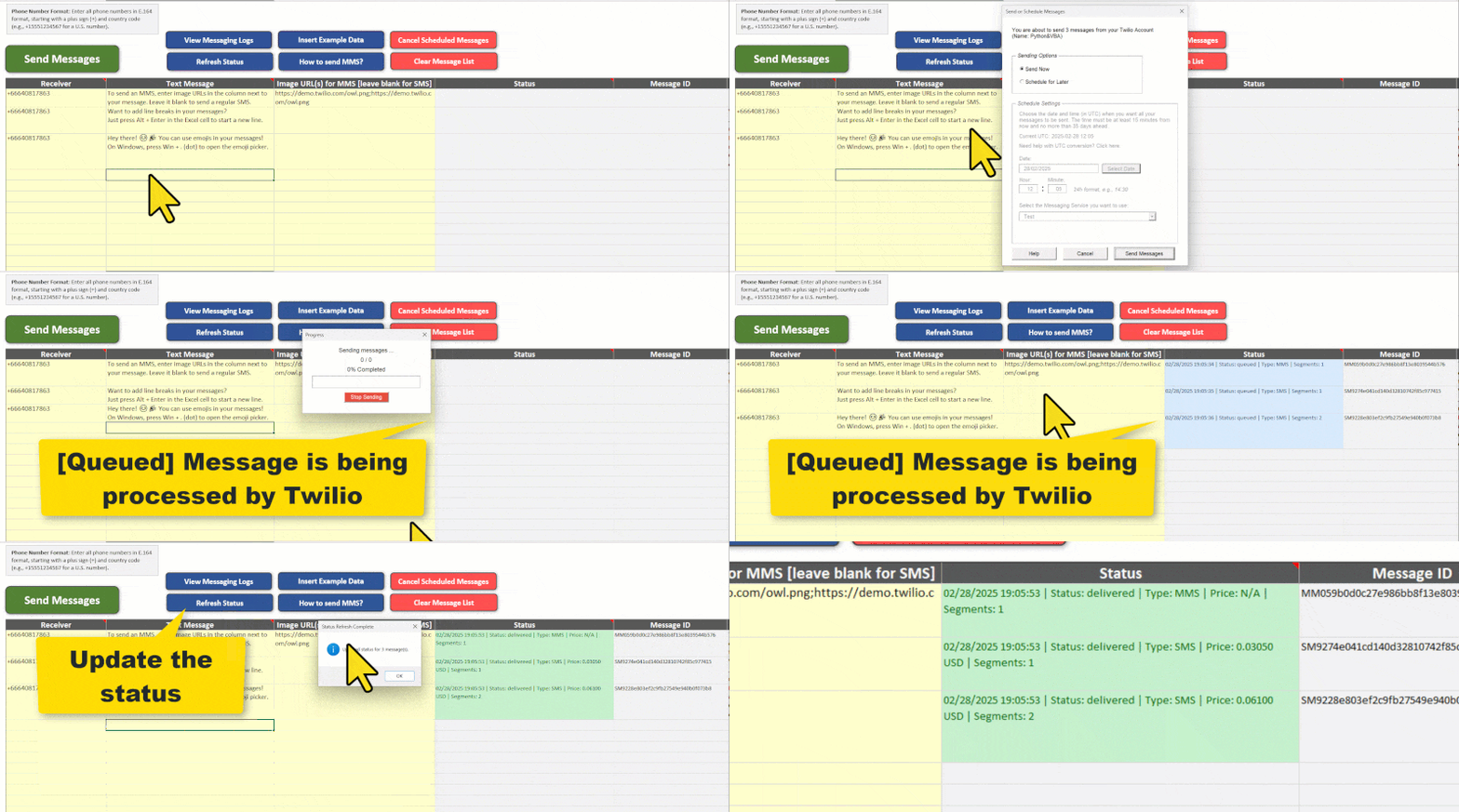
Here are some common statuses you may see:
| Status | Description |
|---|---|
| Queued | The message has been sent to Twilio and is waiting to be processed. |
| Scheduled | The message is set to be sent at a future time. |
| Sending | The message is currently in the process of being sent. |
| Sent | The message has been sent, but delivery confirmation is not yet available. |
| Delivered | Twilio received a delivery receipt from the carrier or handset, where available. This is not proof that the person read it. |
| Read (WhatsApp only) | A read receipt was reported for the WhatsApp message, when available. |
| Undelivered | The message was not delivered, possibly due to an issue like a blocked number or unavailable device. |
| Failed | The message could not be sent, often due to account restrictions. |
To get the most recent status updates, simply click Refresh Status. If you need detailed logs or tracking, you can view them in Twilio’s official Messaging Logs.