
Country and carrier limitations #
Important: MMS messages are supported only in the following countries:
- United States
- Canada
- Australia
MMS availability depends on destination and carrier. MMS Converter may provide a link for eligible unsupported routes when enabled; do not assume every unsupported destination will be converted. See Getting Started with MMS Converter.
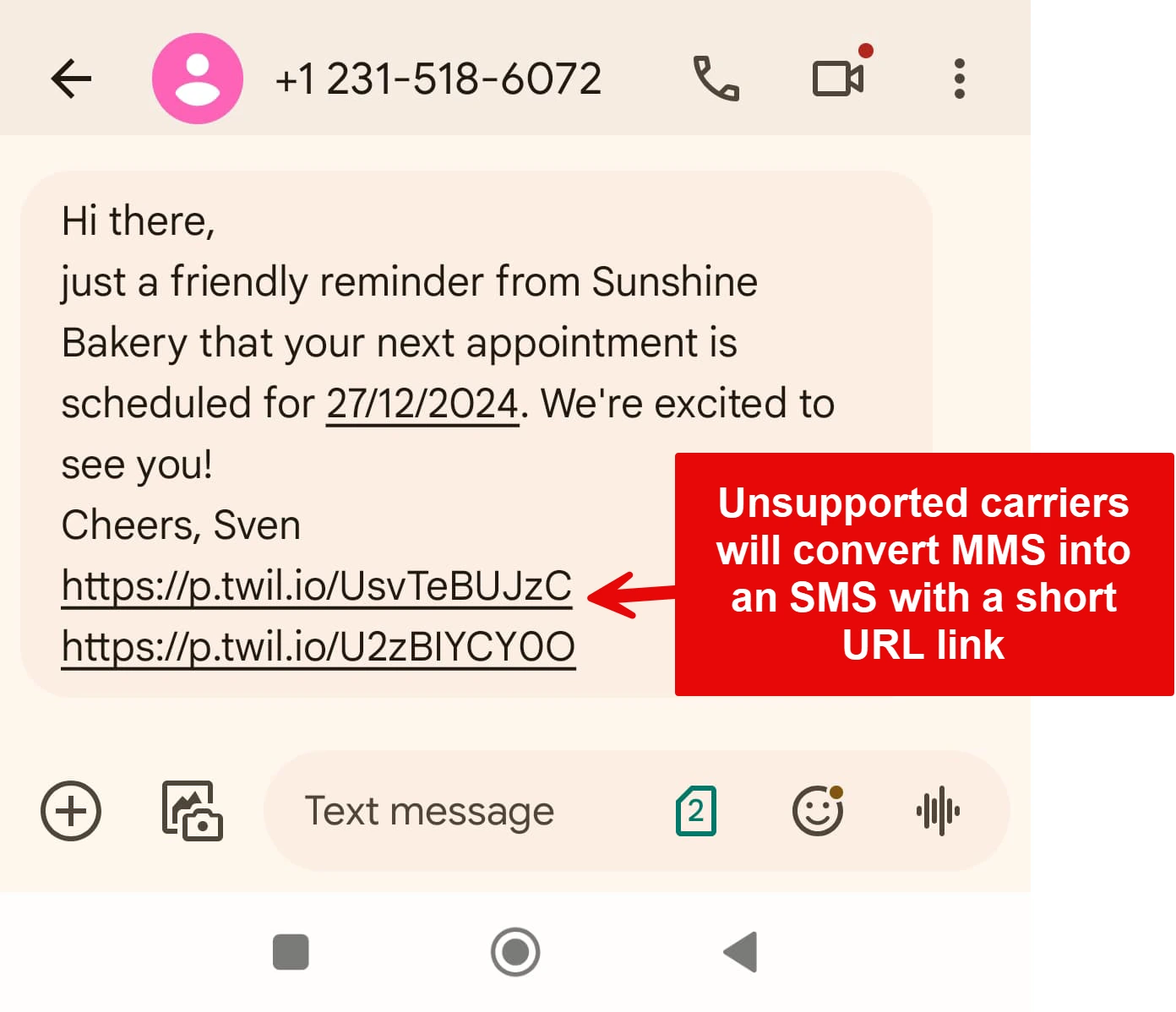
Below is an example image of how an MMS with a short URL will appear if MMS is not available:
How to send MMS #
To send an MMS message, use the “Image URL” column in your Excel file. If you do not wish to send an MMS, leave this cell blank. Follow the notes below for successful MMS sending:
Requirements for sending MMS
- Supported File Types:
.gif,.png,.jpeg. Unsupported formats will be rejected. - File size limit: keep the combined body text and all attachments under 5 MB. Destination carriers can have smaller limits. Up to 10 media URLs are supported.
- Valid URLs Only: The URL should directly display the file.
- Example:
https://demo.twilio.com/owl.png - Invalid:
C:\Users\Username\Desktop\cat.jpg
- Example:
- Multiple Images: Separate multiple image URLs using a semicolon (
;).- Example:
https://demo.twilio.com/owl1.png;https://demo.twilio.com/owl2.png
- Example:
- File Location: Host the files online (e.g., Dropbox, Google Drive, or your own web server) and ensure the URL links directly to the file.
Example for Google Drive:
- Go to your Google Drive and right-click on the image file.
- Select Share and enable Anyone with the link.
- Copy the file ID from the URL (e.g.,
1wMgCWAsqlw0nXcMhCldTbwSznMdXUmBT). - Use the following format to create a direct link:
https://drive.google.com/uc?id=FILE_ID- Result:
https://drive.google.com/uc?id=1wMgCWAsqlw0nXcMhCldTbwSznMdXUmBT
Using the MMS link converter
To save time, you can use the MMS Link Converter tool built into Twilio Blaster.
- Just paste your Google Drive or Dropbox sharing link into the tool, and it will generate a direct link for you.
Example for Google Drive:
- Shared Link:
https://drive.google.com/file/d/1wMgCWAsqlw0nXcMhCldTbwSznMdXUmBT/view?usp=sharing - Direct Link:
https://drive.google.com/uc?id=1wMgCWAsqlw0nXcMhCldTbwSznMdXUmBT
Example for Dropbox:
- Shared Link:
https://www.dropbox.com/s/abcd1234/myfile.png?dl=0 - Direct Link:
https://www.dropbox.com/s/abcd1234/myfile.png?raw=1
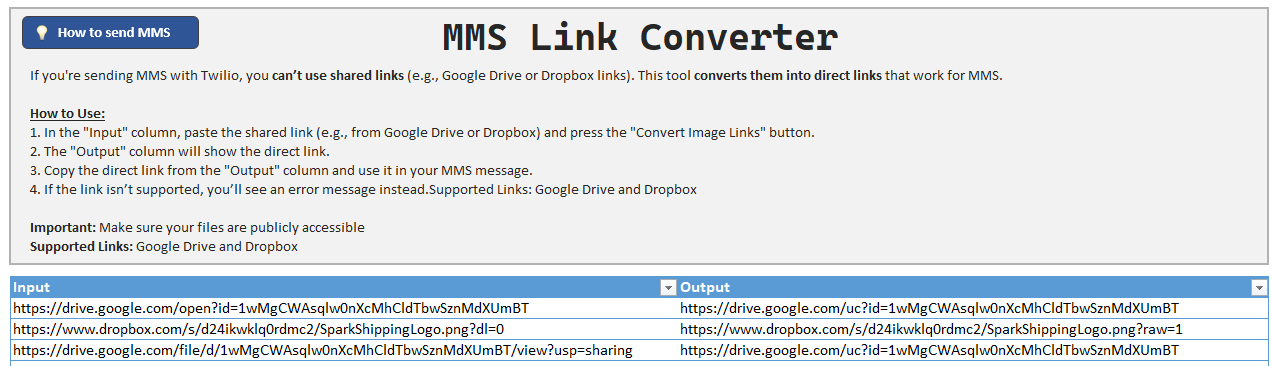
MMS Link Converter Tool
How to Fill the Image URL Column
- Enter the full URL of the image in the “Image URL” cell for the corresponding message row.
- Ensure the URL is accessible and hosted online. Invalid URLs will be flagged in the “Status” column with an error message.
Example #
Here is an example configuration for sending an MMS:
| Receiver Number | Text Message | Image URL | Status |
|---|---|---|---|
| +1234567890 | Check out this owl! | https://demo.twilio.com/owl.png | Sent successfully |
| +0987654321 | Here are two owls! | https://demo.twilio.com/owl1.png;https://demo.twilio.com/owl2.png | Sent successfully |
| +1123456789 | Missing file example | C:\Users\Username\Desktop\cat.jpg | Skipped – Invalid Media URL |
Recommendations for file names #
When hosting your images, follow these guidelines for file names:
- Avoid using spaces or special characters (
~ ! @ # $ % ^ & * ( ) [ ] { }). - Use a stable public URL that returns the media file directly, without a sign-in page.
- Example:
-
owl.png -
my owl picture!.jpg
-
Additional information #
For more details on sending and receiving MMS messages with Twilio, visit their official documentation: Twilio MMS Guide.