
To send WhatsApp messages using Twilio Blaster, follow these simple steps:
- Enable WhatsApp Messaging: In the settings, set the WhatsApp messaging option to “On”.
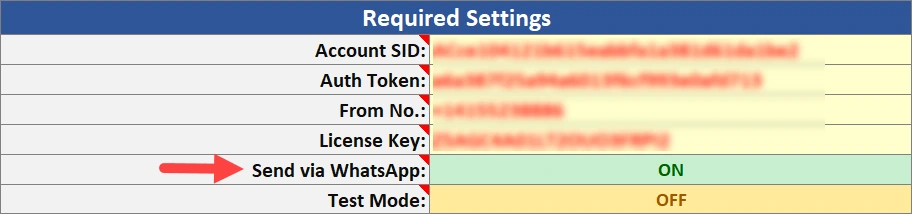
- Set Up a WhatsApp API Number: You’ll need a WhatsApp-enabled phone number. This involves registering your number through Twilio. Detailed instructions are available in Twilio’s guide:
[Twilio] Register on WhatsApp using Self Sign-up - Sending Messages: Once set up, you can send text messages as usual.
- Sending Images: To include an image, provide the media URL in the “Image URL” column. This process is similar to sending an MMS. Note that WhatsApp messages via Twilio allows only one image per message. For more details, refer to the MMS guide: How to send MMS
Free-form WhatsApp messages require an open 24-hour customer-service window, measured from the customer’s latest incoming message. Outside that window, use an approved WhatsApp template. Scheduling does not remove this requirement; check the window at send time.