This error is most likely due to your Chrome browser not being set to English. The WhatsApp Blaster relies on English menu names (e.g., “Photos & videos”) to function correctly. Follow these steps to resolve the issue:
Step 1: Ensure You Are Using the Latest WhatsApp Blaster PRO Version #
Before making any changes, ensure you are using the latest version of WhatsApp Blaster PRO. Updates often fix compatibility issues and bugs.
Step 2: Use the Chrome Test Browser #
Instead of changing your default Chrome browser language to English, it is strongly recommended to use the Chrome Test Browser. This ensures compatibility without affecting your main browser setup.
- Open the WhatsApp Blaster.
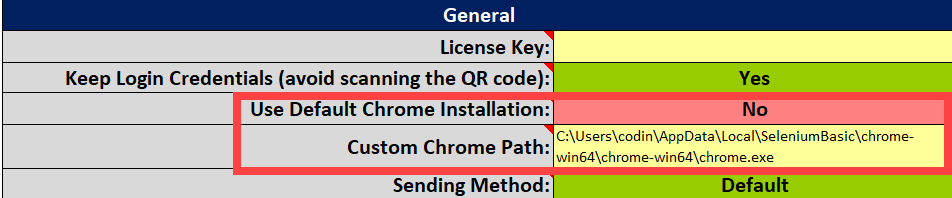
- Navigate to the “General” section (refer to the screenshot below):
Placeholder for image: General section screenshot
– Set “Use Default Chrome Installation” to NO.
– Enter the path to your Chrome Test Browser in the “Custom Chrome Path” field.
If you have not yet set up the Chrome Test Browser, follow this guide:
How to Set Up Chrome for WhatsApp Blaster.
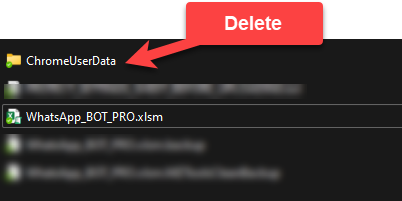
Step 3: Delete ChromeUserData Folder #
If the issue persists after the steps above, delete the ChromeUserData folder to reset the browser session.
- Navigate to the directory where WhatsApp Blaster is saved.
- Look for a folder named
ChromeUserData. - Delete the folder.
- Run the WhatsAppBlaster again.