
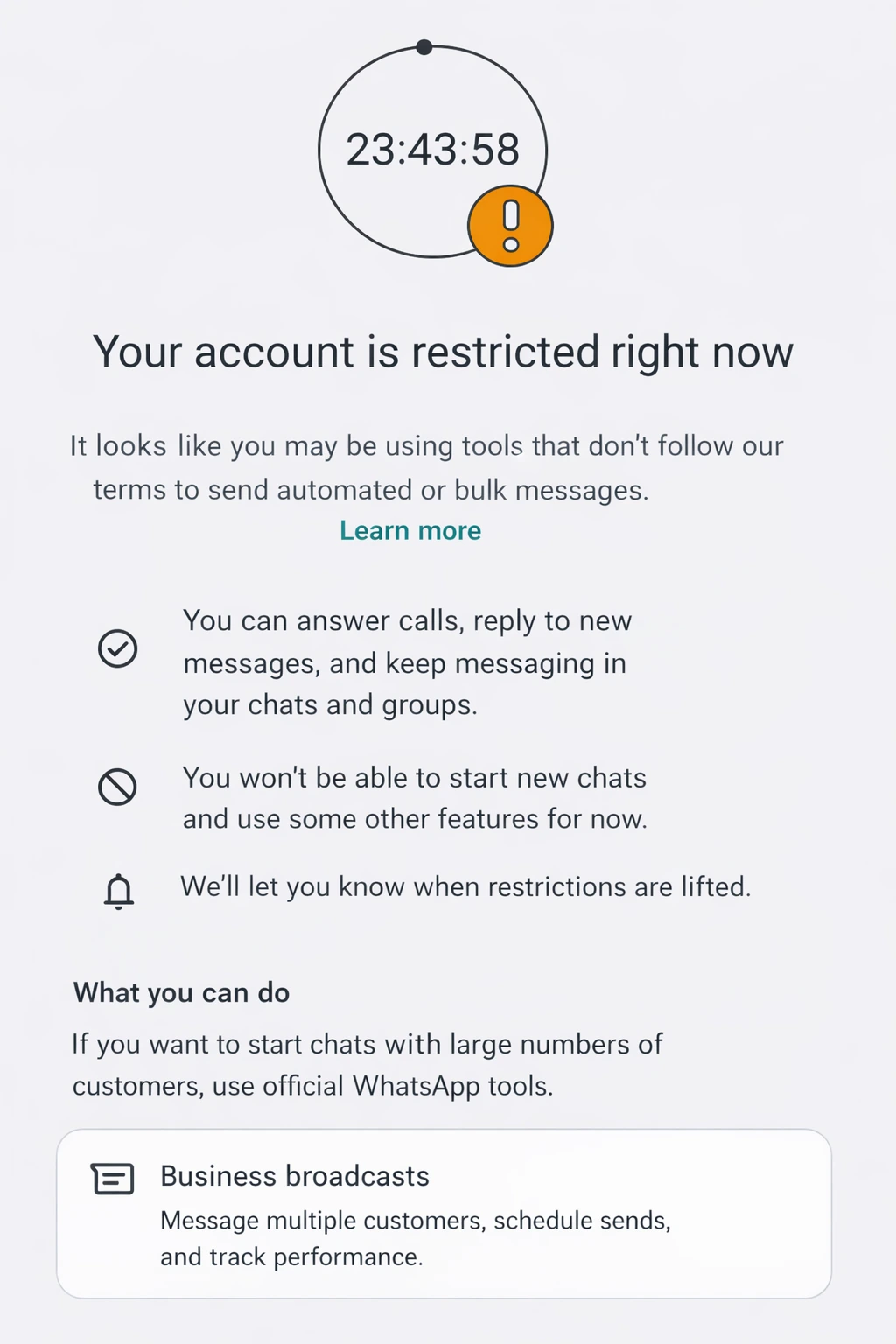
If WhatsApp displays a restriction, stop the campaign and read that notice. What you can do next, and whether a review is offered, depends on the restriction. It is not guaranteed to expire automatically.
Why restrictions happen #
WhatsApp can restrict automated, bulk or unwanted messaging. Volume, recipient feedback and account behavior may matter; changing one setting does not establish that a campaign will be allowed.
What I can help with #
I can investigate WhatsApp Blaster errors. I do not work for WhatsApp or Meta and cannot lift their account restrictions.
What to do now #
- Stop sending.
- Follow the notice and any review/help option in WhatsApp.
- Check the messages already attempted before retrying, to avoid duplicates.
- Honor requests to stop and remove those recipients from later sends.
Before sending again #
Wait until WhatsApp allows the activity. Review whether the recipients expect the messages. There is no guaranteed safe 100-per-day rate, and a 20–30 second pause or random delay does not protect an account.
Official WhatsApp Business Platform #
The WhatsApp Business Platform is the official integration route for eligible businesses. Providers such as Twilio have their own onboarding and current pricing.
Window and template requirements
On the Business Platform, the customer’s incoming message opens or restarts a 24-hour service window. Free-form replies require that window; outside it, use an approved template. Using the platform does not remove consent or policy requirements.
If the problem continues #
Use WhatsApp’s review process for an account restriction. For a workbook failure, send support the exact error, workbook version and steps that led to it.
Related guidance: best practice guidelines, https://www.twilio.com/en-us/messaging/channels/whatsapp.