This error means the bot could not find the expected WhatsApp Web control. A changed interface or language can cause it. Confirm that WhatsApp Web uses English and that you have the current workbook and XPath settings before resetting the browser session.
Step 1: Ensure you are using the latest WhatsApp Blaster PRO version #
Before making any changes, ensure you are using the latest version of WhatsApp Blaster PRO. Updates often fix compatibility issues and bugs.
Step 2: Use the Chrome test browser #
Instead of changing your default Chrome browser language to English, it is strongly recommended to use the Chrome Test Browser. This ensures compatibility without affecting your main browser setup.
- Open the WhatsApp Blaster.
- Navigate to the “General” section (refer to the screenshot below):
- Set “Use Default Chrome Installation” to NO.
- Enter the path to your Chrome Test Browser in the “Custom Chrome Path” field.
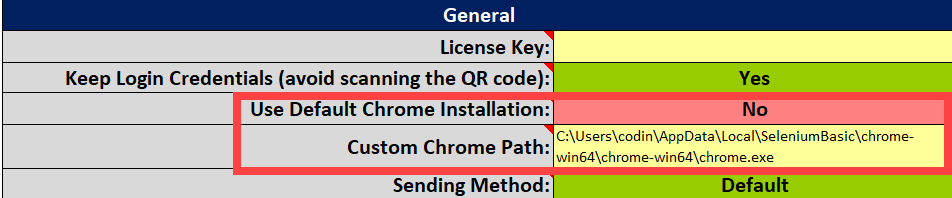
If you have not yet set up the Chrome Test Browser, follow this guide:
How to Set Up Chrome for WhatsApp Blaster.
Step 3: Reset the dedicated browser session #
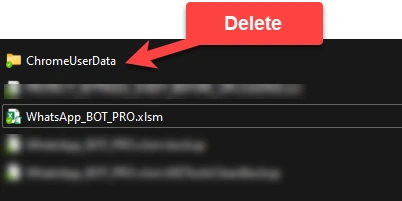
Close the bot and its Chrome window first. Renaming the ChromeUserData folder starts a fresh dedicated session and requires you to link WhatsApp again. Keep the old folder until the new session works.
- Navigate to the directory where WhatsApp Blaster is saved.
- Look for a folder named
ChromeUserData. - Rename it to
ChromeUserData-old. - Run the WhatsApp Blaster again.