
Comparing two tables only works when each row in Old is paired with the right row in New. If you pair rows by position, one inserted row shifts everything below it and every cell looks changed. Table Compare pairs rows by an ID, so inserted, deleted and re-sorted rows stay out of the way.
What Table Compare tries, in order #
- One ID column. It looks for a column whose values are different in nearly every row (at least 99 percent), filled in nearly everywhere (at least 95 percent), and shared by both tables (at least 30 percent of the values appear in both). Names such as ID, SKU, code, number, item, part, article, order, invoice, account, customer, employee, email, IBAN, EAN, ISBN or reference are preferred, and so is a column further to the left.
- Two columns together. If no single column qualifies, it tries pairs of columns, for example order number and line number, and accepts the first pair whose combinations are different in every row and also appear in both tables.
- Row order. If nothing qualifies, rows are lined up by their order, and inserted or deleted rows are recognized by comparing neighbouring rows.
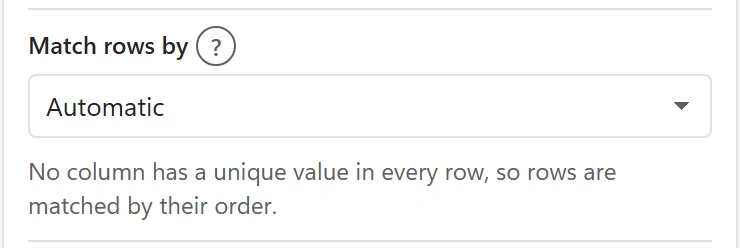
The result is shown before you compare as Match rows by SKU (auto), or Match rows by row order (no ID column found), and afterwards above the tiles, for example Prices_Sep -> Prices_Oct · matched by SKU. In Options, the field Match rows by explains the decision in a sentence, such as SKU is unique in both tables, so rows are matched by it. or No column has a unique value in every row, so rows are matched by their order.
Choose the match yourself #
Click Change next to the match line, or open Options. The list Match rows by offers:
- Automatic, which is the behaviour above.
- Row order (compare row by row), for tables without an ID where the rows are in the same order in both versions.
- Any column that exists in both tables. After you choose one, a second list appears where you can add a second column, or leave No second column.
If the column you chose is not in both tables, Table Compare says so and matches automatically instead.
How IDs are compared #
- Extra spaces at the start, at the end and doubled inside are ignored, and upper and lower case do not matter. ab-12 and AB-12 are the same ID.
- Numbers and numbers stored as text match: 123 is the same as 123.
- Leading zeros are ignored in ID columns by default, so 00123 matches 123. The option Treat 00123 and 123 as the same controls this.
Duplicate and blank IDs #
A table with the same ID in several rows can still be compared. Rows with the same ID are paired in order, the first with the first, and Table Compare adds a note you can see under the tiles, for example SKU D-4400 appears twice in New (rows 210, 377). The same happens for rows without an ID (2 rows in New have no SKU) and for IDs that are an Excel error. Click Show or the Check chip to list them.
Columns with different names #
Columns are paired by their names first. A name is compared without extra spaces, without upper or lower case and without a colon at the end. A column that exists in only one table is not compared and is mentioned once, for example Column Discount is only in New, instead of producing a change in every row.
If an Old column has no partner by name, Table Compare also checks the values: when an Old column and a New column hold mostly the same values, they are paired and the pane says so, for example Item No is paired with SKU because they hold the same values. This runs before the ID is chosen, so an ID column that was renamed still works. You can pair columns by hand in Options, in Columns to compare.
Tables without column names are paired by position when both have the same number of columns.
When IDs are spelled differently #
Table Compare matches IDs exactly, apart from spaces, case and leading zeros. If the same customer or product is written differently in each table, for example ACME Corp. and Acme Corporation, exact matching cannot pair them. For that job, use AI Fuzzy Match, which matches similar spellings.