
What describes your situation? #
| Symptom | Solution |
|---|---|
| Error message in the QuickText status column | See solutions → |
| QuickText shows “Transmitted” but no SMS in your phone’s messaging app | See solutions → |
| Message appears in SMS app but recipient didn’t get it | See solutions → |
| Android popup about bulk SMS | See solutions → |
| Excel freezes or crashes | See solutions → |
| None of the above | Contact support → |
You see an error in the QuickText status column #
Access denied / Permission denied
Windows refused an operation. A security rule is one possible cause; inspect the exact error and protection event before changing settings.
What you can do:
- Check recent blocked-app events and run the KDE Connect diagnostic tool. Keep antivirus and firewall protection enabled.
- If an event names the verified official file, ask IT or the security vendor about allowing that specific operation.
Check the current scan and the exact protection event rather than assuming every detection is a false positive. See Antivirus or Firewall Warning / False Positive.
If this solves the issue, please send me a quick email and let me know which antivirus or firewall software you are using. I’ll reach out to them to fix the false positive.
Other error message
Please copy the exact error text and email it to sven@pythonandvba.com. A screenshot is also helpful!
QuickText shows “transmitted” but nothing appears in your SMS app #
First, check whether the text was actually sent. It may only be hidden.
- Search for the number. In your SMS app, search for the recipient’s number or name. If the sent texts are there, QuickText worked.
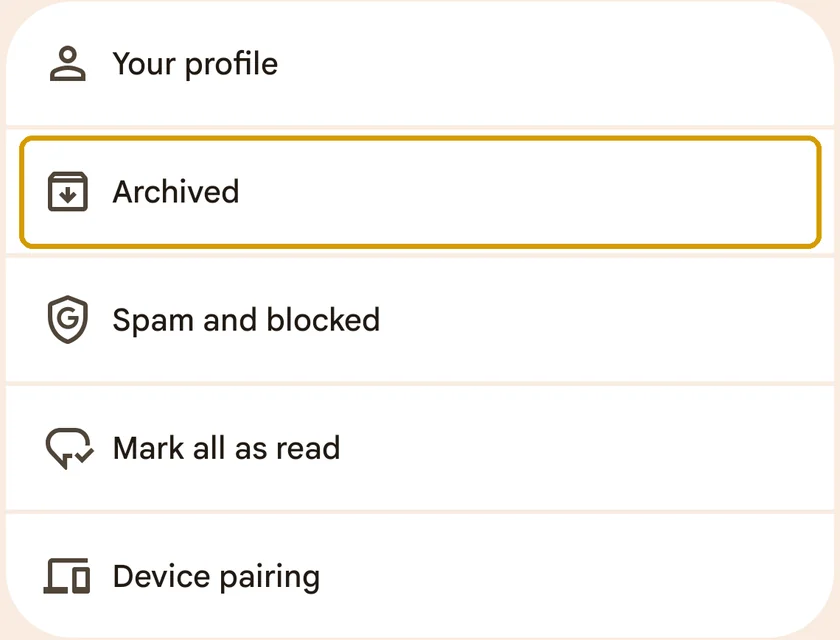
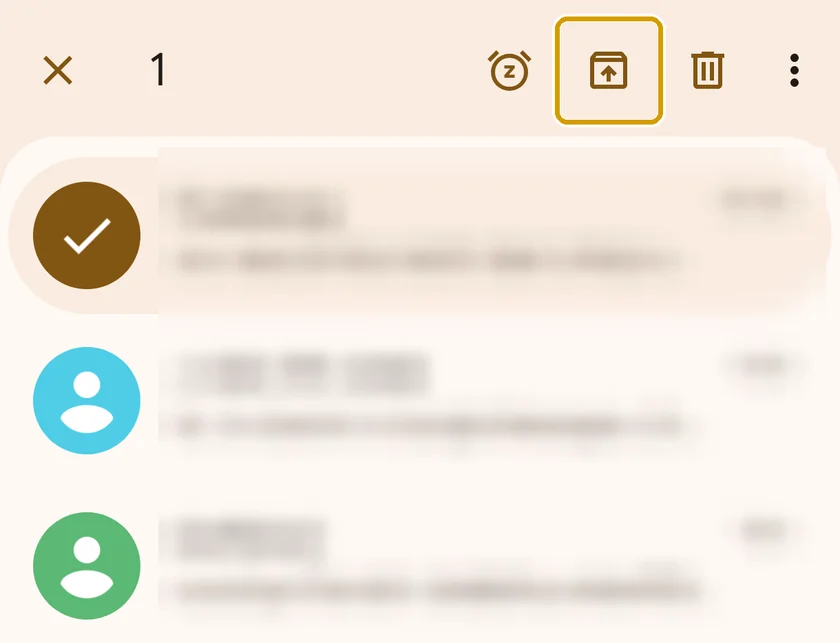
- Unarchive the conversation. You most likely archived it at some point, and Google Messages hides archived conversations from the main list. A text sent through QuickText doesn’t bring a conversation back, but a new text from that person or one you send from inside Messages does. Tap your profile picture, tap Archived, long-press the conversation and tap Unarchive.
Your phone doesn’t notify you about texts you send, and that includes texts sent through QuickText. Open the conversation to see them.
This usually means the connection to your phone was lost during sending, or KDE Connect lacks the necessary permissions to send SMS.
If the search finds nothing, follow these steps in order:
Step 1: Did you receive the ping notification on your phone?
Before sending SMS, QuickText sends a test ping to your phone. You should see a notification like this:
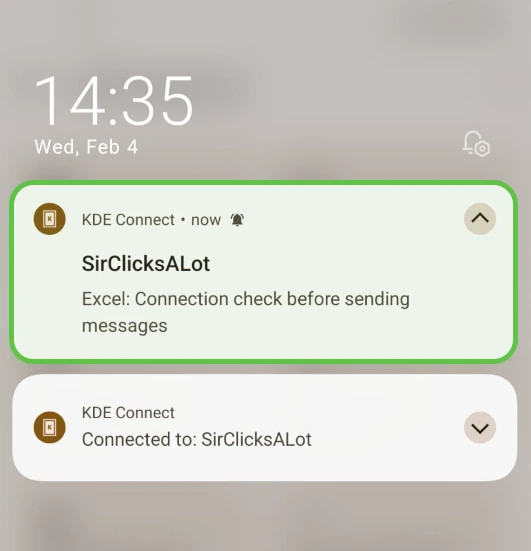
Did you see this notification?
- Yes, I saw the ping → The connection is working. Continue to Step 2 to check permissions.
- No, I didn’t see anything → Your firewall may be blocking KDE Connect. See the firewall troubleshooting steps below.
Firewall troubleshooting
Check if Windows Defender blocked QuickText:
- Open Windows Security (search for it in the Start menu).
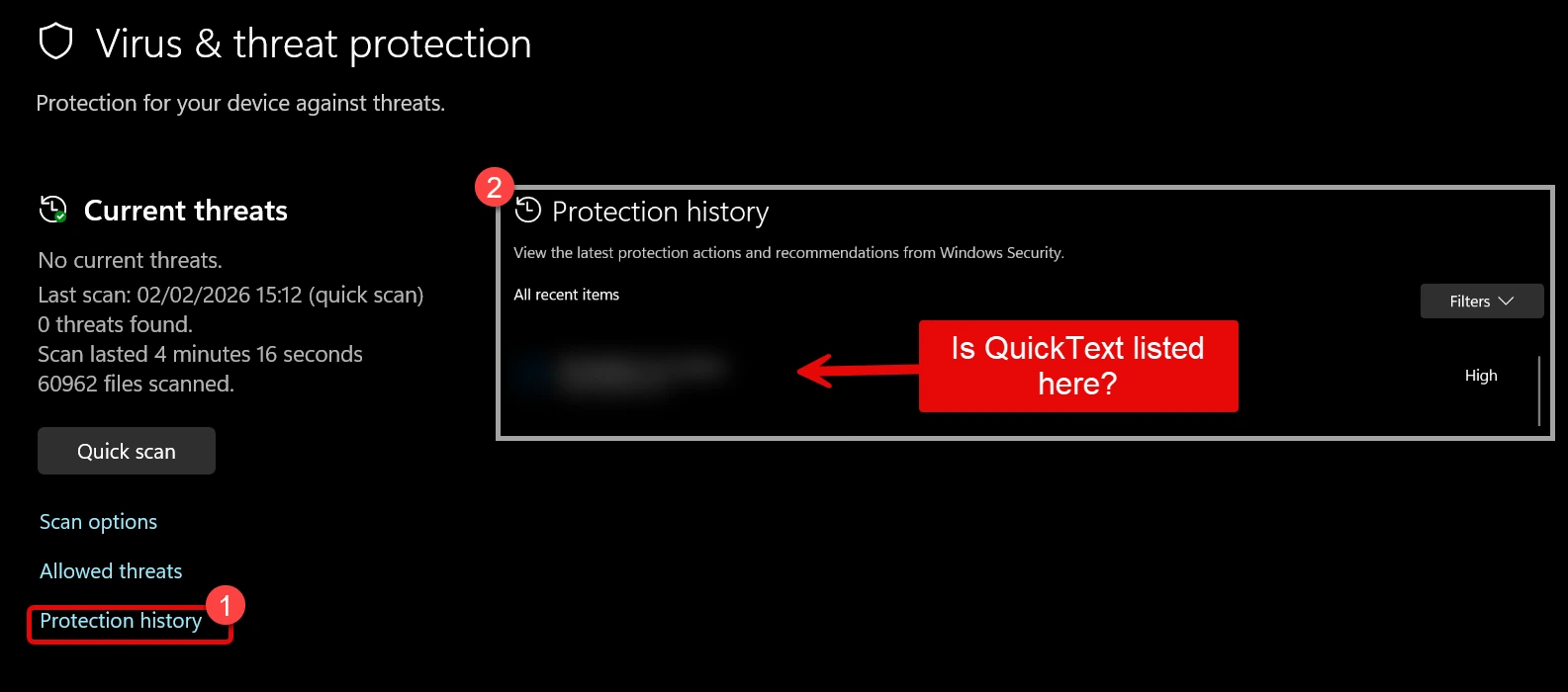
- Go to Virus & threat protection.
- Click Protection history.
- Check if QuickText appears in the list. If it does, click on it and select Allow.
Create a firewall rule for KDE Connect:
KDE Connect uses ports 1714-1764 for communication. You may need to allow these ports in Windows Firewall:
- Search for “Windows Firewall with Advanced Security” in the Start menu.
- Click Inbound Rules (left panel) → New Rule (right panel).
- Select Port → Next.
- Choose TCP and enter
1714-1764in the “Specific local ports” box. - Select Allow the connection and apply it only to the trusted network profile you use with KDE Connect.
- Repeat steps 2-5 for UDP as well.
Step 2: Check SMS permissions on your phone
KDE Connect needs several permissions to send SMS messages reliably.
Watch the video walkthrough:
The exact menu names and layout may look slightly different depending on your phone model and Android version, but the general steps are the same.
Or follow these steps manually:
- Open the KDE Connect app on your phone.
If you see “Send SMS” listed under plugins that need permission, tap it and allow all the permission requests that follow (phone calls and SMS).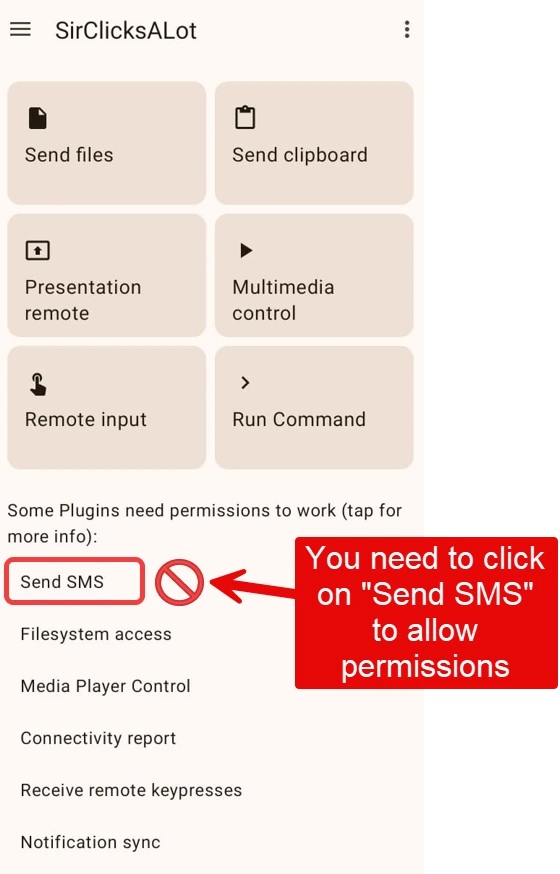
- Check app permissions in Android settings.
Close KDE Connect, then long-press the app icon and tap “App Info” (or the “i” icon). Go to Permissions and make sure SMS is set to “Allow”.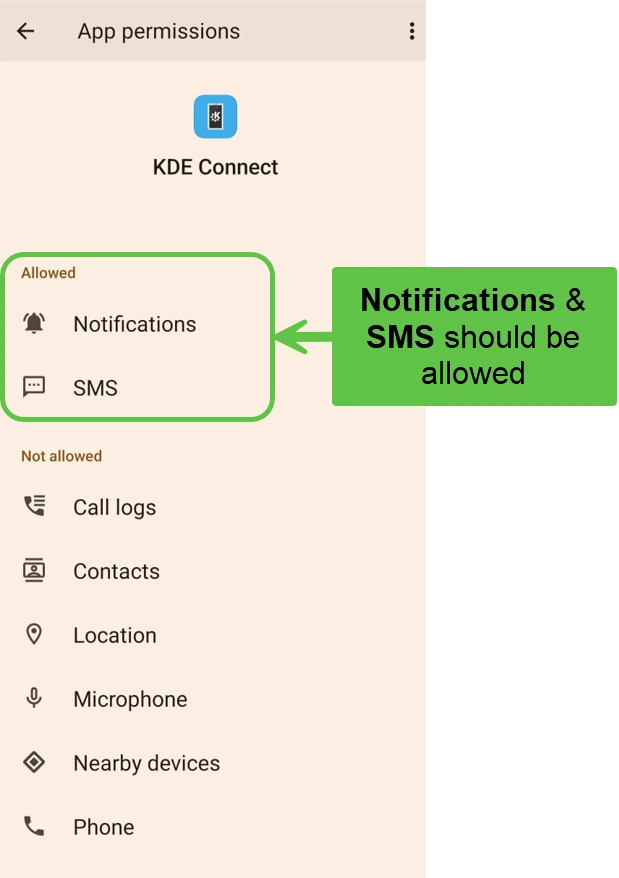
- Disable “Manage app if unused”.
Still in app permissions, scroll to the bottom. If you see a toggle for “Manage app if unused”, turn it off. Otherwise Android may revoke the SMS permission after a period of inactivity.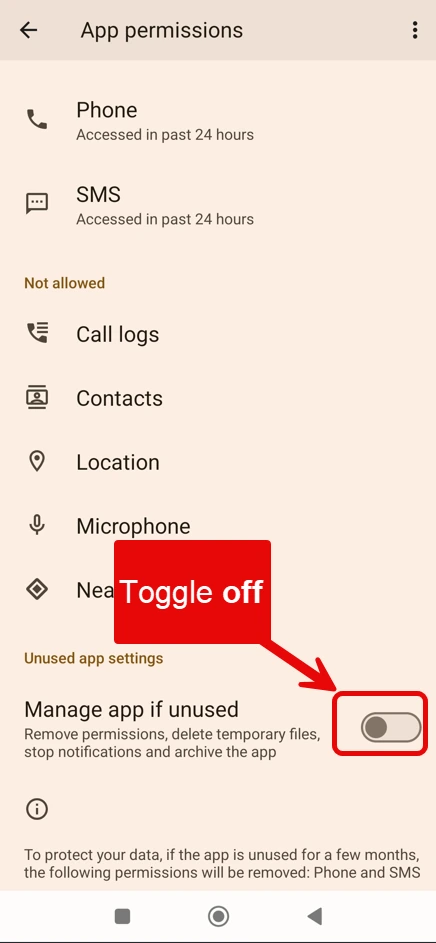
- Check “Other permissions” (Samsung/Xiaomi).
Go back to App Info and look for “Other permissions”. Make sure Service SMS has a green checkmark. If not, tap it and set it to “Always allow”.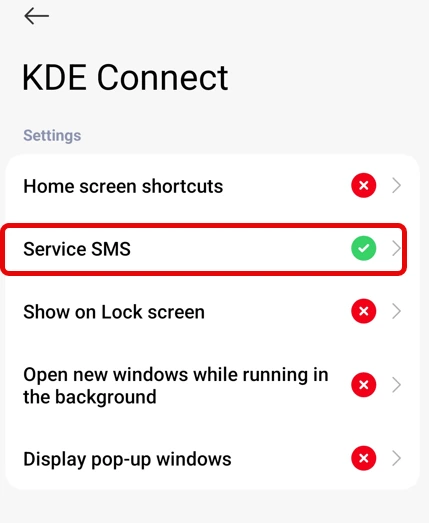
- Disable battery restrictions.
Go back to App Info and tap Battery. Set it to No restrictions so Android doesn’t shut down KDE Connect while it’s running in the background.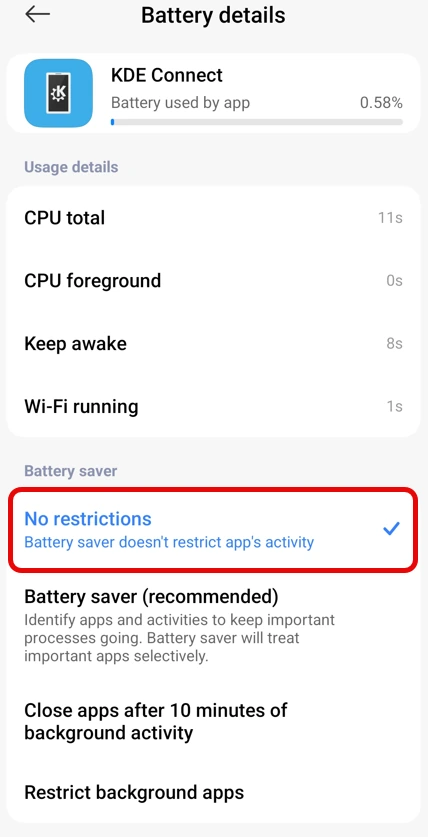
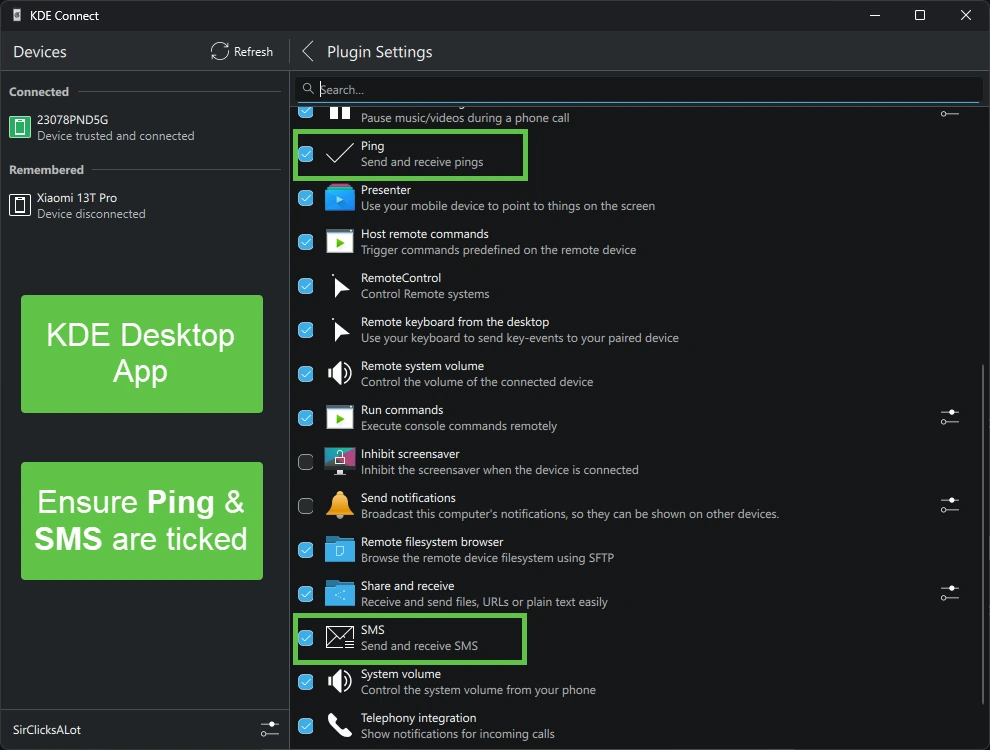
Step 3: Check plugin settings on your PC
On your PC, open the KDE Connect desktop app and go to Plugin Settings.
Make sure these plugins are enabled (ticked):
- Send and receive SMS
- Ping
Step 4: Disable RCS chat in Google Messages (if applicable)
If you’re using Google Messages, RCS (Rich Communication Services) can sometimes interfere with SMS sending through KDE Connect.
How to disable RCS:
- Open Google Messages on your phone.
- Tap your profile picture (top right) → Messages settings.
- Tap RCS chats.
- Turn off Turn on RCS chats.
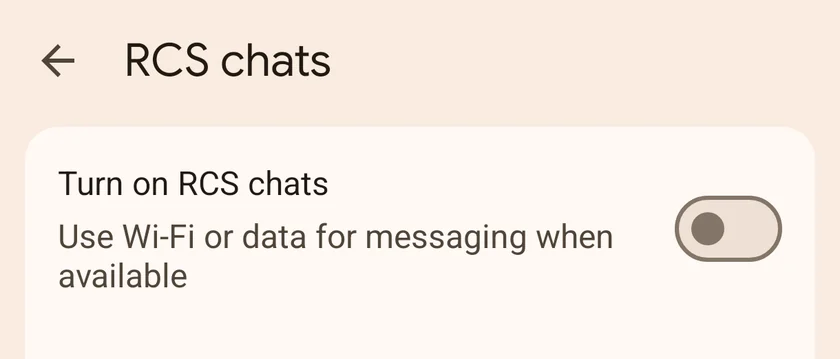
After disabling RCS, try sending with QuickText again.
Step 5: Keep KDE Connect app open while sending
The KDE Connect app must stay open and running on your phone while QuickText sends messages.
Important:
- Don’t close or swipe away the KDE Connect app during sending.
- If screen locking disconnects the phone, review the KDE Connect background battery settings.
- If you’re sending many messages, keep your phone plugged in and the screen on.
Step 6: Try a different SMS app
Some SMS apps have compatibility issues with KDE Connect. If nothing else works, try switching to a different SMS app on your phone.
Recommended alternatives:
- Fossify Messages: Open source, free, lightweight. Download from Play Store
- Google Messages: Google’s official SMS app. Download from Play Store
Already using Google Messages? Try switching to Fossify Messages instead. Sometimes switching to a different app helps, even if your current app is popular.
After installing:
- Open the new SMS app and set it as your default SMS app when prompted.
- Try sending a message with QuickText again.
You can always switch back to your original SMS app later if you prefer.
Message appears in your SMS app but the recipient didn’t receive it #
A message in the phone’s Sent list is not proof of recipient delivery. Filtering, number or recipient-device issues and unavailable delivery reports are possible causes. Check one affected recipient and ask the carrier to investigate if needed.
First, confirm it’s a carrier issue:
Try sending a regular SMS manually from your phone (not through QuickText). If that also fails, ask your carrier to investigate; it does not by itself prove a restriction.
Call your carrier’s support hotline. They can quickly check if there are any restrictions on your account. If not, ask them how many SMS you’re allowed to send within a specific time frame so you know your limits.
If manual SMS works but QuickText messages don’t:
Your carrier may be blocking messages because they’re being sent too quickly. The first few messages might go through, but subsequent ones get blocked.
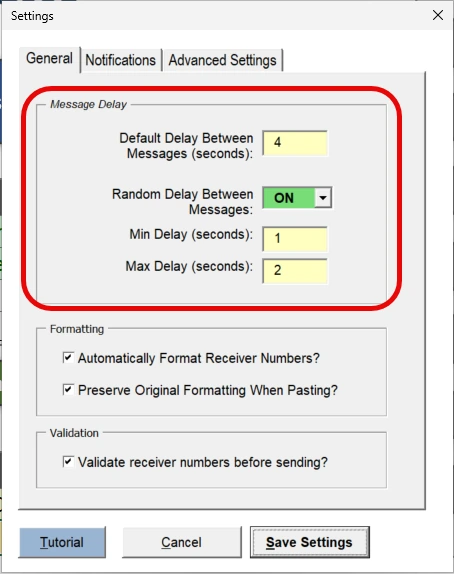
In this case, increase the Random Delay setting in QuickText (Settings → Random Delay). This adds more time between messages, making bulk sending less likely to trigger carrier spam filters. Note that longer delays mean longer runtimes for your campaigns.
Your Android phone shows a popup about sending lots of SMS #
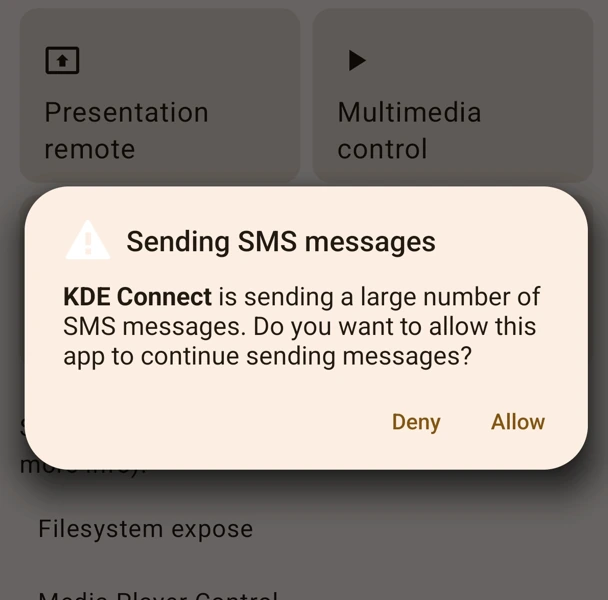
Android shows this warning when an app tries to send many SMS messages in a short time. It’s a built-in security feature to prevent apps from sending messages without your consent.
When QuickText sends many messages quickly, your phone may display this popup:
“KDE Connect is sending a large number of SMS messages. Do you want to allow this app to continue sending messages?”
Tap Allow to continue sending. Since you’re intentionally sending messages with QuickText, it’s safe to allow.
How to reduce the chance of this popup:
Add delays between messages to stay under Android’s detection limits. I recommend:
- 4 seconds fixed delay
- Random delay between 1 and 2 seconds
You can set both in the Settings tab. This helps throttle message sending to a more natural pace and may prevent this warning from appearing again.
Excel freezes or crashes when you click “Connect your phone” #
A blocked or stalled background command can cause this, but a freeze alone does not identify the cause.
What to do:
- Check the exact blocked operation in your protection history; keep protection enabled.
- Try the “Connect your phone” button again.
- If a protection event identifies QuickText, ask IT or the vendor about a narrow exception for the verified file.
- Do not change unrelated security rules.
Check the current scan and the exact protection event for the file from your official download. See See VirusTotal results →.
Still need help? #
Send it through the contact form and I’ll get back to you as soon as possible.