
Open the section matching the message in QuickText. These steps are for QuickText Excel, which needs KDE Connect on both your Windows PC and Android phone.
No device found. Please check KDE Connect on your phone.
QuickText cannot see your phone through KDE Connect yet.
- Open KDE Connect on both devices. If needed, install it using the official KDE Connect downloads.
- Connect the phone to the same local network as your PC. The PC can use Ethernet on that network. Avoid guest Wi-Fi that prevents devices from talking to each other.
- Keep KDE Connect open on your phone, then click Refresh in KDE Connect on Windows.
- When the phone appears, follow the pairing steps below.
If nothing appears, check whether a VPN or network policy isolates the devices. On a managed network, ask IT to allow KDE Connect between them. If the phone is still missing, run the KDE Connect diagnostic tool and send me the log.
Device is paired but not reachable.
Your PC remembers the pairing, but cannot reach the phone right now. Start by restoring the connection.
- Unlock your phone and open KDE Connect.
- Check that the phone has rejoined the same local network as your PC; mobile data alone does not join that network.
- If the connection drops when the screen turns off, allow KDE Connect to run in the background.
- In Excel, click Test Connection.
The successful result shows both YES – Ready to send messages and paired and reachable:

If the phone stays offline, return to the network checks above.
Device is reachable but not paired.
The phone is visible, but you still need to approve the connection between your devices.
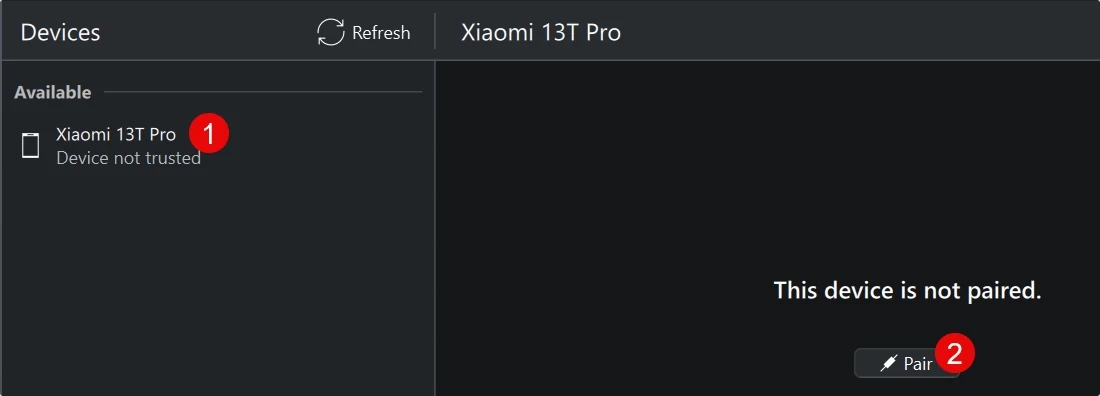
- In KDE Connect on Windows, select your phone and click Pair.
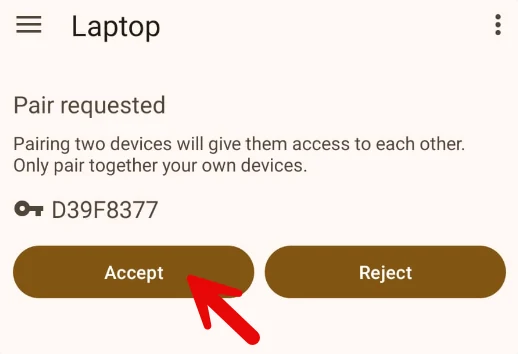
- On your phone, check that the request is from your PC, then tap Accept.
- KDE Connect on Windows should now say Device trusted and connected. Return to Excel and click Test Connection. If you have not selected a phone yet, use Connect Your Phone first.
Error: KDE Connect is not installed or not in the system PATH.
QuickText cannot run the KDE Connect command on your PC. If KDE Connect is missing, install it from the official download page.
If it is already installed, follow the CLI troubleshooting guide. QuickText Excel 2.0 checks the usual installation folders automatically; a custom location may need an explicit path in QuickText’s settings.
This video shows how to set that path:
Error checking KDE Connect installation: ERROR: Permission denied
Windows refused an operation while QuickText checked KDE Connect. The message alone does not identify whether a file permission, security tool or company policy caused it.
- Note the exact error and run the KDE Connect diagnostic tool to see which check fails.
- Check your security software’s recent blocked-app events. In Windows Security, open Virus & threat protection → Protection history.
- If an event names QuickText or KDE Connect, confirm the file came from its official download. Ask your IT team or security vendor about allowing that specific file or operation.
Keep your antivirus and firewall enabled while investigating. If you need help, send me the log, exact error and security-software name.
Excel freezes or crashes when you click “Connect Your Phone”
QuickText runs KDE Connect commands in the background. A stalled command or a blocked operation can interrupt this check, but a freeze alone does not confirm the cause.
- After reopening Excel, save your work before retrying. Note the last action or error shown.
- Open KDE Connect on Windows and check whether it can see and pair with your phone.
- Run the KDE Connect diagnostic tool outside the workbook. If a security event is reported, use the permission-denied checks.
- If the diagnostic succeeds but Excel still freezes, send me the log, your Excel and QuickText versions, and the step that triggers it.