
First check this #
Your phone and PC need to reach each other on the same local network. They do not need the same Wi-Fi band, and the PC can use Ethernet. Guest networks and router client isolation can prevent discovery.
If that is correct, continue with the steps below.
Step 1. Force close and restart KDE Connect #
Sometimes KDE Connect just needs a fresh start. On your phone, fully close the app (swipe it away from recent apps, or go to Settings > Apps > KDE Connect > Force Stop). Then open KDE Connect again and check if your computer shows up.
If it does, you’re good to go. If not, continue with Step 2.
Step 2. Clean reinstall #
If restarting and the network checks below do not help, try reinstalling. You will need to pair the devices again.
On Windows
- Open the Windows search bar.
- Type KDE Connect.
- Right-click.
- Select Uninstall.
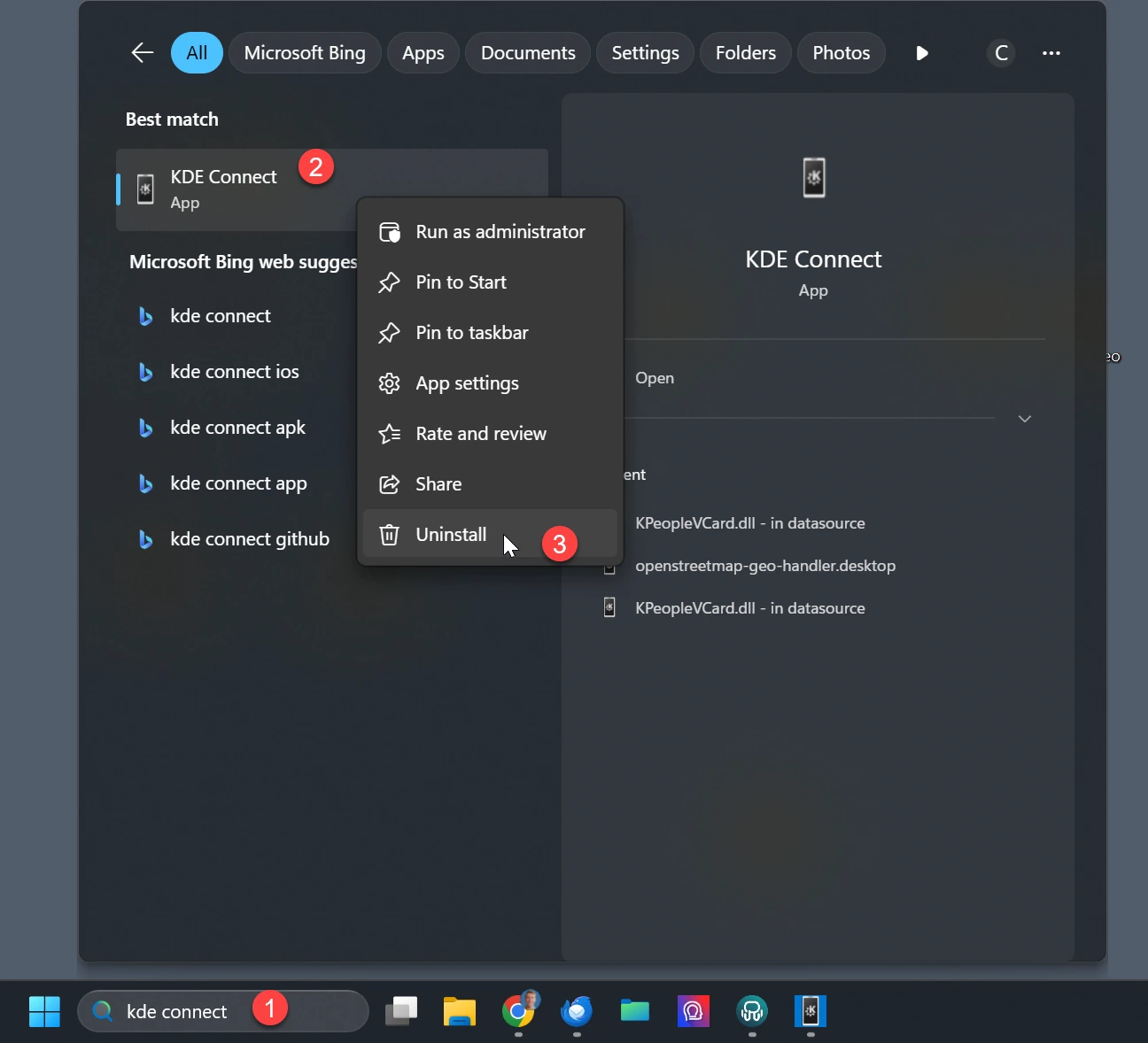
On Android
- Long press the KDE Connect app.
- Tap Uninstall.
- Install it again from the Play Store.
Then try pairing again. If it still doesn’t work, continue with Step 3.
Step 3. Check your network settings #
An update to Windows or Android can sometimes change network settings that KDE Connect needs. Go through the following checks.
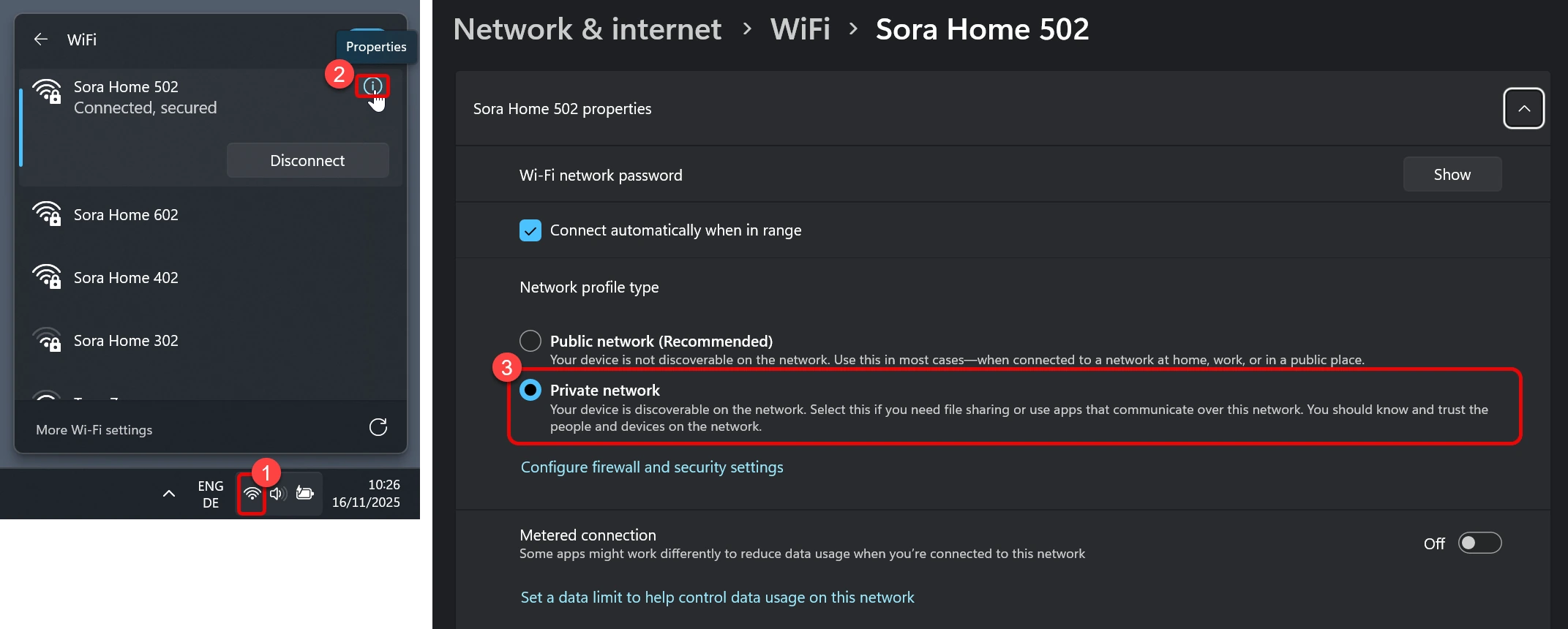
Set your Windows network to private
- Click the Wi-Fi icon.
- Select your network.
- Click the info button.
- Scroll to Network profile.
- Choose Private only for a network you trust, such as your home network.
Check router client isolation
Client or access-point isolation is a router setting that prevents devices from talking to one another. Try a trusted home network, or ask the network administrator to allow communication between your phone and PC.
Windows Core isolation / Memory integrity protects the operating system; it is unrelated to router client isolation and should not be turned off for this check.
Check VPN and network filtering
If a VPN or network filtering app is active, check whether it permits local-network connections. Do not disable Android Private DNS as a routine pairing step. See KDE Connect’s network and firewall guidance.