
Because Excel does not let an add-in do it. Two limits of Microsoft’s add-in platform shape how any date picker add-in works, including DatePop:
- No popup at a cell. An add-in can show a task pane at the side of the sheet or a dialog window, but it cannot position a small calendar next to the cell you clicked. Add-ins that look as if they do this on Windows are built on a different, older technology that is not available on Mac or Excel on the web.
- No self-opening. Since early 2026, an add-in installed from Microsoft Marketplace cannot open its own pane when you open a workbook or click a cell. The pane opens only from something you click: a ribbon button or the add-in’s menu.
Does Excel have its own date picker? #
Excel on the web does: double-click a cell that holds a date and a small calendar opens next to it. It is a basic one. Excel for Windows and Mac have no built-in date picker. DatePop gives all three the same picker in its pane, and adds a few things around it: one click fills every selected cell and the selection moves on, week numbers and your region’s first day of the week, undo, the cell’s own date format kept, public holidays (Pro) and date fields with rules for shared workbooks (Pro). It also makes the printable calendars.
What DatePop does instead #
DatePop keeps the calendar in a pane that follows your selection. You open the pane once, from the Home tab (DatePop group, Date picker), and leave it open. From then on:
- Click a cell. The pane shows where the next click writes (The next click writes to DatePop sample!A3) and jumps to that cell’s month.
- Click a date in the pane. The cell gets the date and the selection moves down.
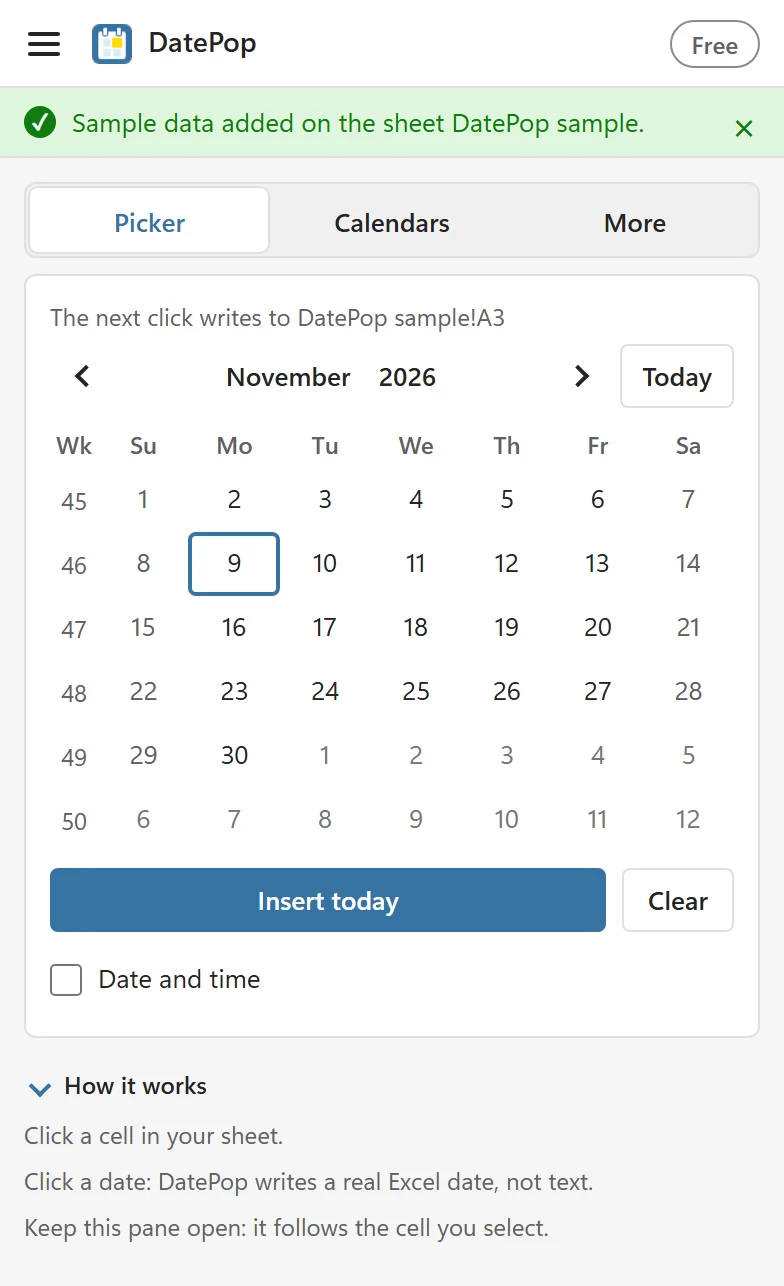
That is one click per date, the same as a popup, and your hand stays on the pane instead of travelling to a different spot for every cell. Filling a whole column goes fast because the selection moves on by itself. A pane also works the same on Windows, Mac and Excel on the web, which a popup cannot.
Tips #
- Leave the pane docked at the side of the window, where it does not cover your data.
- If you close the pane, open it again from the Home tab. It remembers your settings.
- For today’s date only, Insert today on the ribbon, or the keyboard shortcut (Ctrl+Alt+Shift+D on Windows, Command+Option+Shift+D on Mac), needs no pane at all.
Missing a feature? Tell me through the feature request page.