
A date series puts a different date in every selected cell, following a rule you choose: every workday, every Monday, the second Tuesday of every month and more. It is a Pro feature. In the free version the card is visible with a Pro badge, and Fill dates opens the upgrade card.
Fill a series #
- Select the cells to fill, for example a column of 20 cells. The series gets as many dates as there are cells.
- Open the More tab and find Fill a date series.
- Enter the Start date as year-month-day, for example 2026-11-06, or click the calendar button at the right of the field and choose the day in the small calendar that opens under it. Close or Esc shuts it.
- Choose a rule in Repeat and set its options.
- Check First dates, the list of the first six dates, and the line under it (Fills 9 cells).
- Click Fill dates.
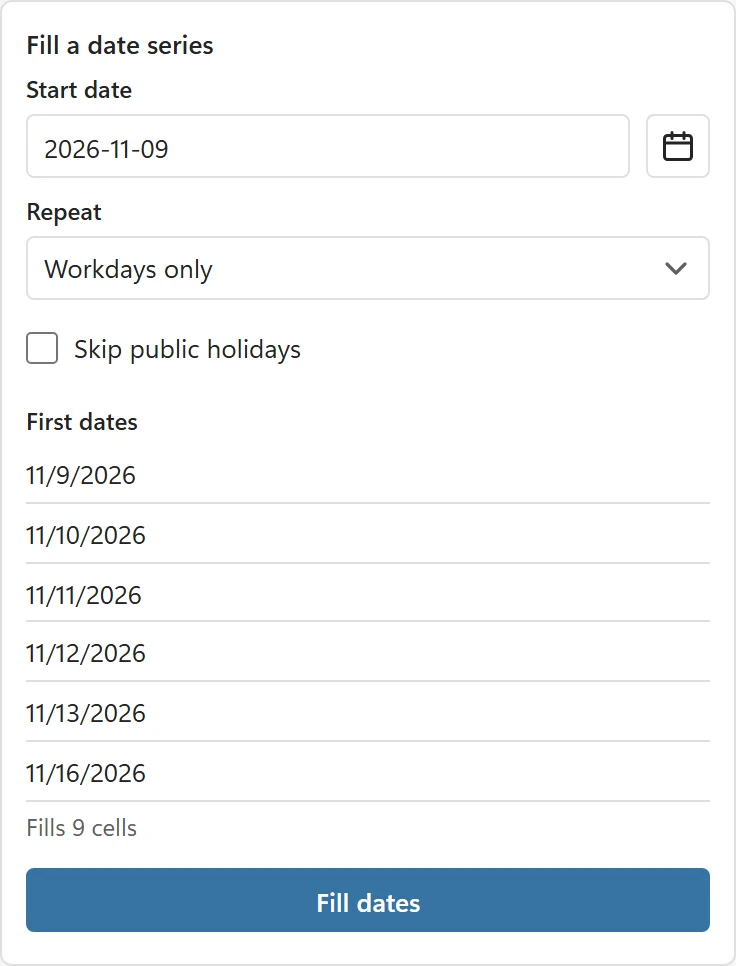
The dates go into the selected cells in reading order, row by row. A start date that is not a date (Enter the start date as year-month-day, for example 2026-11-06.) stops the fill before anything is written. The status line confirms with Filled 9 cells with a date series. and Undo last date puts the previous values back.
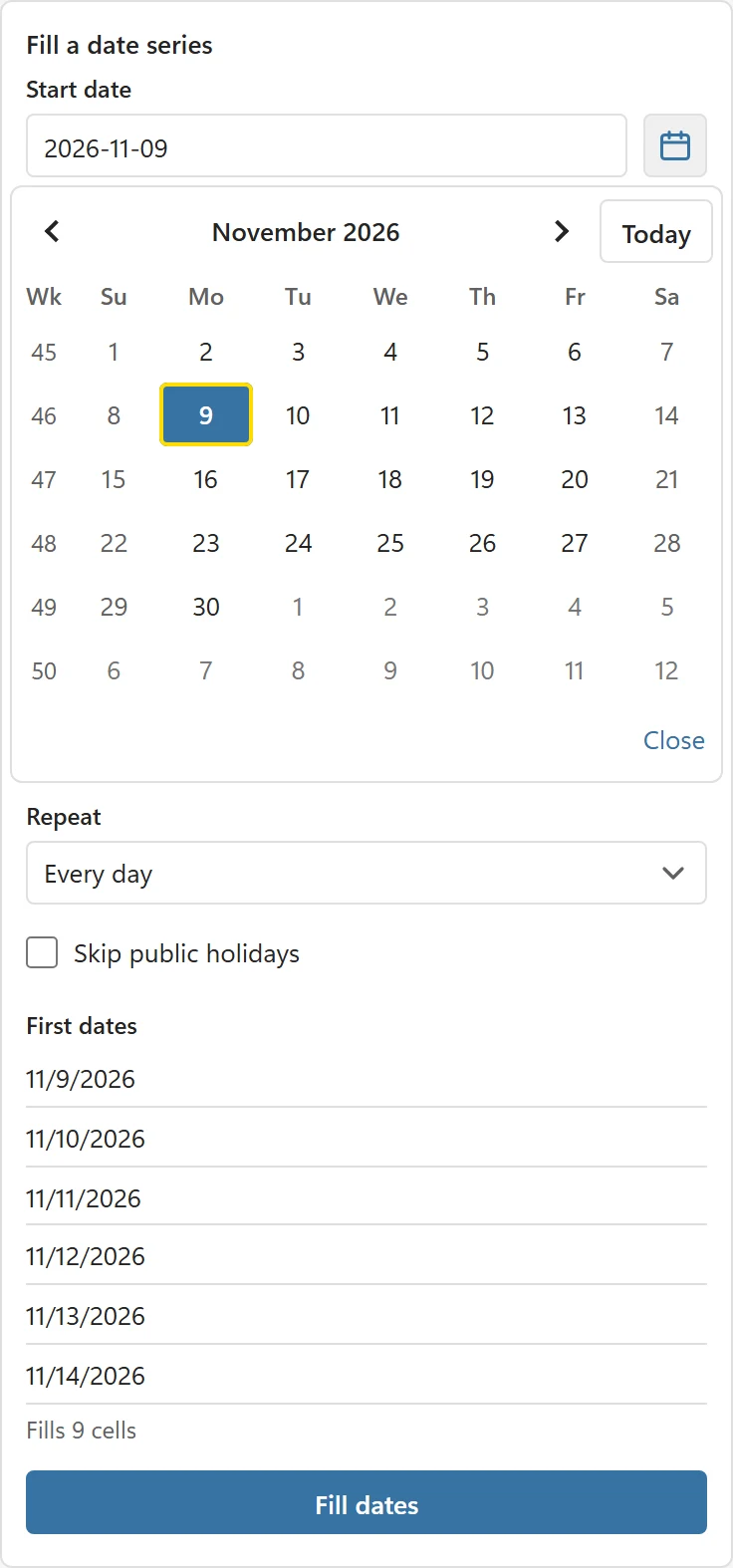
The rules #
- Every day.
- Workdays only: Monday to Friday in most regions. The weekend follows your region’s week settings.
- Every N days: type the number in the box, for example every 14 days.
- Every week on: tick one or more weekdays, for example Monday and Thursday. At least one weekday must be ticked.
- Monthly on day N: the same day number every month. A short month uses its last day, so day 31 gives 31 January, 28 February (29 in a leap year) and 31 March again.
- Monthly on the second Tuesday: choose the position (the first, second, third, fourth or the last) and the weekday.
- Every year: the same date every year; 29 February moves to 28 February in other years.
The first date is the first one on or after the start date that fits the rule. Starting a Workdays only series on a Saturday therefore begins on the Monday.
Skip public holidays #
Tick Skip public holidays to leave out any date that is a public holiday in your holiday country. Choose the country first in Settings under Holiday country; without one the card says Choose a holiday country in Settings to skip public holidays. The series then carries on with the next date that fits the rule. Where the holidays come from is explained in Where do the holidays come from?
Dates only #
A series writes dates without a time. The Date and time setting of the Picker tab does not apply to it; see Insert a date and time for picking a date with a time.
Good to know #
- Rows hidden by a filter and locked cells of a protected sheet are skipped, so the series has exactly one date for each cell it writes.
- If a cell belongs to a date field whose rules forbid one of the dates, DatePop stops and names the first date that does not fit.
- DatePop asks before it overwrites formulas, and before a fill of more than 1,000 cells.