
DatePop builds a monthly calendar for any month and year on a new sheet, ready to print. A single month and a year at a glance are free. This guide also shows the Pro options you can preview before buying.
Insert a monthly calendar #
- Open the Calendars tab of the pane.
- Leave Calendar on Month.
- Choose the Month and type the Year. The preview shows the layout as you change them.
- Click Insert calendar.
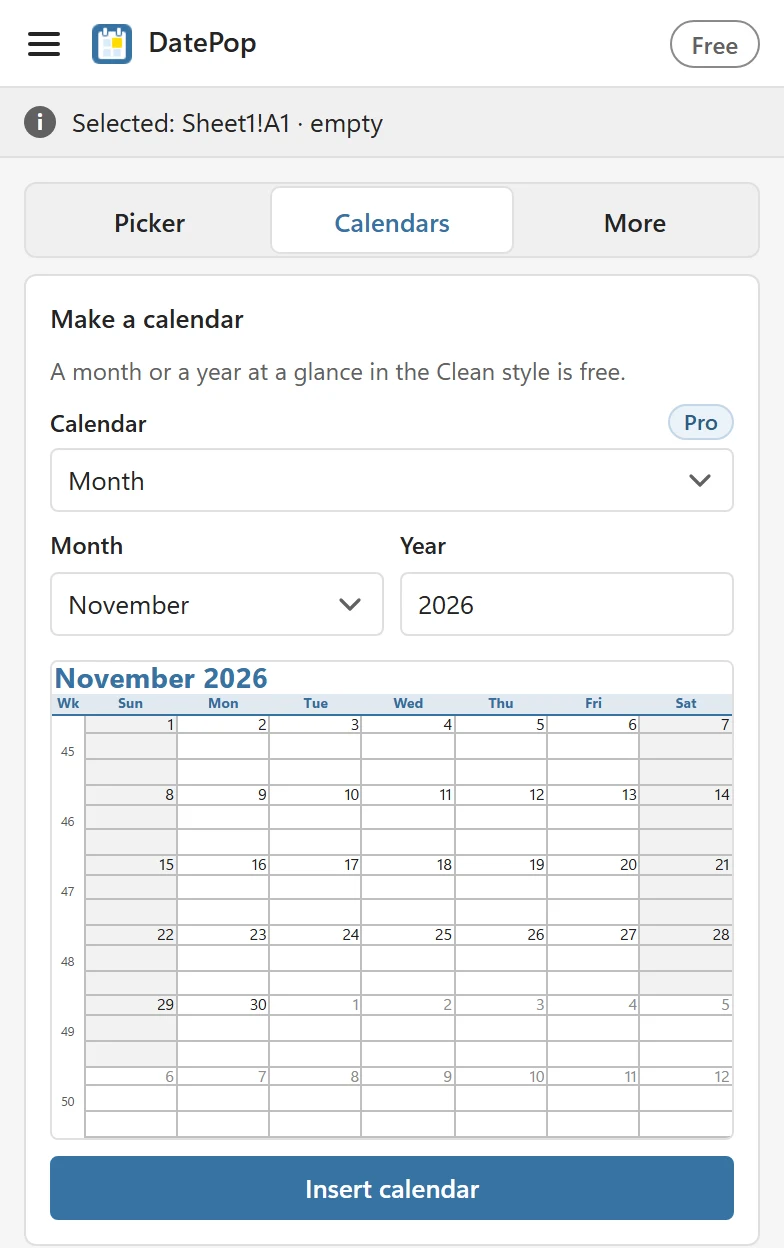
DatePop adds a new sheet named after the month, for example Calendar Nov 2026, makes it the active sheet and says Calendar Nov 2026 added as a new sheet. The sheet has:
- a title row with the month and year, and a weekday header;
- six weeks with the real date in the first row of every day, days of the neighbouring months shown lighter, and two empty writing rows under each date (the default of three rows per day);
- shaded weekends and, if you want them, a column of week numbers;
- a print setup of one landscape page, centred, with half-inch margins;
- the sheet gridlines switched off, so only the calendar’s own lines show.
Writing rows, weekdays, week numbers and paper #
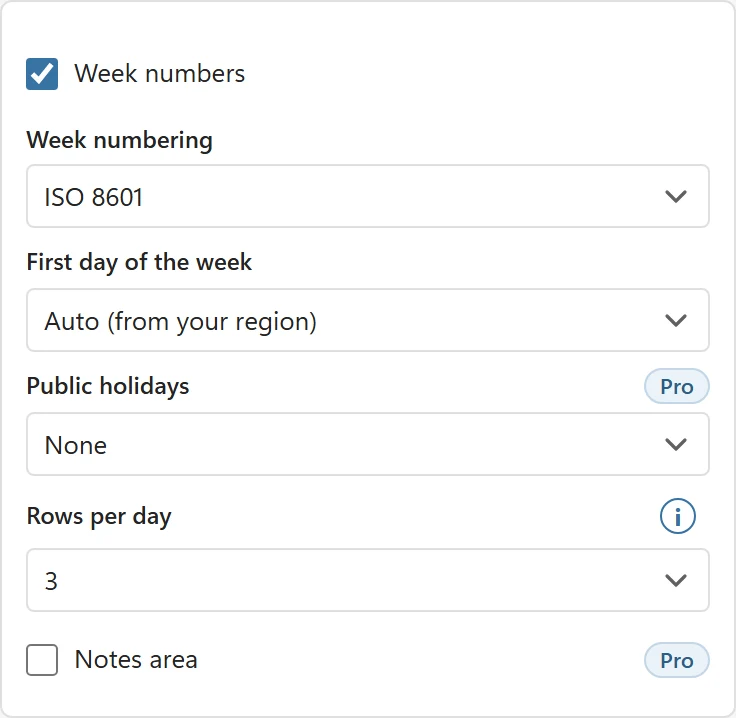
- Rows per day sets how many rows each day gets, from 1 to 5 (the date plus up to four rows to write in). The default is 3: the date and two writing rows for notes or appointments. It is free.
- Week numbers turns the week column on or off. Week numbering chooses ISO 8601 (weeks start on Monday, week 1 holds the first Thursday) or US (week 1 holds January 1).
- First day of the week is Auto (from your region) by default. Choose Monday, Sunday or Saturday to override it.
- Paper size is Auto: Letter for the US, Canada and Mexico, A4 elsewhere. Choose A4 or Letter to override it.
These controls start from your Settings. Month and weekday names follow the pane language.
Insert the same month again #
DatePop never overwrites a sheet. If a sheet with that name exists, the new one gets a number and the status line tells you: A sheet named Calendar Nov 2026 already exists, so the new sheet is called Calendar Nov 2026 (2). If the workbook structure is protected, DatePop cannot add a sheet and asks you to unprotect it under Review > Protect Workbook.
Edit it like any other sheet #
The calendar is made of plain cells: type events into the day cells, change fonts and colours, or delete rows you do not need. Nothing is locked and the sheet does not need DatePop to open.
What Pro adds #
The free version makes the single-month layout and the year at a glance in the Clean style. Pro adds the other calendar types (months of a year, weekly planner and an events calendar) and, for the month and the year as well, the Style (Clean, Bold, Minimal, Ink saver), the Accent colour, Public holidays for 207 countries, a Notes area and a Calendar language that can differ from the pane language.
In the free version these controls carry a Pro badge, and the preview shows the Pro layout with a Pro preview mark in the pane only. The button then reads Get Pro to insert. The mark never appears in your workbook.