
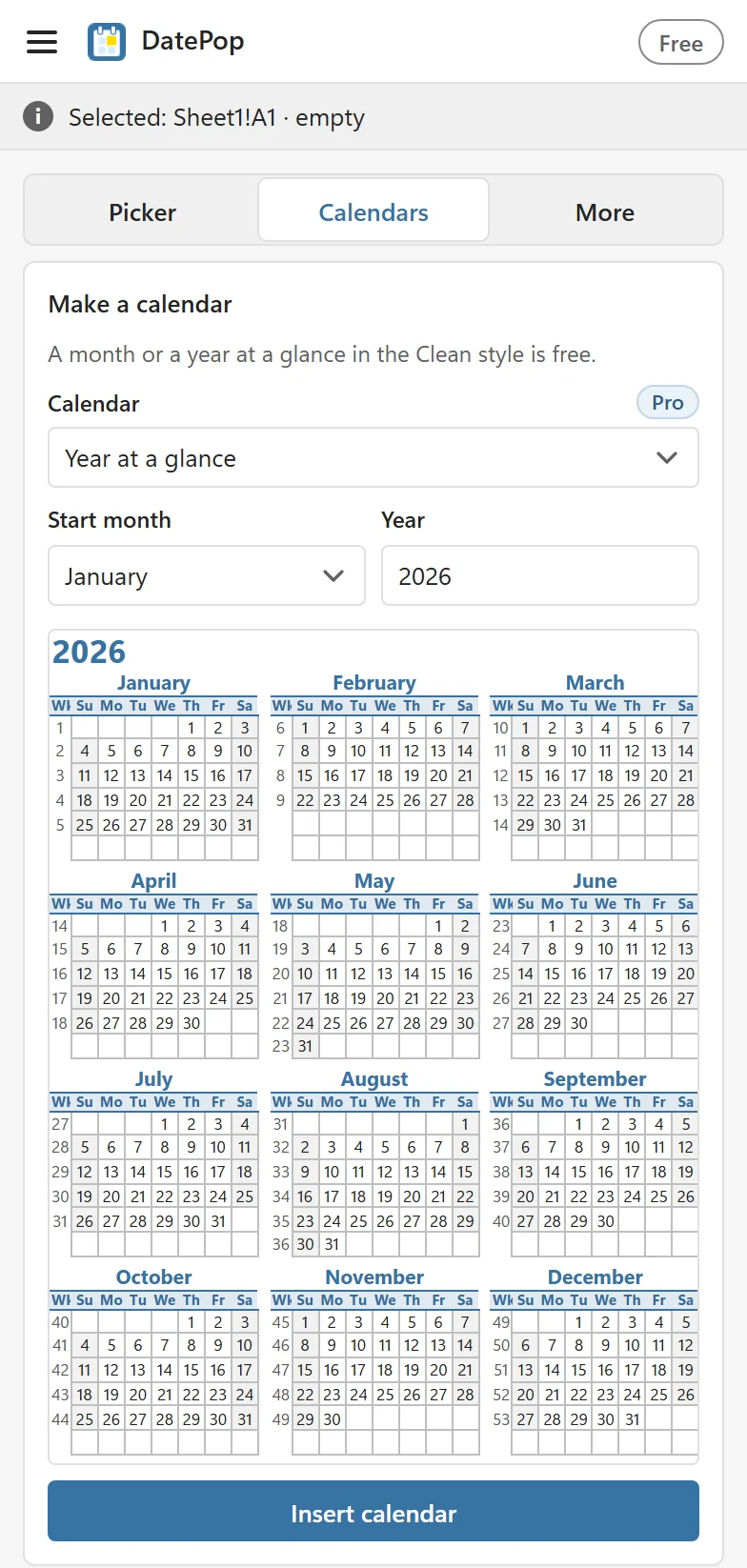
Year at a glance puts all twelve months on one printable sheet, with week numbers and, if you choose a country, its public holidays. The year itself is free in the Clean style. Public holidays, styles and accent colours are Pro: in the free version you can preview them but not insert them.
1. Choose the calendar #
Open the Calendars tab and set Calendar to Year at a glance. The month field becomes Start month: leave it on January for a calendar year, or choose another month to cover a school, fiscal or academic year. August to July is one example. Type the Year the calendar starts in.
2. Add public holidays (Pro) #
Scroll to the options below the preview. In Public holidays, choose a country from the 207 that DatePop knows. Where DatePop has regional data, a Region list appears so you can pick a US state, a German state, a Swiss canton and so on, or leave it on Whole country.
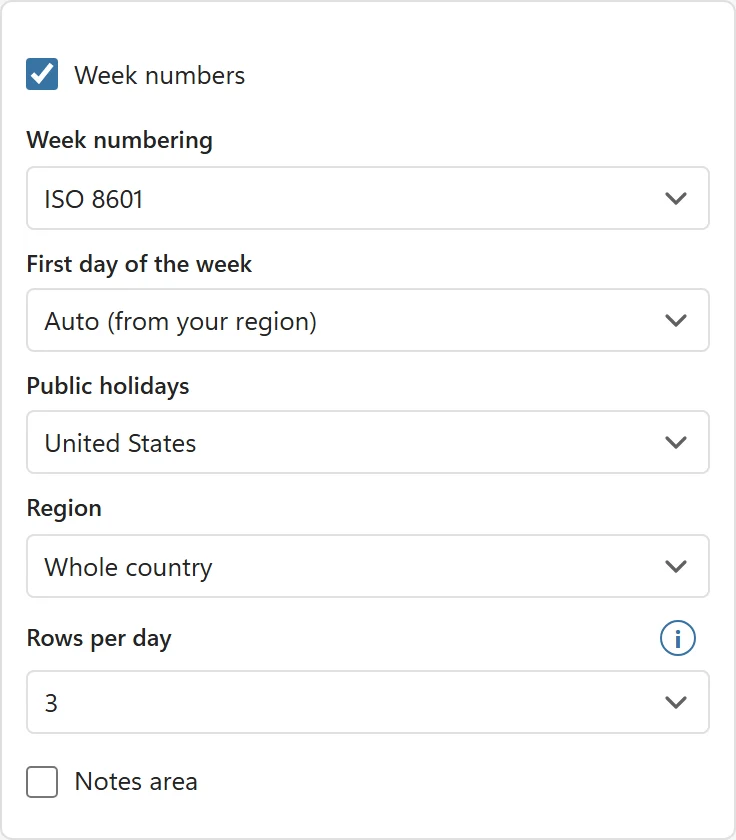
On the free version the list carries a Pro badge: choosing a country shows the holidays in a preview marked Pro preview, and the button reads Get Pro to insert. A year without holidays inserts for free.
The holidays are loaded the first time you choose a country and are marked in the preview. You can also set the country once under Holiday country in Settings; the same choice then marks holidays in the picker.
3. Choose the look #
- Style (Pro): Clean (free), Bold (coloured header), Minimal (no fills) or Ink saver (light on toner).
- Accent colour (Pro): pick a swatch or type a hex colour such as #3772A3.
- Week numbers, Week numbering and First day of the week, as in the monthly calendar.
- Calendar language (Pro): month and weekday names can differ from the pane language.
- Paper size: Auto, A4 or Letter.
4. Insert it #
Click Insert calendar. DatePop adds a new sheet, for example Calendar 2026, set up for printing, and the status line says Calendar 2026 added as a new sheet. With Pro and a country chosen, holiday days are shaded, and a Public holidays list with the dates and names is written under the months. The sheet gridlines are switched off so only the calendar’s own lines show. Everything is ordinary cells, so you can edit, recolour or add your own marks afterwards.
Other calendar types #
The same card also makes Months of a year (one sheet per month, or All months on one sheet under Layout) and a Weekly planner for the week of a date you choose, with optional Hour rows. The options work the same way. For a calendar made from your own dates, see Turn a list of events into a calendar.
Good to know #
- Holiday data covers 2020 to 2040. A year outside that range is made without holidays.
- Holidays are public holidays only, so school holidays, observances and company days off are not included. Add those by hand or in an events table.
- Check the holidays that matter to you against an official source before you print. The data comes from a community library: see Where do the holidays come from?