
After your purchase you receive a license key by email. Add it once per device; there is no account to create and nothing to sign in to.
Steps #
- In the DatePop pane, open the menu at the top left and choose Enter license key. You can also click the Free badge in the header, or open Settings and scroll to the License block.
- Paste the key from your purchase email into License key.
- Click Activate. DatePop checks the key and shows Key accepted. Pro is active. The badge in the header changes to Pro and the Pro controls lose their lock.
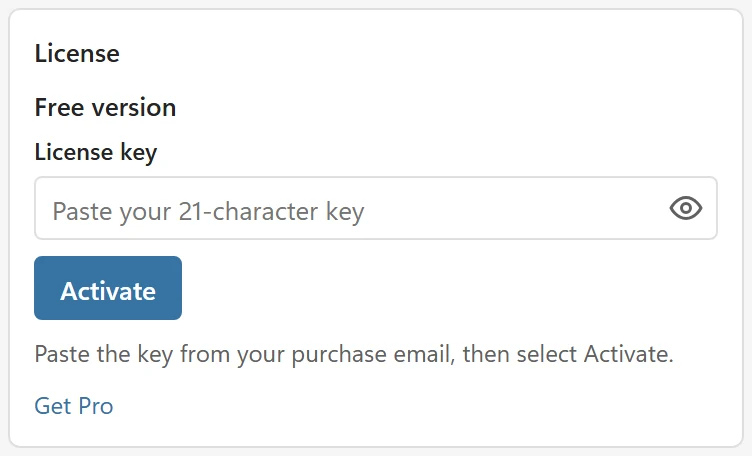
The key field hides the characters so the browser does not offer to save it as a password. The eye button at its right shows and hides the key.
License status #
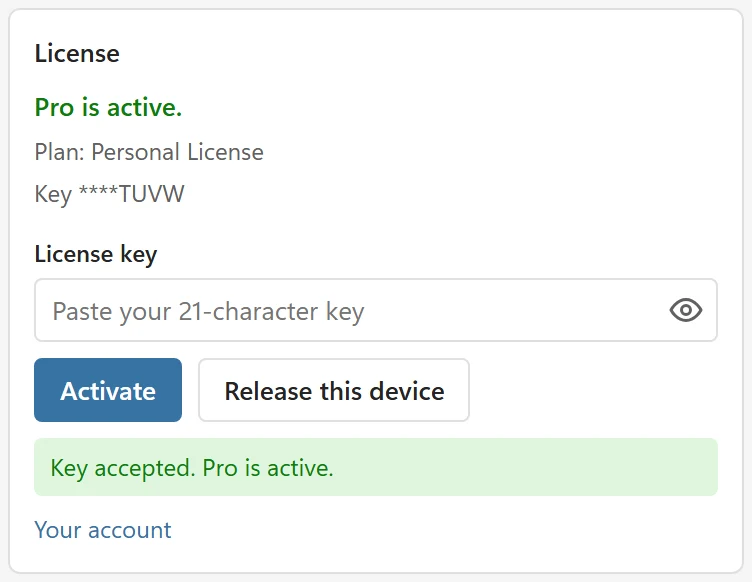
The first line of the License block shows your state: Free version, or Pro is active. with your plan, for example Plan: Personal License, the end of the key (Key ****TUVW) and how many devices it is active on (Active on 1 of 3 devices).
Release a device #
Each device you activate uses one slot. To move the key to another computer, release it here first: click Release this device. DatePop asks Release this device? You can then use the key on another computer. Confirm with Release this device or choose Cancel. Pro is then off on this device (Device released. Pro is off on this device.) and the slot is free. If the license server cannot be reached at that moment, DatePop says so and you free the slot in your account instead.
Good to know #
- The key is stored on this device only, never in the workbook. Colleagues who open your file do not get your key, and they can still pick dates into the date fields you made.
- Each license covers a fixed number of devices: 3 for Personal and 15 for Team. Manage devices and invoices in your account.
- The license is a one-time purchase, valid for life, with a 14-day money-back guarantee. Details are in Plans and licensing.
- Do not have a key yet? Get Pro in the License block opens the page where you buy a license.
Key not accepted? See My license key is not accepted.