
With Date and time on, one click writes a date and a time into the cell as a single Excel value. It is free, with no key.
Write a date and time #
- Open the Picker tab and click a cell.
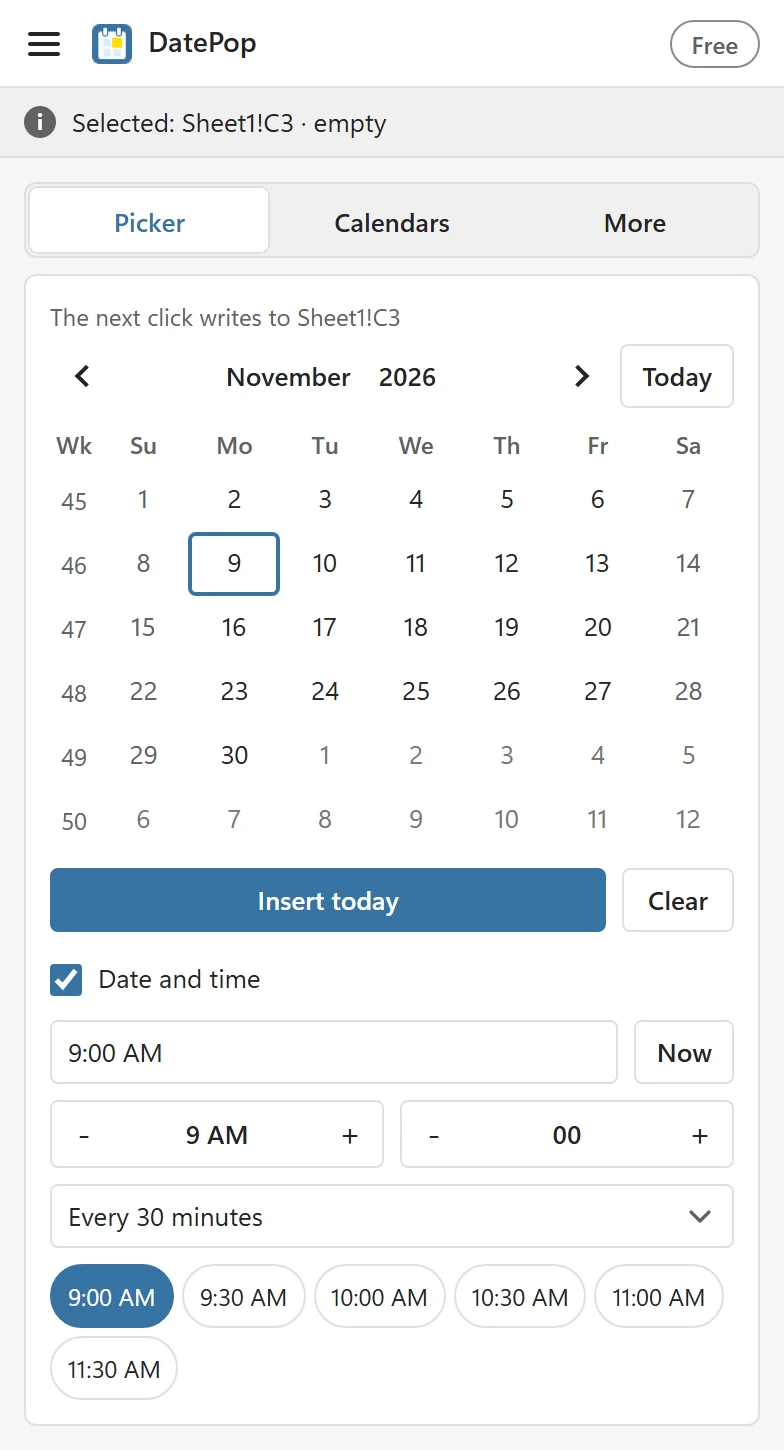
- Tick Date and time under the calendar. The time row opens.
- Set the time (see below).
- Click a date. The cell gets that date at that time.
Set the time #
- Type it in the time box: 9, 09:30, 9:30 PM or 21.30 all work. A time DatePop does not understand shows Enter a time such as 09:30 or 9:30 PM.
- Now sets the current time.
- The steppers change the hour by one and the minutes by five.
- Quick times offer six time buttons. Choose Every 15 minutes, Every 30 minutes or Every hour in the list above them to change the spacing, then click a button to use that time.
How the cell looks #
If the cell already has a date and time format, DatePop keeps it. Otherwise it adds the time to your default date format, for example yyyy-mm-dd hh:mm. The time shows with AM and PM when your regional settings use a 12-hour clock and as 24-hour time otherwise. The value itself is the date plus a fraction of a day, so you can calculate with it, for example subtract two cells to get a duration.
Good to know #
- The time setting applies to every pick while Date and time is ticked. Untick it to write dates only again.
- Fill a date series (Pro) writes dates only, so it does not use this time.
- Appointments with a start and end time in an events table are handled by the events calendar, which has its own columns for times.