
About a minute from installing DatePop to your first picked date. No account and no key: the free version is a complete date picker, with date and time, and a month and a year calendar maker.
1. Add DatePop to Excel #
You need Excel on Windows or Mac with Microsoft 365 or Excel 2021 and later, or Excel on the web. DatePop is coming soon to Microsoft Marketplace; the DatePop page shows when the listing is live. Once it is listed, add DatePop from the Add-ins menu on the Home tab (More Add-ins, search for DatePop, Add). The steps are in Installation.
2. Open the pane #
On the Home tab, find the DatePop group and click Date picker. The pane opens at the side of the sheet. Leave it open: it follows the cell you select.
3. Insert the sample data #
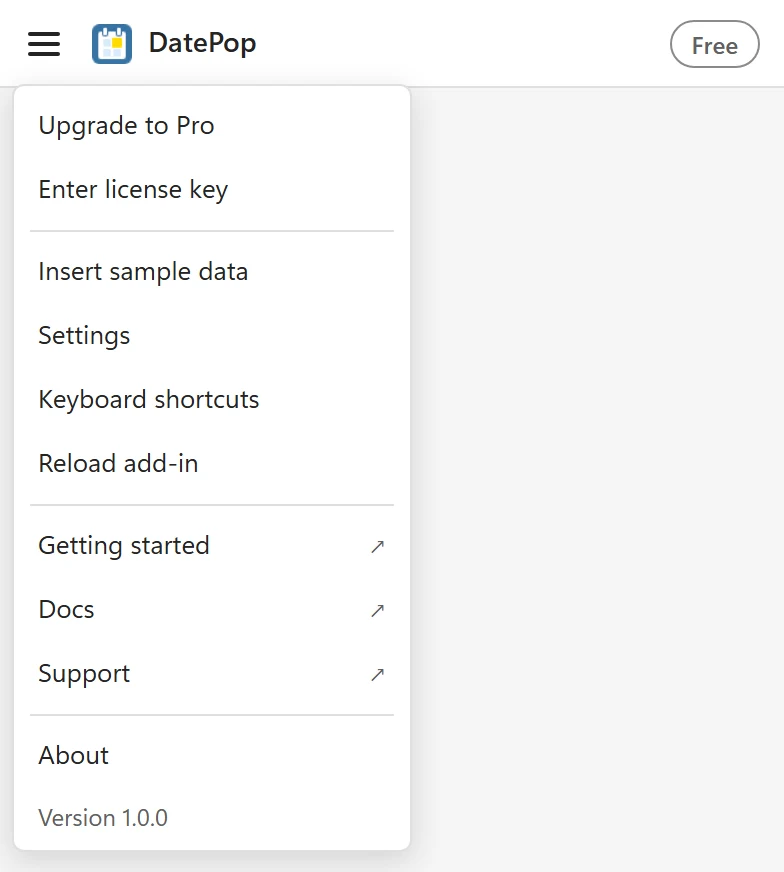
Open the menu at the top left of the pane and choose Insert sample data. DatePop adds a sheet called DatePop sample with a Due date list that is half empty, a table of events you can use later for the calendar guides, and a short note block that says what each part is for. Use it to look at the free parts first; Plans and licensing lists what needs Pro.
4. Pick a date #
Click an empty cell in the Due date column, for example A3. The line above the calendar says The next click writes to that cell. Click a date. DatePop writes a real Excel date into the cell and moves the selection one cell down, so you can click the next date straight away.
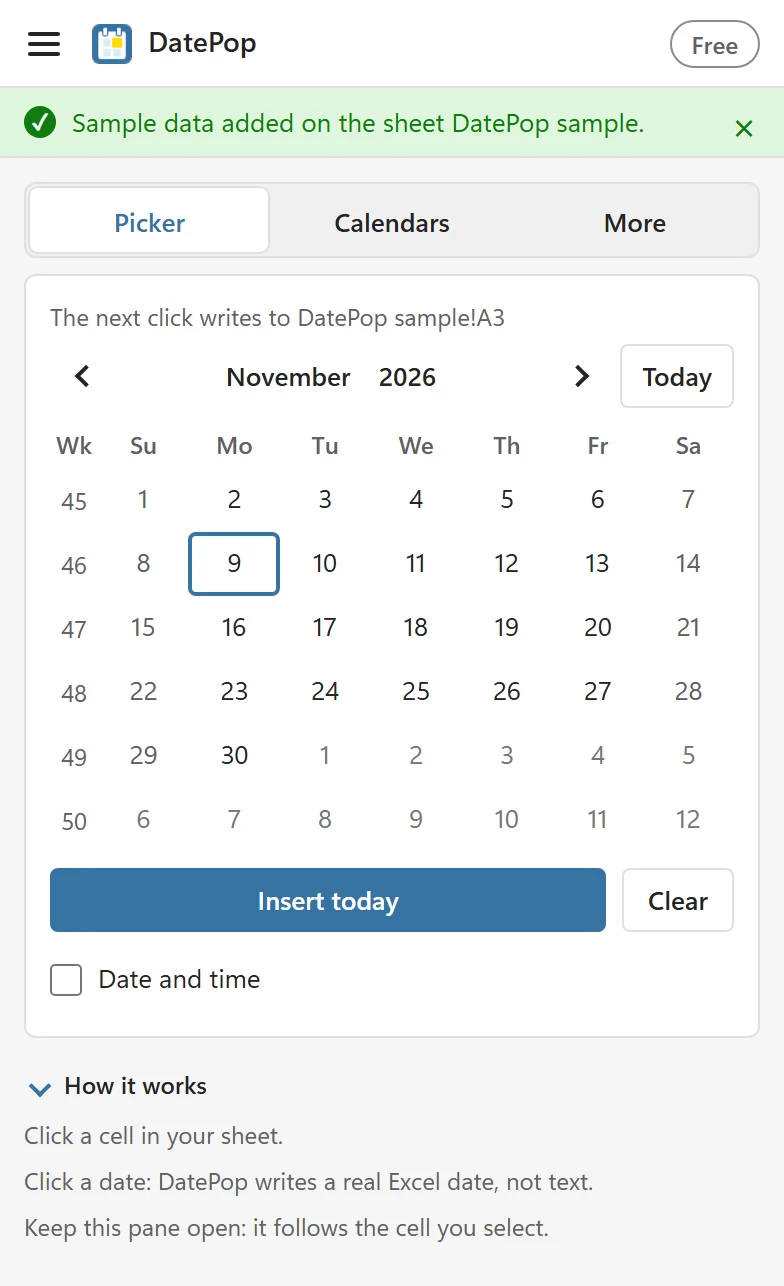
The cell keeps its own date format if it already has one. Otherwise DatePop uses your system’s short date. Check it yourself: the cell is right-aligned and =ISNUMBER(A3) returns TRUE.
The menu also has Keyboard shortcuts, a list of the keys for the pane and for inserting today’s date. See Pick dates into cells.
5. Try a calendar #
Open the Calendars tab, leave Calendar on Month (or choose Year at a glance, which is free too), choose a month and year and click Insert calendar. DatePop adds a new sheet such as Calendar Nov 2026, set up to print on one landscape page. See Make a monthly calendar.
Where to go next #
- Pick dates into cells and Fill a column with dates for everyday picking.
- Make a yearly calendar with holidays and Turn a list of events into a calendar (Pro).
- Change language and week settings if the week should start on another day.