
A date field turns a range of cells, such as the due date column of a shared tracker, into a place with date rules. Colleagues who use DatePop see the rules in the calendar and cannot pick a date that breaks them. Making a field is a Pro feature. Picking into a field works for everyone, including colleagues on the free version, so one license can roll out a tracker to the whole team.
Make a date field #
- Select the cells for the field: one block of cells, for example the whole Due date column of a table without its header.
- Open the More tab and find Date fields.
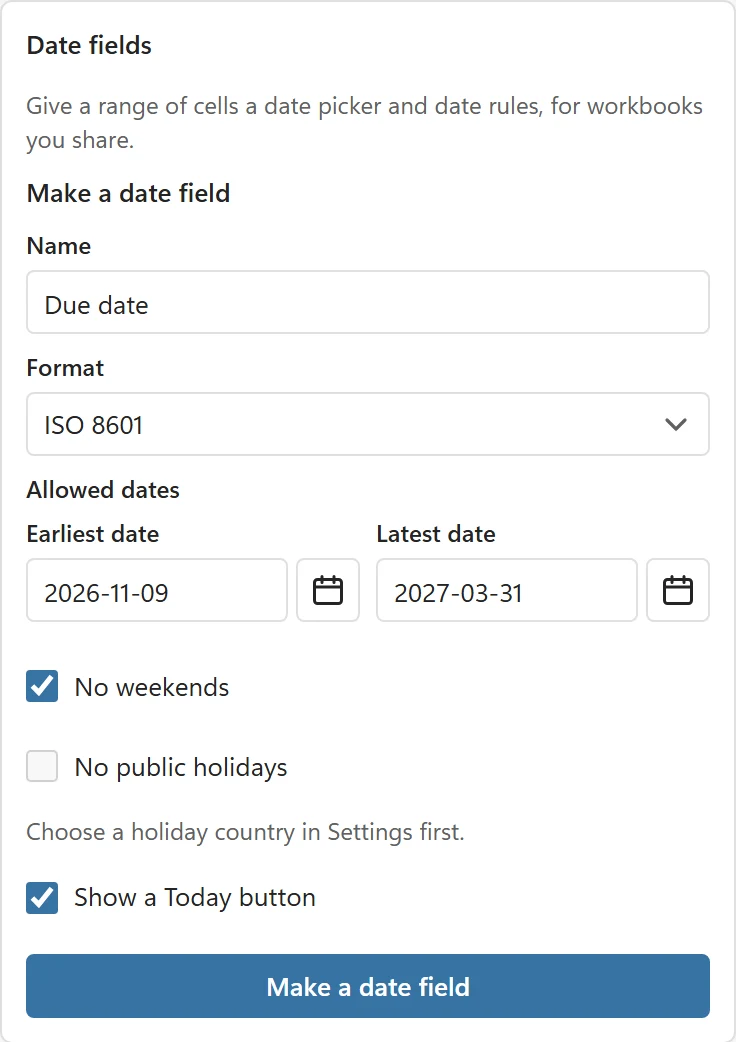
- Enter a Name, for example Due date. Names must be unique in the workbook.
- Choose a Format: ISO 8601, Short date, Long date, Day, month name, year, Date and time or Custom format (type Excel format codes such as yyyy-mm-dd).
- Under Allowed dates, type an Earliest date and a Latest date as year-month-day. Leave either empty for no limit. The calendar button at the right of each field opens a small calendar under it, so you can click the day instead of typing it.
- Tick No weekends and No public holidays if they apply. The holiday rule needs a Holiday country in Settings first.
- Leave Show a Today button ticked, or untick it to hide the Insert today button while a cell of this field is selected.
- Click Make a date field.
The status line confirms: Date field Due date made for Sheet1!C2:C20. The field is now listed under Your date fields.
What a date field does #
- In the picker. When a cell of the field is selected, the status line shows the rules, for example Date field: Due date · From 9 November 2026 · Until 31 March 2027 · No weekends. Dates that break a rule are greyed out and cannot be picked.
- In the cells. The cells get the field’s date format and an Excel data validation for the earliest and latest date. Someone who types a date by hand gets Excel’s own Date not allowed message, for example Enter a date between 2026-11-09 and 2027-03-31., even without DatePop.
- In the workbook. The field is saved in the file as a workbook name (DatePop_DF_1 and so on) and a settings entry with its rules, so it travels with the workbook. Inserting rows inside the range extends the field.
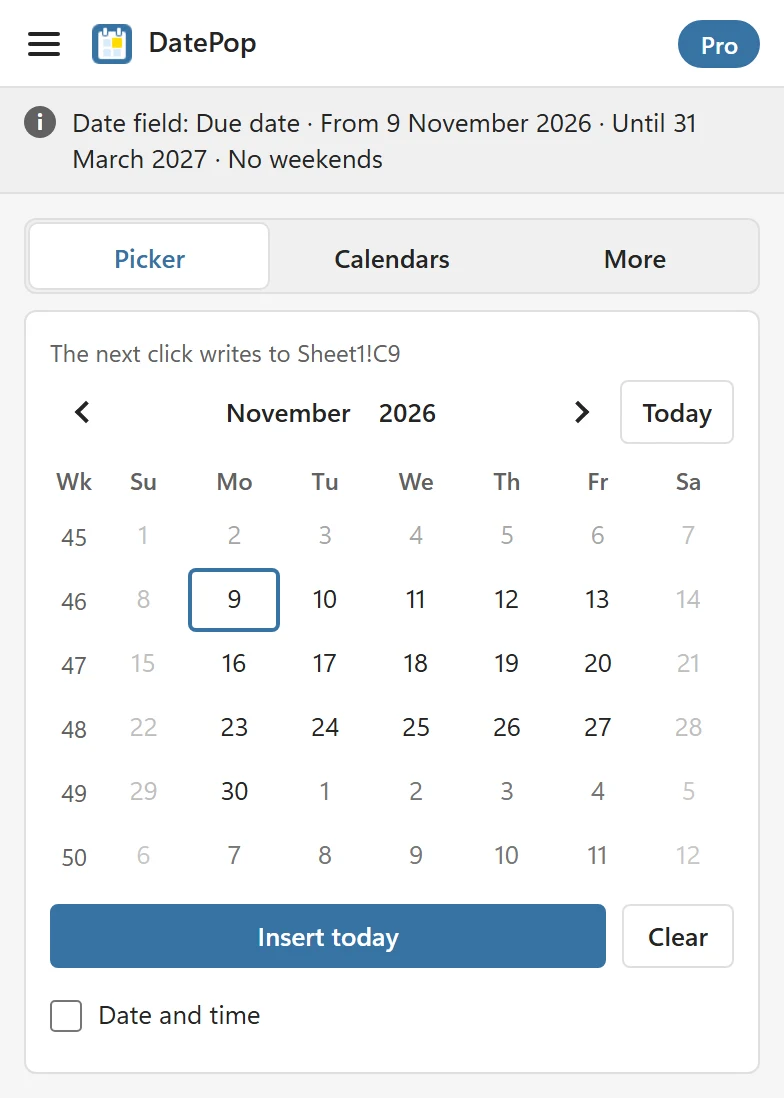
Weekend and holiday rules are enforced by DatePop. Excel’s data validation can only check the earliest and latest date, so a colleague who has no DatePop and types a Saturday into a field with No weekends is not stopped. Colleagues with DatePop, free or Pro, cannot pick one.
Edit or remove a field #
- Open the More tab and look under Your date fields. Each field shows its range, the number of cells and its rules.
- Click Edit next to the field, change the rules and click Save changes.
- To remove it, click Remove this field and confirm. The question reads Remove the date field Due date? The cells keep their dates. The name, the validation and the settings entry are removed; the dates stay.
Rolling out a shared workbook #
- Make the fields in your copy of the tracker with Pro.
- Save the workbook and share it as you normally do.
- Colleagues add DatePop (free) once it is listed on Microsoft Marketplace and open the pane. When they select a cell in a field, the rules apply, and on the free version a note in the picker reads Date field made with DatePop Pro. They need no key.
Good to know #
- A cell can belong to one field only. DatePop tells you Some of these cells already belong to the date field and names it.
- If the cells already have another data validation, such as a list, DatePop keeps it and still applies the rules in the pane.
- On a protected sheet Excel does not allow DatePop to add validation or change formats. The field still works in the pane, and DatePop says what it could not apply.
- If the cells of a field are deleted, the list shows Its cells were deleted and you can remove the field.