
DatePop saves the rows of an events table as an .ics file, the calendar format that Outlook, Google Calendar, Apple Calendar and most other calendars import. One row becomes one event. Saving the file is a Pro feature. In the free version you can read your table and preview the events that would be exported.
1. Prepare the table #
Use the same kind of table as for the events calendar: a header row, one row per event, and at least a start date and a title. Optional columns are end date, start and end time, category, location and notes. See Turn a list of events into a calendar for the column names DatePop recognises. An event without times becomes an all-day event.
2. Read the table #
- Click any cell inside the events table.
- Open the More tab and find Export to Outlook or Google.
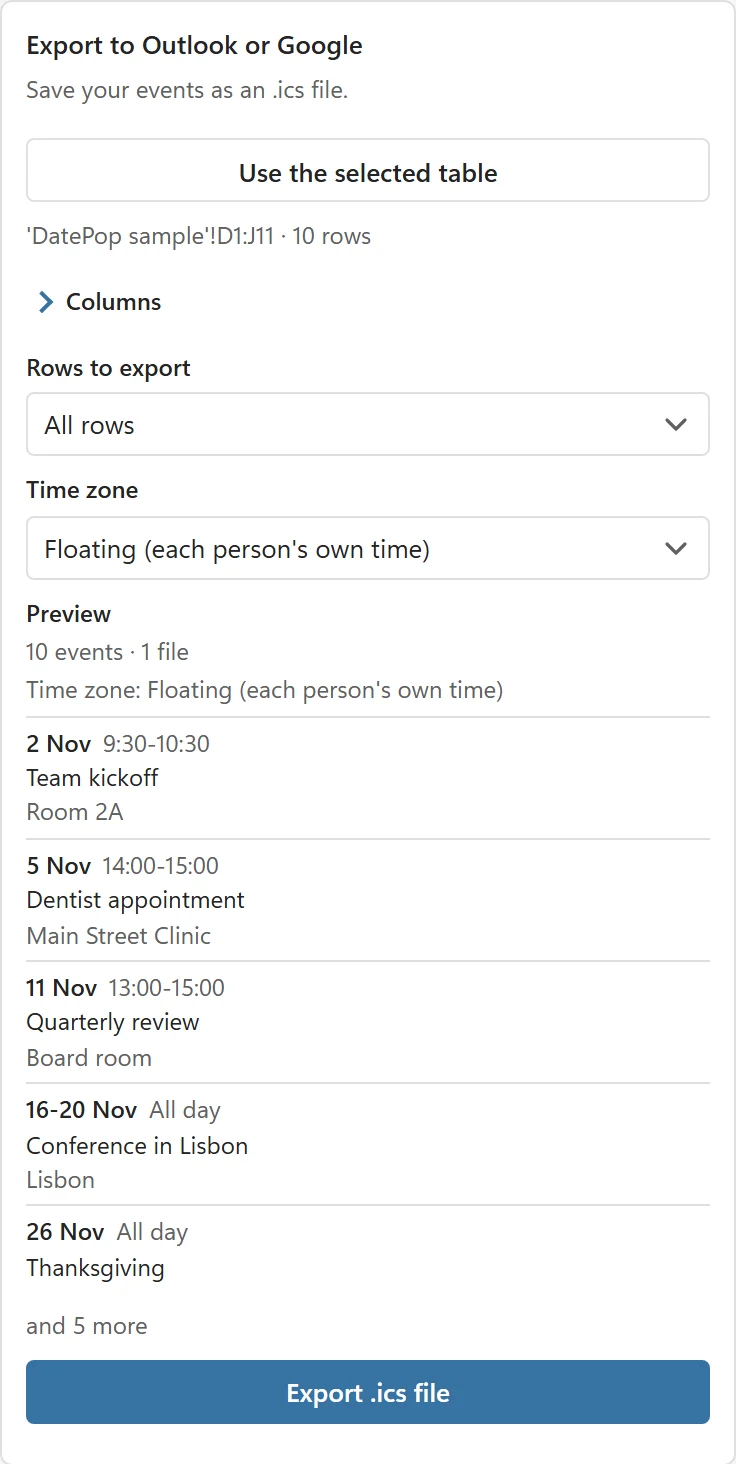
- Click Use the selected table. The card shows the table and the number of events, for example 10 events.
- If a column was guessed wrong, open Columns and change it.
3. Check the preview and choose what to export #
Under the options, Preview shows the number of events and files (10 events · 1 file), the time zone, and the first five events with their date, time, title and location. All-day events say All day, and a longer list ends with and 5 more. Everyone sees this preview, with or without a key.
- Rows to export: All rows or Filtered rows only. Filter the table first to export only some events, for example one category.
- Time zone: Floating (each person’s own time) keeps a 9:00 event at 9:00 for whoever imports it, wherever they are. Choose This computer to pin timed events to your computer’s time zone so they land at the same moment everywhere. All-day events do not depend on the time zone.
4. Export #
Click Export .ics file. In the free version this opens the Pro card instead. With Pro, what happens next depends on where you use Excel:
- Excel on the web: the browser downloads an .ics file named DatePop events followed by today’s date.
- Excel on Windows and Mac: the file opens in your default browser, on a page that says Your calendar file is ready and downloads it. The page has a Download again button and short import instructions. It runs entirely in your browser and your events are not sent to a server.
If a browser blocks the new tab, allow it and click the button again, or use Copy .ics text: DatePop copies the file text, you paste it into a plain text file and save it as events.ics.
5. Import into your calendar #
- Outlook: open the downloaded file, then choose Save & Close. Outlook adds the events to your calendar.
- Google Calendar: choose Settings, then Import & export, then select the file and the calendar to add the events to.
DatePop gives every event a stable ID, so importing the same file again usually updates the events instead of adding them twice. Check your calendar after the first import to be sure.
Large exports #
A file holds up to 400 events. A longer list is split, and the pane says so (Your events are split into 3 files so each one stays small enough to import.). Each file has its own button, Open file 1 of 3, Open file 2 of 3 and so on. Click them one by one and import every file.
Good to know #
- Rows without a usable start date or title, or with an end before the start, are skipped. The number of events the card shows is the number that will be exported.
- Titles with accents and emoji are kept.
- The export reads your table at that moment. After you change the table, export again.