
DatePop writes a real Excel date into the cells you have selected. This guide covers the everyday picking: one cell, many cells, today’s date, clearing and undoing, and the keyboard.
1. Select the cell #
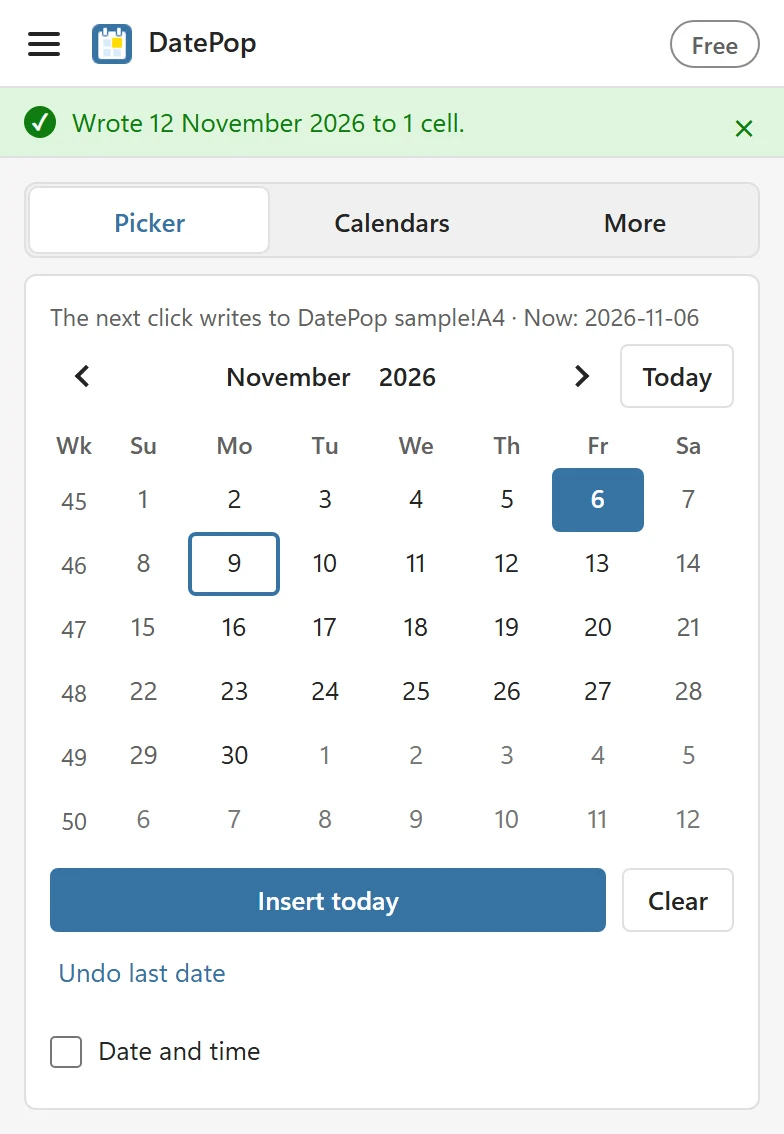
Open the pane (Home tab, DatePop group, Date picker) and click a cell in your sheet. The status line at the top says what you selected, for example Selected: Sheet1!C3 · empty or, for a cell that holds a date, the full date (Selected: Sheet1!C3 · 2 November 2026), and the line above the calendar says where the next click writes: The next click writes to Sheet1!C3. If the cell already holds a date, the calendar jumps to its month and marks that date.
2. Click a date #
Click a day in the calendar. The cell gets the date, the status line confirms it (Wrote 12 November 2026 to 1 cell.) and the selection moves to the next cell, so the next click goes there. The line above the calendar shows what that next cell holds now, for example Now: 2026-11-06.
What the cell ends up with:
- A true Excel date, never text. It sorts, filters and calculates like any other date.
- The cell’s own date format if it already has one. Otherwise the Default date format from Settings, which by default is your system’s short date.
- The correct day in workbooks that use the 1904 date system, and for dates back to 1900.
- A column that is wide enough: if a date would show as ####, DatePop widens the column, and it never makes a column narrower. You can turn this off in Settings with Widen columns to fit dates.
3. Move through the calendar #
- The arrows at the top switch month. Click the month name to choose a month and the year to choose from a range of years.
- Today jumps back to the current month.
- The Wk column shows week numbers. Change the numbering and the first day of the week in Settings.
4. Pick into many cells #
Select a block of cells, or several blocks with Ctrl (Command on Mac), and click a date: every selected cell gets the same date. Rows hidden by a filter are skipped and the status line says how many (3 filtered rows were skipped.). In a merged cell the date goes into the top-left cell. To give each cell a different date, use Fill a date series.
5. Insert today, clear and undo #
- Insert today writes today’s date into the selected cells. The DatePop group on the Home tab has the same button, and the keyboard shortcut works with the pane closed.
- Clear empties the selected cells.
- Undo last date appears under the buttons for about 10 seconds after a pick or a clear and puts the previous values and formats back. Excel’s own Undo is cleared by add-in changes on some versions of Excel, which is why DatePop has its own.
6. Use the keyboard #
The menu has a Keyboard shortcuts view that lists every key below, with the shortcut for inserting today’s date.
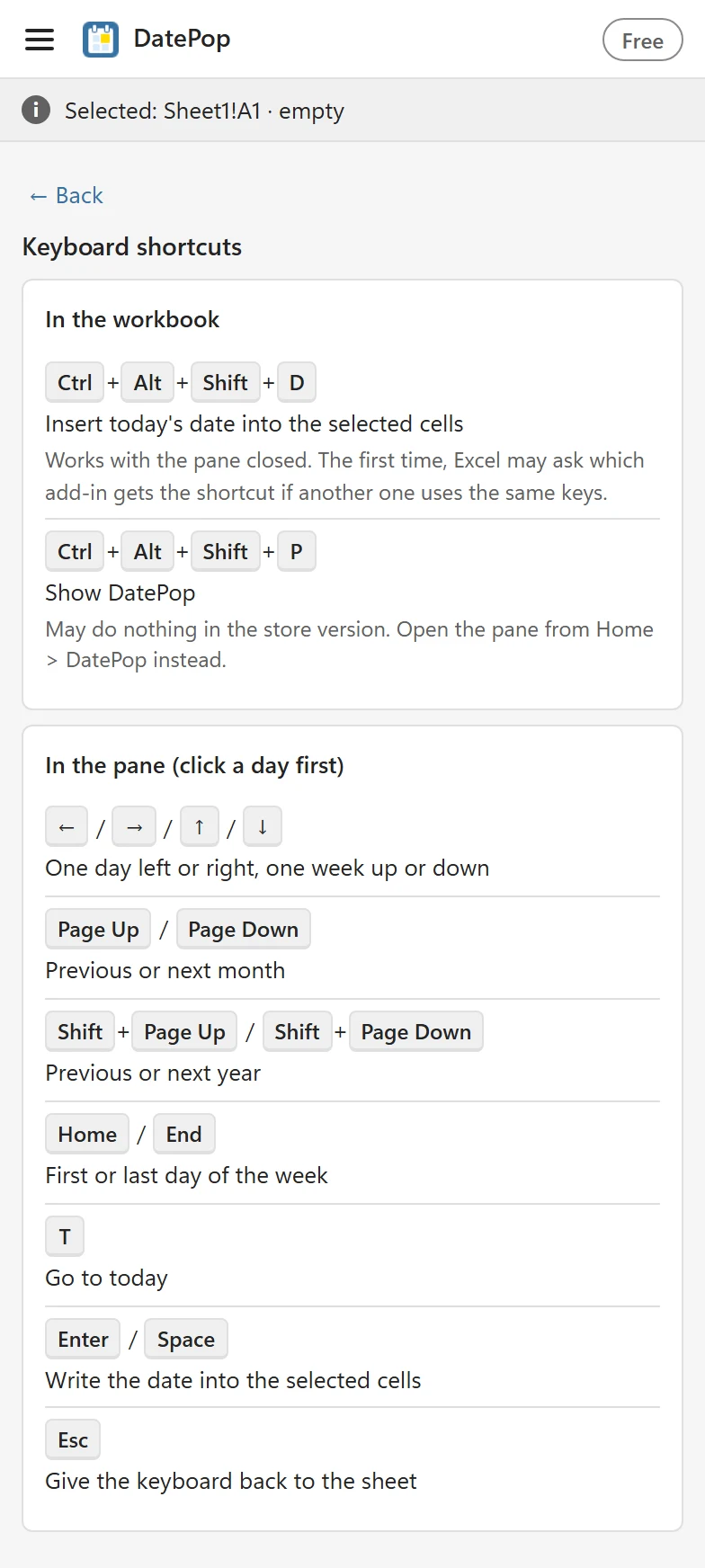
Press Tab to move into the calendar, then:
- Arrow keys move one day or one week.
- Page Up and Page Down change the month; with Shift they change the year.
- Home and End jump to the start or end of the week.
- T goes to today. Enter or Space writes the date.
- Escape returns to the workbook.
When DatePop asks first #
- A selected cell holds a formula. DatePop asks Replace it with the date? before it overwrites a formula.
- More than 1,000 cells. DatePop asks This writes to 1,500 cells. Continue? A selection of a whole column fills only the used rows plus one, and one pick writes at most 10,000 cells.
- A cell holds text that looks like a date. The status line offers Convert; see The date is wrong or shows as a number.
- The sheet is protected. Unprotect it first (Review > Unprotect Sheet). If the sheet allows editing cells but not formatting them, DatePop writes the date and keeps the cell’s format.