
Keep your events in a normal Excel table, one row per event, and let DatePop draw them on a calendar: one sheet per month or one sheet for the whole year, colour-coded by category. When the list changes, one click rebuilds the calendar. Making the calendar is a Pro feature. In the free version you can read your own table and preview the calendar in the pane.
1. Prepare the table #
You need a header row and one row per event. DatePop reads these columns, by their header names in English, German, Spanish, French or Portuguese, and by the kind of values in them when a name is not clear:
- Start date and Title (required).
- End date for events that last several days, Start time and End time for timed events. An event without times is an all-day event.
- Category, Location, Notes and Colour.
The menu entry Insert sample data adds a table called DatePopEvents that you can use to follow along. In the events calendar card, Insert sample events does the same in one click: it adds the sample sheet if it is missing and selects the table for you.
2. Read the table #
- Open the Calendars tab and set Calendar to Events calendar from a table.
- Click any cell inside the events table.
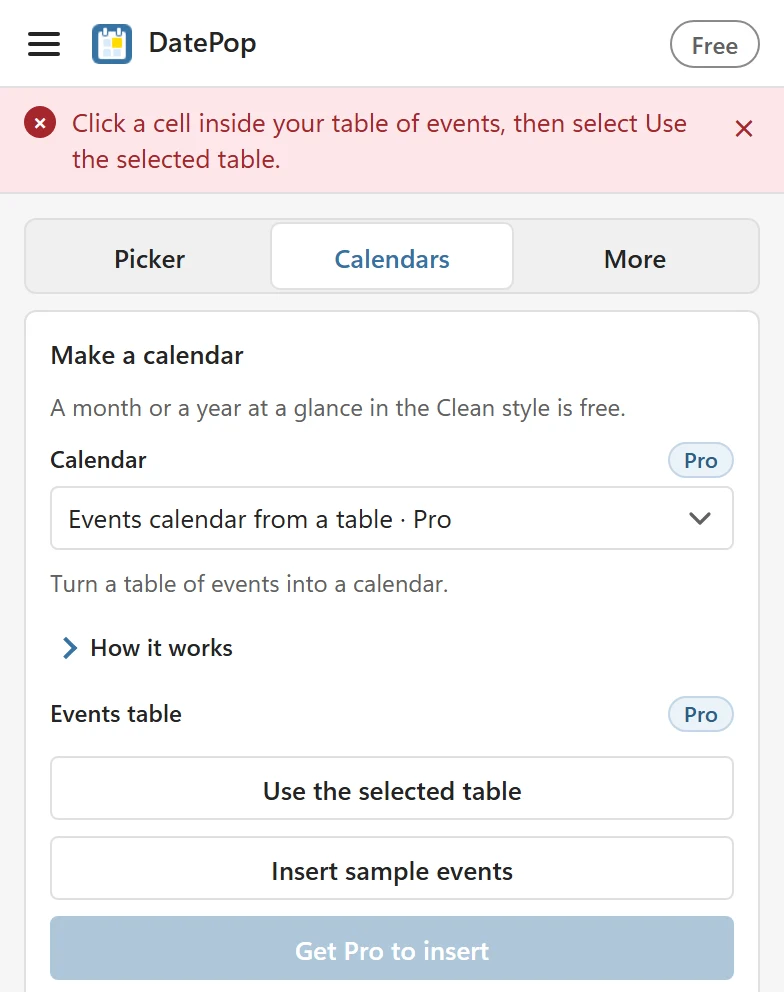
- Click Use the selected table. The button waits for a table: if the selected cell is empty or outside a table, the pane says Click a cell inside your table of events, then select Use the selected table. and reads nothing.
- Once the table is read, the pane shows the table and its size (‘DatePop sample’!D1:J11 · 10 rows) and says 10 events found.
- Check the Start date and Title lists and the other column lists. Change any that DatePop guessed wrong.
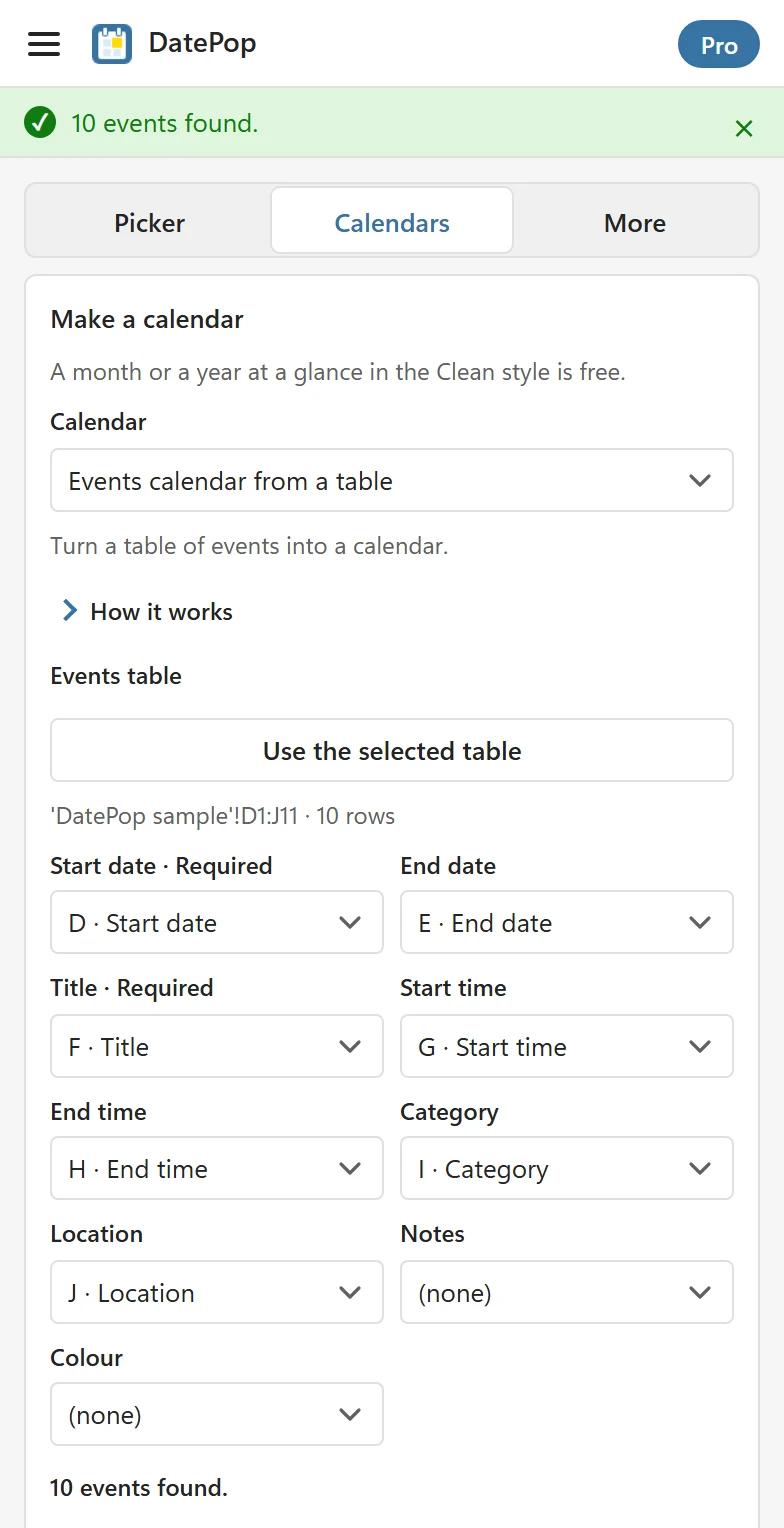
Rows DatePop cannot use are skipped and listed with their row numbers: no usable start date, no title, the end is before the start or the time is not understood. Fix them in the table and click Use the selected table again.
3. Choose the view #
- View: Month view makes one sheet per month between From and To, up to 24 months. Year view shows twelve months on one sheet.
- Events per day: how many events show in a day cell, from 1 to 5. More are summarised as +3 more.
- The preview and the Legend below the options show the result before you insert it.
4. Make the calendar #
Click Make events calendar. DatePop adds the sheets, for example Events Nov 2026, and the status line says how many (2 calendar sheets added.). In the calendar:
- Events are filled with the colour of their category, from an accessible palette of eight colours, with a legend. Add a Colour column to choose colours yourself: a hex code such as #1D4ED8 or a basic colour name (red, blue, green and so on, also in German, Spanish, French and Portuguese).
- A multi-day event appears on every day it covers. The days after the first start with an arrow, and the legend explains it with the word continues.
- Each day cell shows the event titles. Times, locations and notes stay in your table.
5. Refresh after you edit the events #
Edit, add or delete rows in your table, then open Your events calendars, choose the calendar and click Refresh calendar. DatePop rebuilds the sheet from the table and asks first, because anything you typed on the calendar sheet is replaced: Refresh rebuilds this sheet from the table. Only sheets made by DatePop can be refreshed. If the table is gone, the pane asks you to select a table and make the calendar again.
What the free version shows #
Without a key you can do steps 1 to 3: read the table, check the columns and see the preview and the legend. Make events calendar (the button reads Get Pro to insert) and Refresh calendar need Pro.
Good to know #
- The calendar is a snapshot made of ordinary cells; the source table stays untouched.
- Very long tables are read up to a limit, and the pane tells you how many rows it uses.
- To send the same events to Outlook or Google Calendar, see Export events to Outlook or Google Calendar.