
The pane shows a red message #
DatePop loads two things from the internet: its own code from addins.pythonandvba.com and Microsoft’s Office script. The pane tells you which one failed.
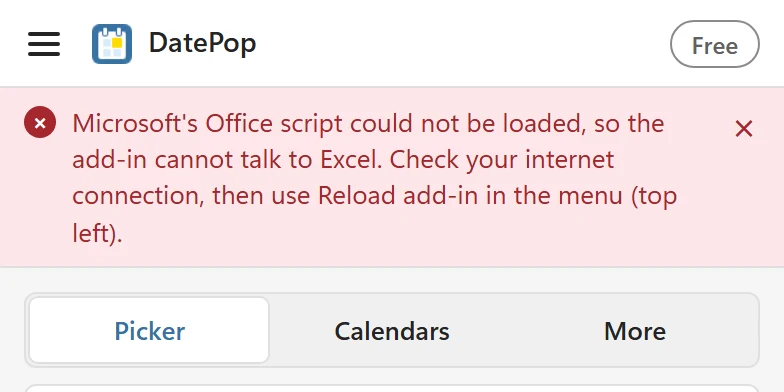
- Microsoft’s Office script could not be loaded, so the add-in cannot talk to Excel. Check your internet connection, then use Reload add-in in the menu (top left).
- Excel is not responding. Check your internet connection, then use Reload add-in in the menu (top left).
- Not connected to Excel yet. Wait a moment or use Reload add-in in the menu. Wait a few seconds after opening the pane, then try again.
- The add-in could not load its code. Close and reopen the pane. If it persists, your Excel version may be unsupported.
- Check the connection. Without internet, the pane cannot start.
- Reload the add-in. The menu at the top left always works. Open it and choose Reload add-in, or close the pane and open it again.
- Update Excel. DatePop needs Microsoft 365 or Excel 2021 and later. Older versions such as Excel 2019 or 2016 cannot run it.
- Company network. A proxy or firewall that blocks addins.pythonandvba.com or Microsoft’s office.js stops every add-in pane. Ask IT to allow both. The license check also needs api.pythonandvba.com.
- Excel on the web. Reload the browser tab. Private windows and strict tracking protection can block the add-in’s storage; try a normal window.
DatePop is missing from the Home tab #
- Check that you are signed in to Excel with the account you added DatePop with.
- If your admin deployed it, it can take up to 24 hours to appear. Restart Excel.
- If your organization blocks store add-ins, only centrally deployed ones appear. Ask IT to deploy DatePop.
- The group is called DatePop and has the buttons Date picker and Insert today. In a narrow window Excel may fold the group into a drop-down.
The pane opens but does not follow my selection #
If the status line says DatePop lost track of your selection., click Refresh next to it, or just click another cell. If it keeps happening, open the menu and choose Reload add-in. Keep the pane open while you work: it only follows the selection while it is running.
The pane opens but a button says it is not connected #
Use Reload add-in in the menu. If the problem stays, copy the diagnostic info from About and contact support with your Excel version and platform.