
Need help or have a question? Send it through the support form, name PinPop in your message, and I will get back to you, usually within a day.
Three things that speed every answer up:
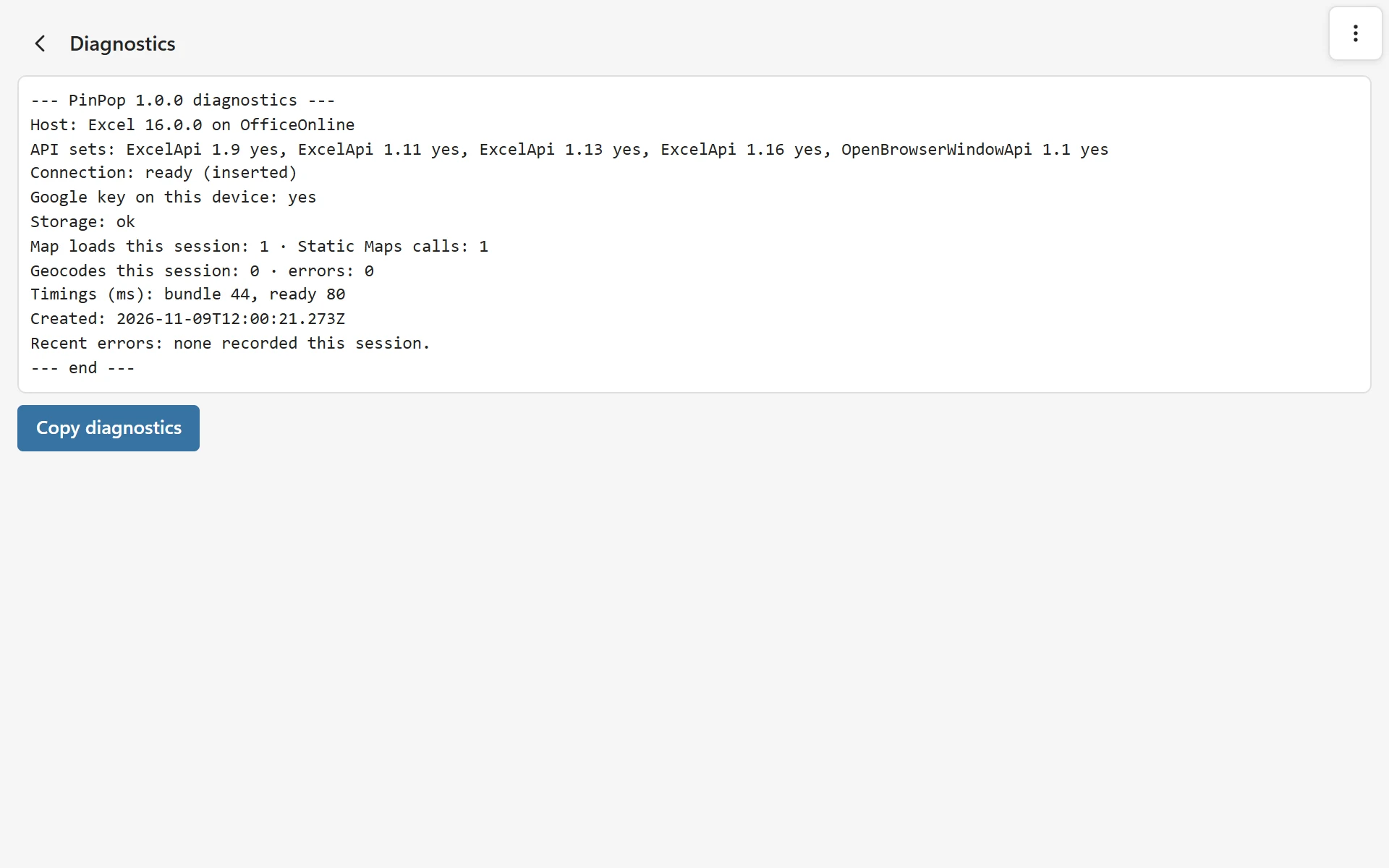
- In the map, open More options > Diagnostics and click Copy diagnostics. Paste it into your message. It holds the add-in version, your Excel version and platform, the map loads and the geocodes of this session and recent error messages, never your cells, your addresses or your keys.
- Say which Excel you were using (Windows, Mac or the web), what you did, what you expected, and what happened instead.
- For a question about a license or a purchase, include the email address you bought it with.
Never send me your Google Maps key or your license key in full. If a message is about the key, the first and last four characters are enough.
For an address in the wrong place #
Tell me the address as it is in your cell, the Match value PinPop wrote, and where the pin should be. Some addresses are not found or wrong covers the usual causes first.
For Google errors #
Most Google messages are about the key, the enabled APIs or billing in your Google Cloud project, which only you can change. Google says the API is not activated and Daily limit or billing error walk through the checks. If they do not help, copy the exact line from More options > Google key into your message.
Ideas and feature requests #
Before you write #
Many questions are answered in the Troubleshooting section, for example when Google says an API is not activated, when the daily limit stops the lookups, when addresses are not found, when the map does not load or a license key is not accepted.