
A PinPop map lives in the workbook, so it travels with the file: by email, on OneDrive or SharePoint, or on a shared drive. The table, the coordinates PinPop wrote, the map’s settings and a recent picture of the map all go with it.
What a colleague sees #
When they open the workbook, Excel loads PinPop in the map frame. The first time, Excel may ask them to trust or add the add-in. Then:
- With their own Google Maps key on their device, they see the live map: the same table, colors, popups and layers, following the table as they edit it.
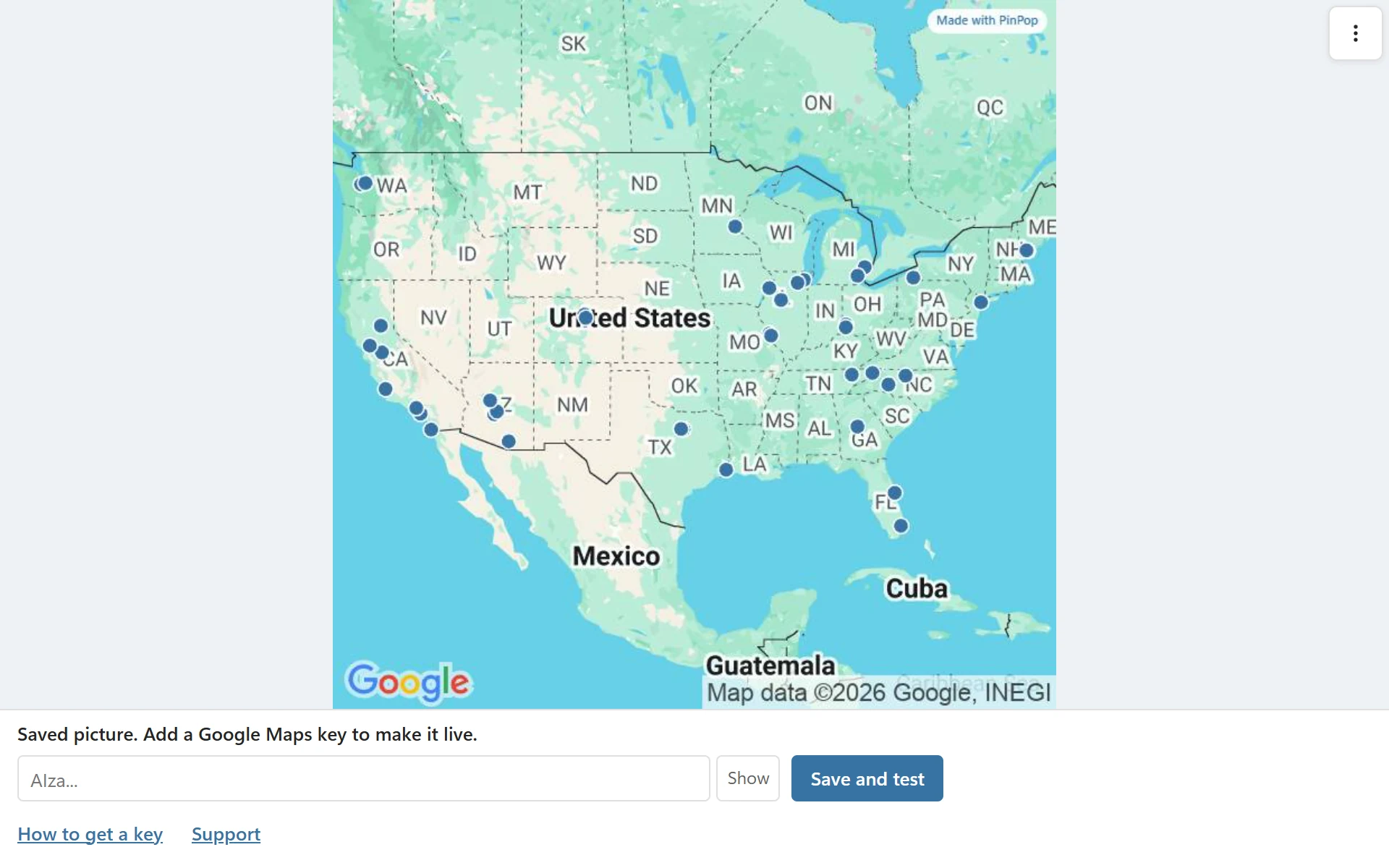
- Without a key, they see the full picture of the map that was saved in the workbook, with a strip under it that says Saved picture. Add a Google Maps key to make it live. The strip has a field for the key and a link to the key guide. Once they save a key, the map goes live. A workbook with no saved picture shows the card Add your Google Maps key to make this map live instead.
Your Google key is never stored in the workbook and never shared: it stays in the browser storage for the add-in on your device. Every person who wants the live map uses their own key, billed to their own Google project.
No license needed to view #
A colleague never needs a PinPop license to see a map you made with Pro. The map keeps the Pro features it was made with, such as more than 50 pins, the heat map or radius circles, for everyone who opens it. They need their own license only to make new Pro maps or turn on Pro features themselves.
The saved picture #
PinPop keeps the picture in the workbook up to date as you work: it refreshes it at most every few minutes, when the view or the data changed, and not while lookups are running. Save the workbook after your last change so the picture is current. The picture is for viewing only; it does not follow the table until a key makes the map live.
Share without the workbook #
Someone who should see the map but not your data, or who does not use Excel, can get a picture: Export > Download PNG, or Place picture in sheet (Pro). See Export, print and use in slides. A live share link is not part of PinPop 1.0.
Working together #
- Two people can edit the table at the same time in a shared workbook. Lookups for one table run in one map at a time; another map waits until they are done.
- A map in a workbook opened on the free version still counts as the workbook’s one free map, unless it was made with Pro.
- Remove the map before you share a workbook if the recipients should only see the table; the Latitude, Longitude and Match columns stay.