
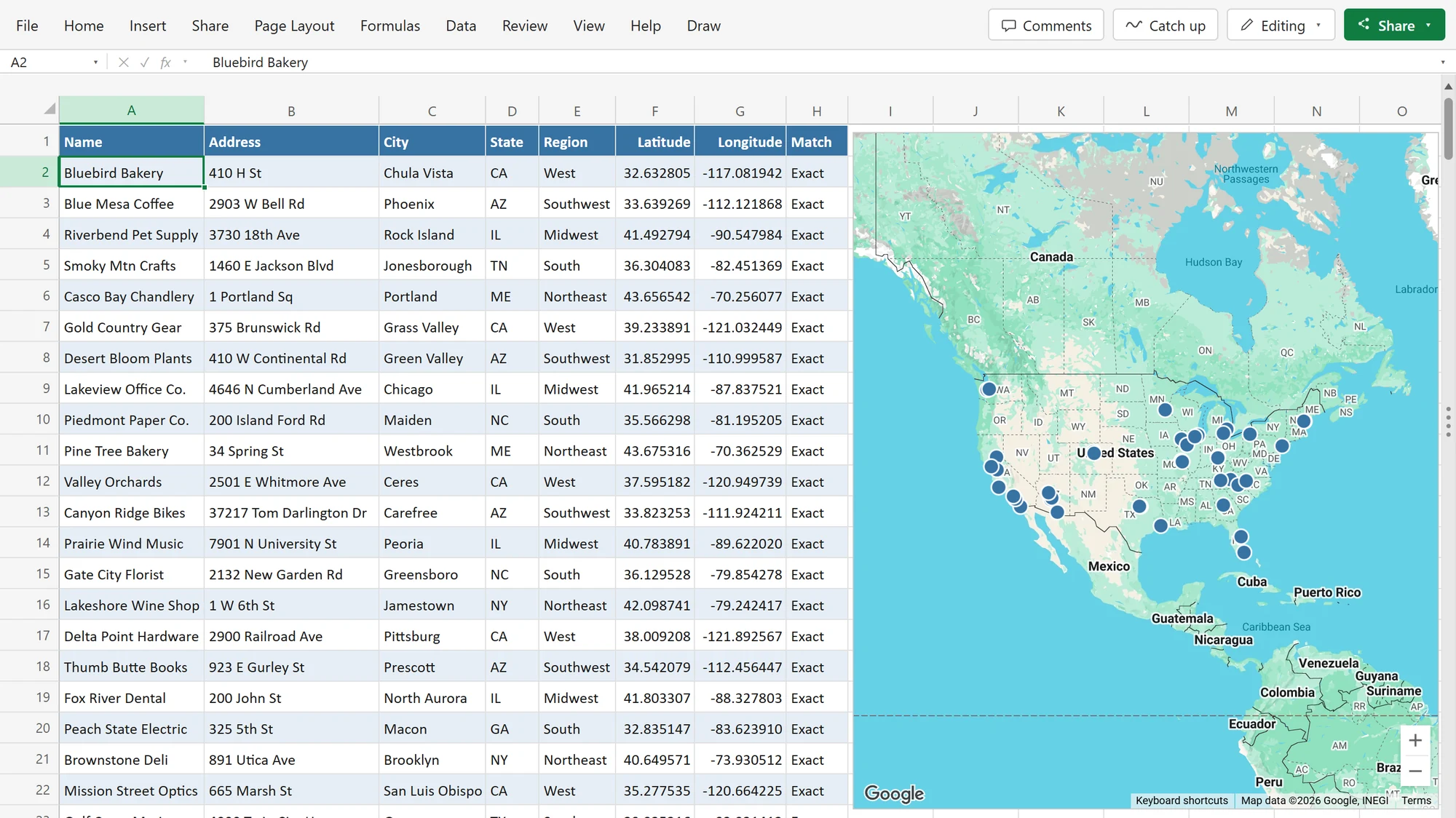
PinPop puts your Excel list on a live Google map, right on the sheet. Click any cell in a table of customers, stores, jobs or properties and insert the map: PinPop finds the address columns. If rows have only addresses, you click Look up once and PinPop looks up the missing coordinates with your own Google Maps key, writes them into Latitude, Longitude and Match columns, and shows every row as a pin. The map follows your edits, new rows and filters, and a click on a pin’s Select row selects its row in the sheet.
PinPop runs in Excel for Windows, Excel for Mac and Excel on the web. It uses your own Google Maps Platform key, so the map and the address lookups run on your Google account. The free version shows up to 50 pins on one map per workbook. Pro is a one-time purchase that removes the limit and adds more maps per workbook, heat maps, radius circles, a clean PNG and Place picture in sheet.
The getting started guide takes you from your Google key to your first map in a few minutes.
Coming soon to Microsoft Marketplace. PinPop is not listed yet. The PinPop page shows when it is live, and the steps for adding it are in Installation.
What is in these docs #
- Fundamentals: getting started, installation, getting a Google Maps API key, plans and licensing, support, the changelog and privacy.
- Guides: mapping addresses from a table, using latitude and longitude, coloring pins by a column, popups and the legend, clusters and heat maps, radius circles, filtering the map, exporting and printing, refreshing coordinates and sharing a workbook with a map.
- FAQ: what the Google key costs, Mac and Excel on the web, what the free version includes, where your data goes, how many addresses you can map, and PinPop or BatchGeo.
- Troubleshooting: what to do when Google says an API is not activated, when the daily limit or billing stops the lookups, when some addresses are not found or land in the wrong place, when the map does not load, or when a license key is not accepted.
- Account management: activating your license.
Free and Pro #
Every guide says which steps need Pro. Pro features are shown in the map’s menus with a Pro badge, never hidden, so you can see what they do before you decide. Plans and licensing lists exactly what each version includes.