
Click a pin and its popup opens with the row’s details. From there, one click takes you to the row in the sheet.
What a popup shows #
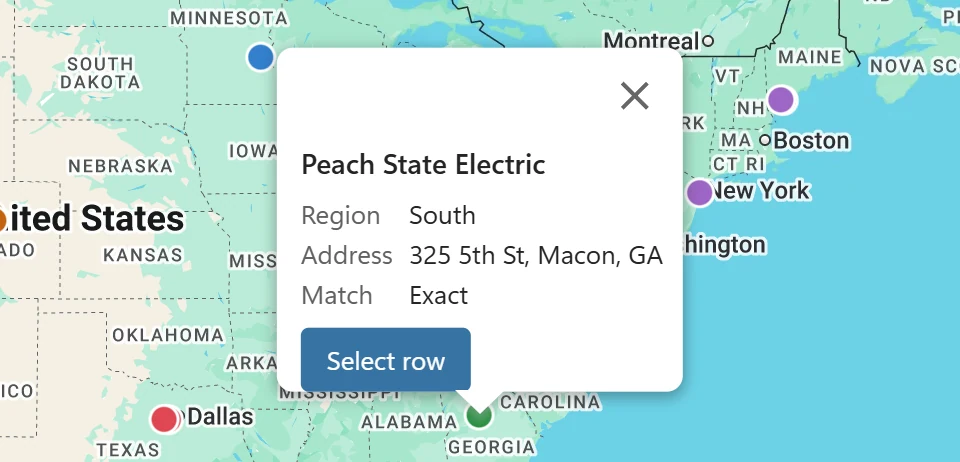
The title is the row’s name, taken from the column you chose as Name (or Row 12 when there is none). Below it come the popup columns, then the address and the Match value, and the button Select row.
Values longer than 300 characters are cut short in the popup; the cell keeps everything.
Choose the popup columns #
- Click Style in the toolbar.
- Under Popup columns, tick the columns you want, up to 6.
By default PinPop shows the first four columns that are not part of the address. The choice is saved with the map, so everyone who opens the workbook sees the same popups.
Select row #
Click Select row in a popup and PinPop selects the whole row of the table in the sheet and says, for example, Selected row 14 in the sheet. It finds the right row even after you sorted the table or inserted rows. If the row was deleted in the meantime, PinPop says That row is no longer in the table.
It works the other way round too: select a cell in the table and the pin of that row gets a halo. If the pin is outside the view, the map moves to show it.
Several rows at one place #
Rows with the same coordinates share one spot. Their popup lists them, for example 3 rows at this place; click a name to open that row’s popup. A bubble of grouped pins at the closest zoom does the same.
Show list #
More options > Show list lists the rows on the map as a table with Row, Name, Place and Match, and a Select button for each. It is the keyboard and screen reader way to reach every pin. Back returns to the map.
The legend #
The legend appears by itself at the top left of the map when the map has something to explain:
- the colors of Color by, one line per value and Other for the rest;
- the heat map, from Fewer to More, titled Density or with the name of the weight column (Pro);
- radius circles, for example 5 mi around each pin (Pro).
Click the Legend header, which has a small arrow, to fold it away and again to bring it back. In a narrow frame, or when the legend is long, it starts folded away. It never covers Google’s logo or the map attribution, and Download PNG and Place picture in sheet include it.