
Radius circles (Pro) draw a circle of one radius around every pin: delivery areas, service zones, the catchment around each store, or which customers live within 25 miles of a branch.
Steps #
- Open Layers in the toolbar and click Radius circles. Each pin gets a circle of 5 miles or 5 kilometers.
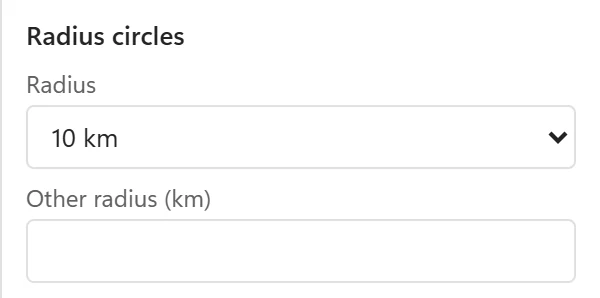
- To change the size, click Style and go to Radius circles:
- Radius offers 1, 5, 10, 25 and 50.
- Other radius takes any number up to 5,000.
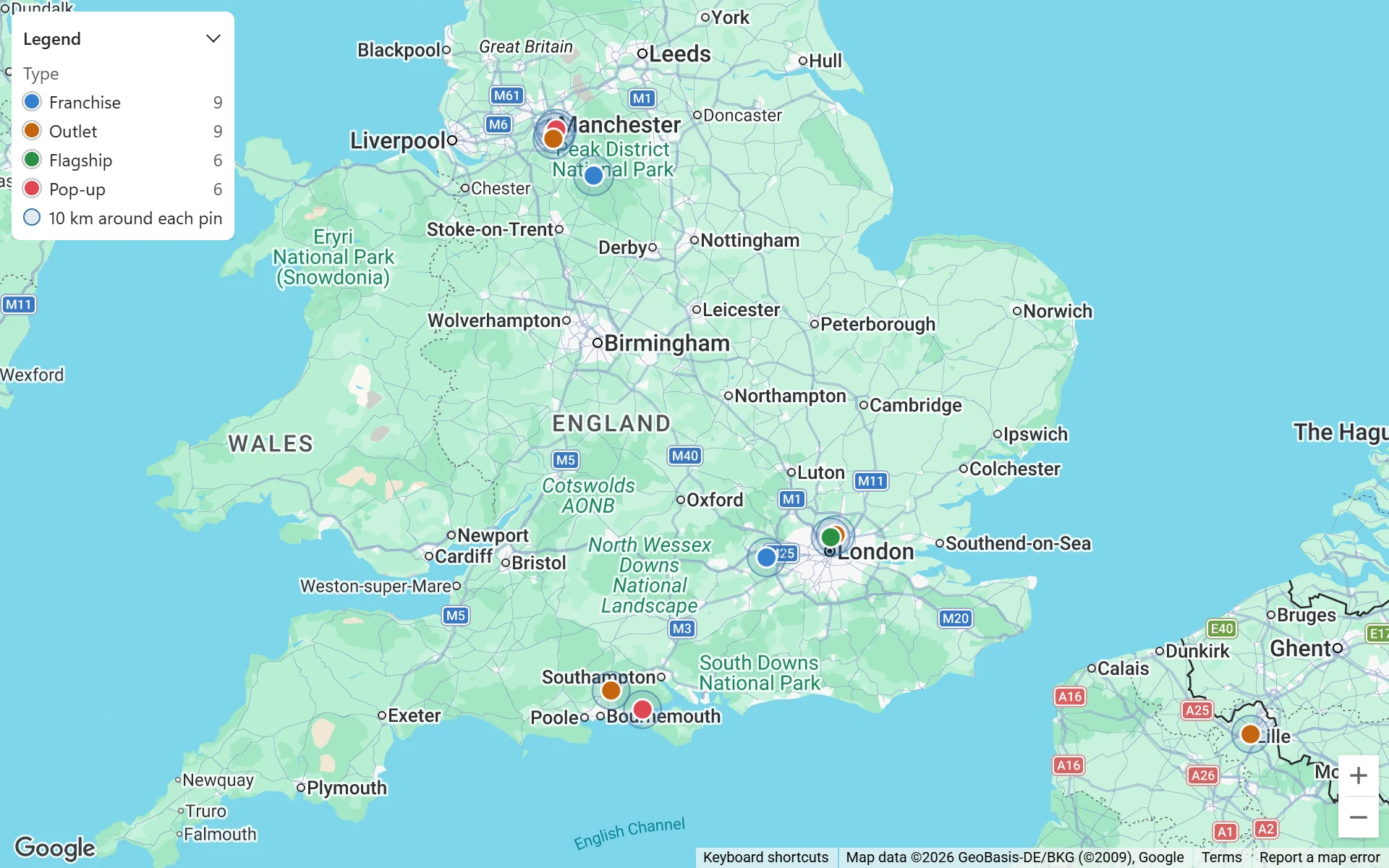
The legend says what the circles mean, for example 10 mi around each pin.
Miles or kilometers #
PinPop uses the unit of your Excel language settings: miles in the United States and the United Kingdom, kilometers elsewhere. The unit is shown next to the radius in the Style panel and in the legend.
Good to know #
- The circles are semi-transparent with a thin outline, so overlapping areas and the map below stay visible.
- Every pin gets the same radius. A different radius per row or per category is not part of PinPop 1.0.
- Circles follow the table and filters like the pins: filter the table to show the circles of one region only.
- Download PNG and Place picture in sheet include the circles.
- A circle is a straight distance around the pin, not a driving distance. For travel times and road distances, see the Distance Calculator add-in.
On the free version, Radius circles carries a Pro badge and opens a card that explains it, with Get Pro and Enter license key.