
PinPop shows your list on Google Maps and looks up coordinates with your own Google Maps Platform key. The usage runs on your Google Cloud project, and your addresses go from Excel straight to Google, never through a server of mine. Setting the key up takes about ten minutes the first time.
The key needs three APIs: Maps JavaScript API (the live map), Geocoding API (looking up coordinates) and Maps Static API (the picture for exports and for colleagues without a key). Already have a key for Distance Calculator, Address Formatter or Route Planner? The same key works once all three APIs are enabled on its project.
1. Create a Google Cloud project #
- Sign in to the Google Cloud console with your Google account.
- Open the project list at the top and click New project. Any name works, for example “PinPop”. Click Create and make sure the new project is selected.
Google’s own walkthrough is Get started with Google Maps Platform.
2. Link a billing account #
Google requires a Cloud billing account with a card on every project that uses Maps Platform, even when your usage stays inside the free monthly allowance. Most PinPop use does. Open Billing, create a billing account or pick an existing one, and link it to the project. Without billing, Google refuses the requests or stops them after a small number a day; see Daily limit or billing error.
What Google charges, and what is free each month, is on Google’s pricing page. Is the Google Maps key free? explains which PinPop actions use which API.
3. Enable the three APIs #
Keep the project selected, open each page and click Enable. If you see Manage or API Enabled, it is already on.
4. Create the API key #
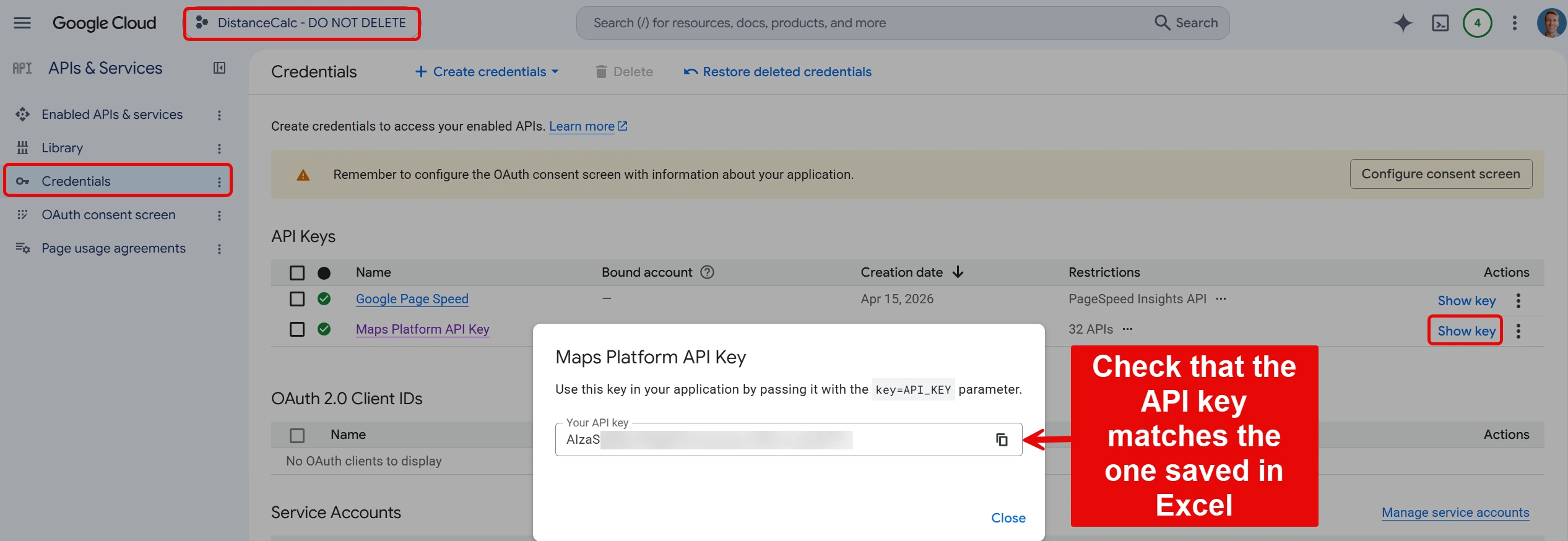
- Open APIs & Services > Credentials.
- Click Create credentials > API key. Google shows the new key; it starts with
AIzaand has 39 characters. - Copy it. You can show it again later under API Keys with Show key.
Google’s page on keys: Use API keys.
5. Restrict the key (recommended) #
Click the key’s name on the Credentials page:
- Under Application restrictions, choose Websites and add both entries, each on its own line:
https://addins.pythonandvba.comandhttps://addins.pythonandvba.com/*. PinPop runs from that address in Excel on Windows, Mac and the web. - Under API restrictions, choose Restrict key and tick Maps JavaScript API, Geocoding API and Maps Static API. If the key also serves another add-in, keep its APIs ticked too.
Click Save. Changes can take a few minutes to reach every Google server.
6. Paste the key into PinPop #
- In a new map frame, the card Add your Google Maps key is already open. In a map that already has a key, open More options > Google key and click Replace key; the panel then shows the same field for a new key.
- Paste the key into Google Maps API key and click Save and test. Show reveals the key while you check it and Hide covers it again. PinPop says Key saved. The map restarts to test it.
- After the restart, PinPop tests each API once and shows one line per API. When all three pass, the message is Your Google key works for the map, lookups and pictures. Before the first test, the panel says Not tested yet. Test key runs the test again whenever you like.
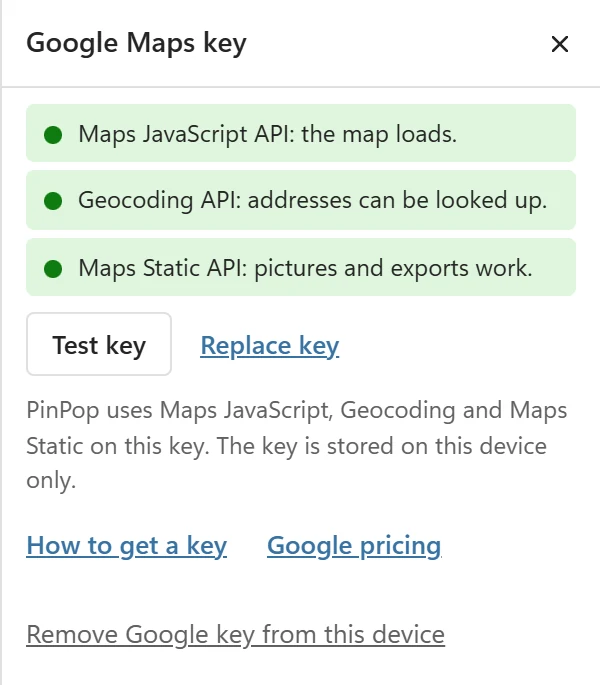
If a line fails, it says what to do, for example Enable the Geocoding API for this key. Fix it in the Google Cloud console, wait a few minutes, then click Test key in More options > Google key. Google says the API is not activated lists every message.
Where the key is kept #
The key stays in this device’s browser storage for the add-in. It is never written into the workbook and never sent to me. Each device, and each browser for Excel on the web, needs the key once. Colleagues who open your workbook use their own key; see Share a workbook with a map.
Remove the key from this device #
Open More options > Google key and click Remove Google key from this device. PinPop asks Remove the Google Maps key from this device? The map shows its saved picture until a key is added again. Confirm with Remove Google key or choose Cancel. PinPop then says Google Maps key removed from this device. The key stays valid in Google Cloud; delete or restrict it there if you no longer use it.
Removing the key does not clear the looked-up coordinates and the map pictures PinPop keeps on this device; see Privacy.
Keep an eye on usage #
Google can email you when spending reaches an amount you choose: see Google’s guide to budgets and budget alerts. You can also cap the daily requests per API under APIs & Services > Quotas. PinPop looks up each address once and writes the result into your table, so an unchanged row is never looked up again.