
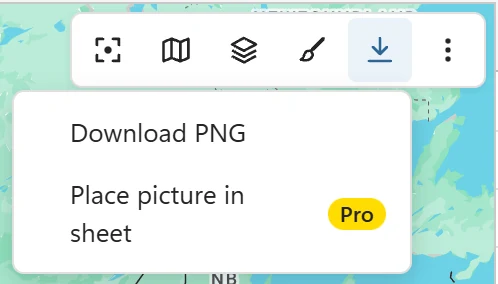
The live map is perfect on screen, but a slide, a report or a printout needs a picture. The Export menu in the toolbar has two: Download PNG and Place picture in sheet (Pro).
What the picture shows #
The picture is the map as you see it: the same area and zoom, the base map, the pins or grouped pins, heat map and radius circles that are on, and the legend. Rows hidden by a filter are left out, so filter first if you want one picture per region.
- Google’s logo and the map attribution stay on every picture, exactly as Google draws them. Google requires them, and PinPop never covers them.
- The free version adds a small Made with PinPop badge in the top right corner. Pro pictures are clean.
- The picture follows the size of the map frame, up to 1,280 pixels on its longest side. Make the frame larger before exporting for a larger picture.
- If Google does not send the base map, PinPop says Google did not send the base map, so the picture shows the pins only. and exports the pins on a plain background.
Download PNG #
Click Export in the toolbar, then Download PNG. The menu also has Place picture in sheet (Pro).
The file is named after the table or sheet and the date, for example US customers - map - 2026-11-09.png. What happens next depends on where you use Excel:
- Excel on the web: the file is saved to your downloads, and PinPop says Saved US customers – map – 2026-11-09.png to your downloads. Nothing leaves your browser.
- Excel for Windows and Mac: Excel’s desktop apps cannot save a file from an add-in, so the picture opens in your browser. The first time, a line in the status bar at the bottom of the map explains this, with Continue, Do not show again and Cancel.

On Windows and Mac, PinPop encrypts the picture on your device and sends only the encrypted copy to our server, where it waits for at most 10 minutes. Your browser opens the page Your map picture, decrypts the picture and shows it with a Download button:
- The key to open the picture never leaves your device and your browser, so we cannot see it.
- The link works once: the encrypted copy on the server was deleted when the page read it.
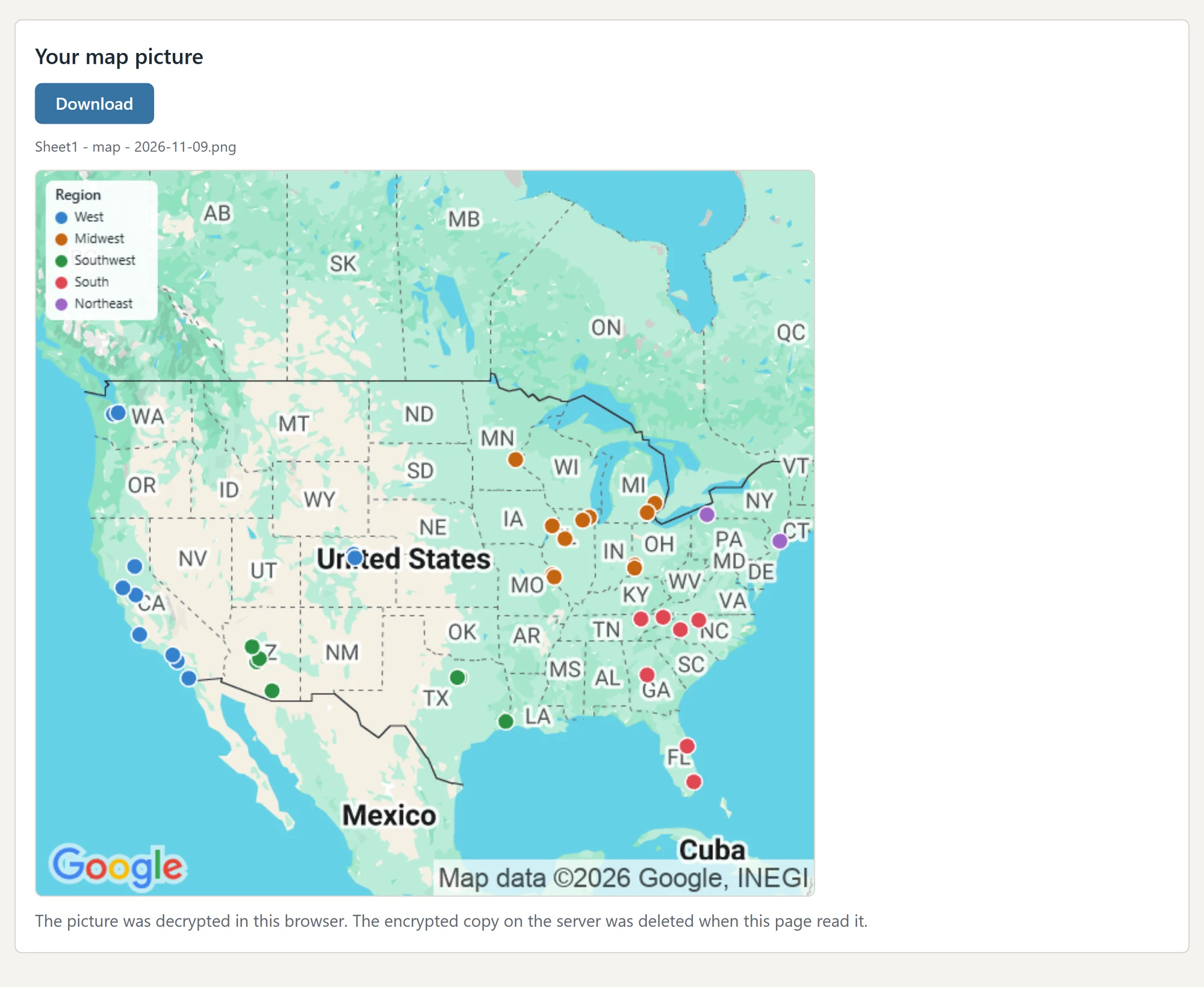
If the page says This link has expired or was already used., click Download PNG in Excel again.
Place picture in sheet (Pro) #
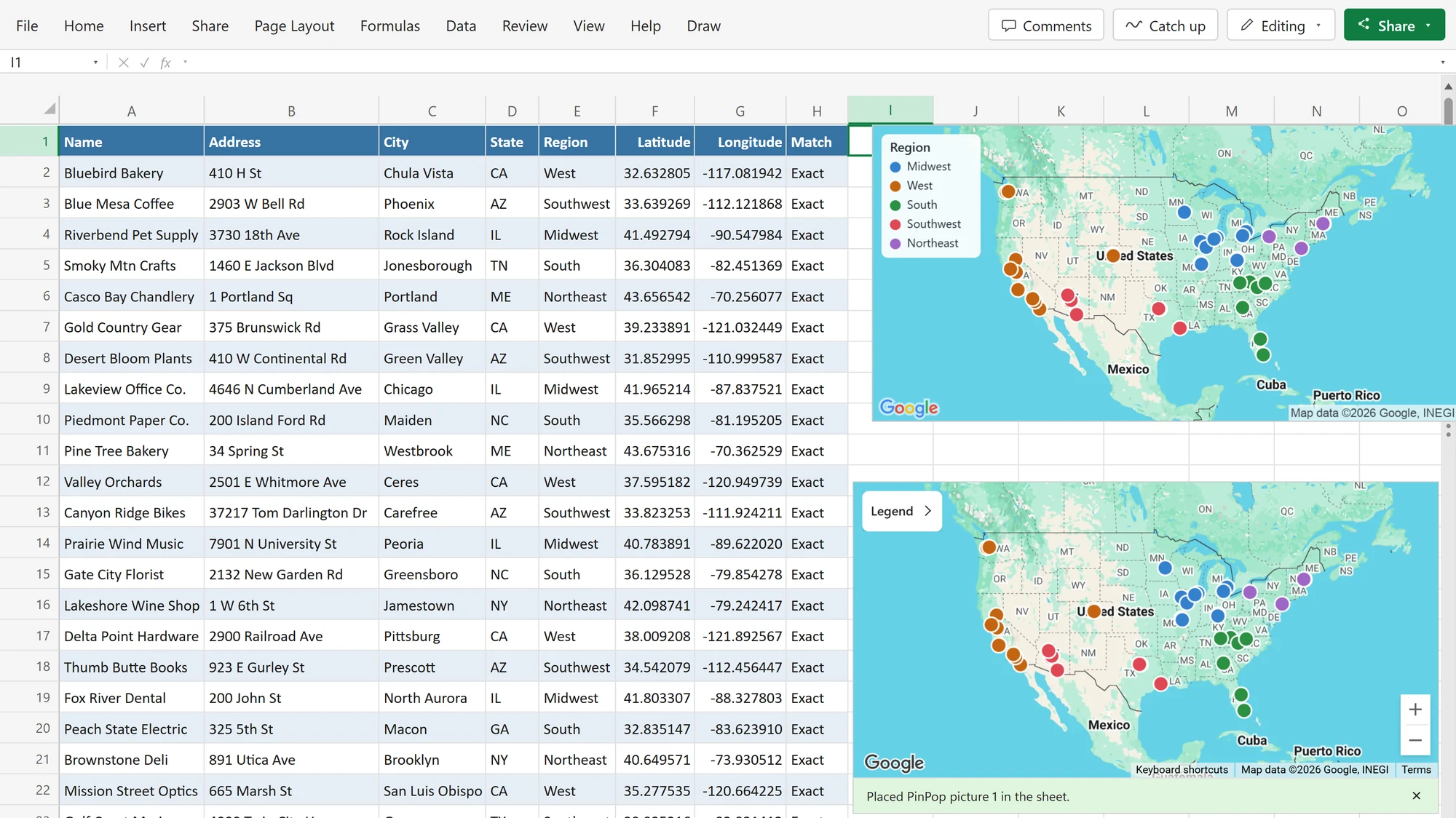
Click Export > Place picture in sheet. PinPop puts a picture of the map on the sheet, to the right of the source table, named PinPop picture 1 (then 2, 3 and so on), and says, for example, Placed PinPop picture 1 in the sheet. The sheet scrolls to the picture.
The picture is an ordinary Excel picture: move it, resize it, copy it, print it. It does not change when the table changes; place a new one when you need the current map.
Print the map #
Excel does not reliably print add-in frames, so print a picture instead:
- Pro: Place picture in sheet, move the picture where you want it, then print the sheet as usual.
- Free: Download PNG, then insert the file with Insert > Pictures and print the sheet, or print the PNG file directly.
Use the map in slides and reports #
- PowerPoint: insert the downloaded PNG with Insert > Pictures, or copy a placed picture from the sheet and paste it on the slide.
- Word or email: the same, the PNG is an ordinary image file.
Google’s terms apply to pictures of Google maps too: keep the logo and attribution visible when you crop or resize.