
When Google stops answering lookups for your key, PinPop stops the run and says:
Google’s daily limit for this key is reached (often no billing account). Rows found so far are kept.
Every row written before the stop stays in your table. The map may also stop loading with the card Google refused the key when billing is off.

The usual cause: no active billing #
Google requires a Cloud billing account with a card on every project that uses Maps Platform. Without one, Google refuses requests or allows only a small number a day, and a large list runs into that after a few hundred addresses. It also happens when a free trial ended, a card expired or a payment failed.
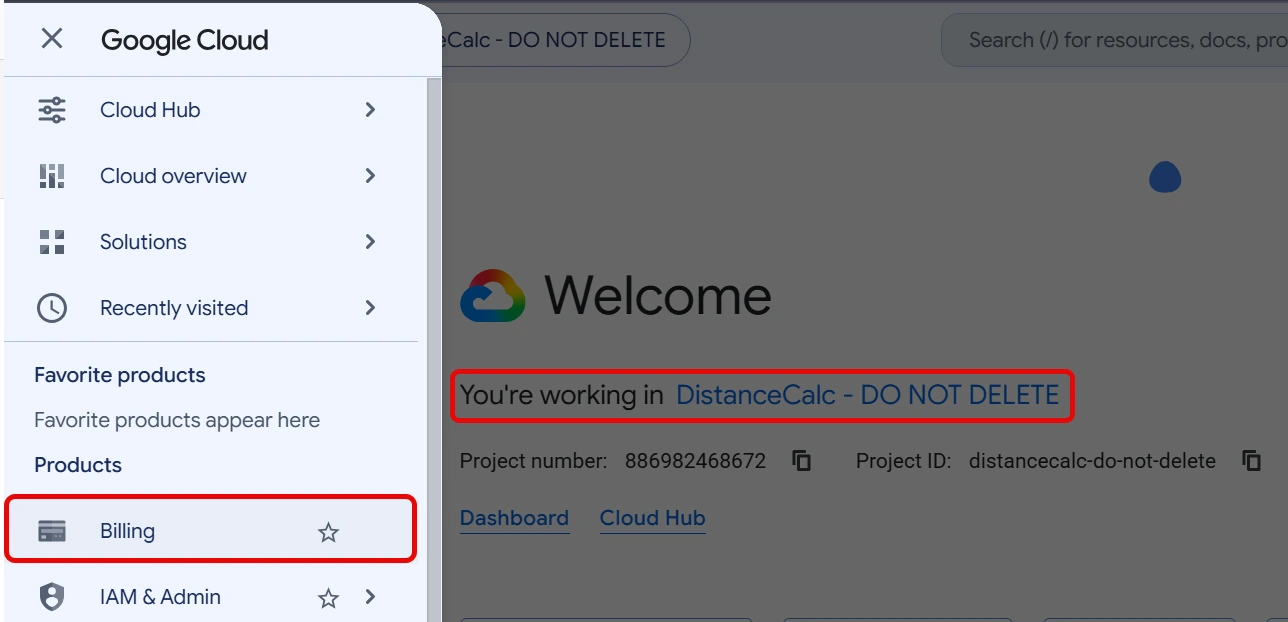
- Open the Google Cloud console and select the project that owns your key.
- Open the menu at the top left > Billing.
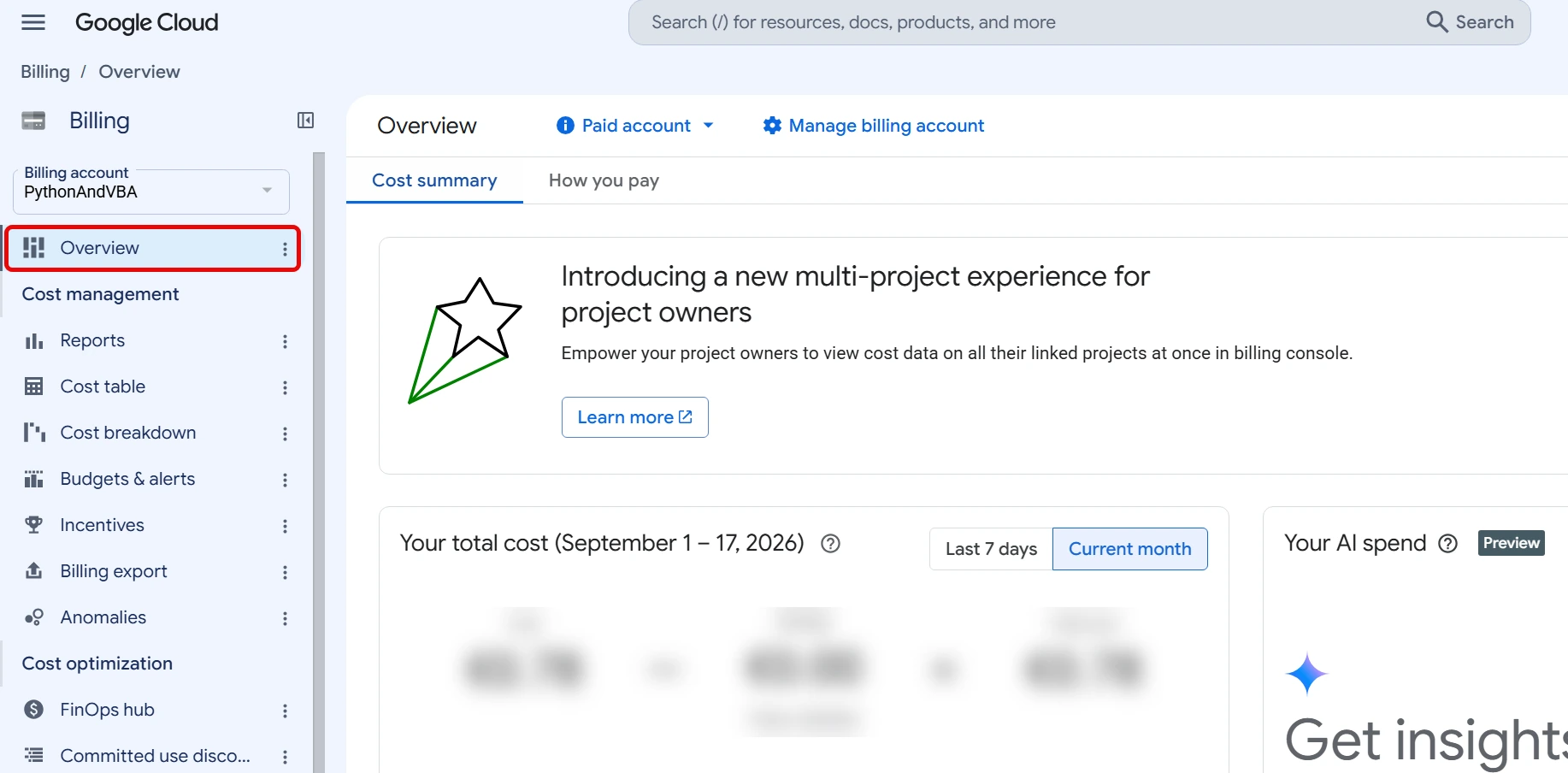
- If Google says the project has no billing account, click Link a billing account and choose an active one, or create one.
- If a billing account is linked, click Go to linked billing account and look on Overview for an ended trial, a closed or suspended account, or a payment warning. Follow Google’s prompt to fix it.
Billing must be active even when your usage fits inside Google’s free monthly allowance. What is free is on Google’s pricing page; see also Is the Google Maps key free?
A quota you set #
If billing is fine, a daily cap may be the limit. In the console, open APIs & Services, click Geocoding API and open Quotas. If you set a requests-per-day cap there, it stops PinPop at that number. Raise it, or wait for the next day: Google’s daily quotas start again at midnight Pacific Time.
Google slows the lookups down #
A different message means Google limits how fast, not how many: Google is limiting how fast this key may look up addresses, so the lookups stopped. Rows found so far are kept. Try again in a minute. PinPop already slows down and retries by itself; this appears only when that was not enough. Wait a minute and click Try again.
Continue the lookups #
After fixing billing or the quota, wait a few minutes and click Try again in the frame. PinPop continues with the rows that are still missing; the rows already written are not looked up again. To check the key first, open More options > Google key and click Test key.