
PinPop needs three Google APIs on your key: Maps JavaScript API, Geocoding API and Maps Static API. When one is missing or the key is refused, PinPop names it. Open More options > Google key to see one line per API.
What you may see #
- Maps JavaScript API: Enable the Maps JavaScript API for this key and check its website restrictions. (and the card Google refused the key in place of the map)
- Geocoding API: Enable the Geocoding API for this key., or during lookups Google refused the lookup: the Geocoding API is not enabled for this key. Enable it in the Google Cloud console, then try again.
- Maps Static API: Enable the Maps Static API for this key.
- This key does not allow addins.pythonandvba.com. The key’s website restrictions leave PinPop out.
- Google says this API key is not valid. Check the key in More options > Google key.
Work through the checks below in order, with the same Google project selected throughout. Google’s own list of these errors is Maps JavaScript API error messages.
1. Check the project and the key #
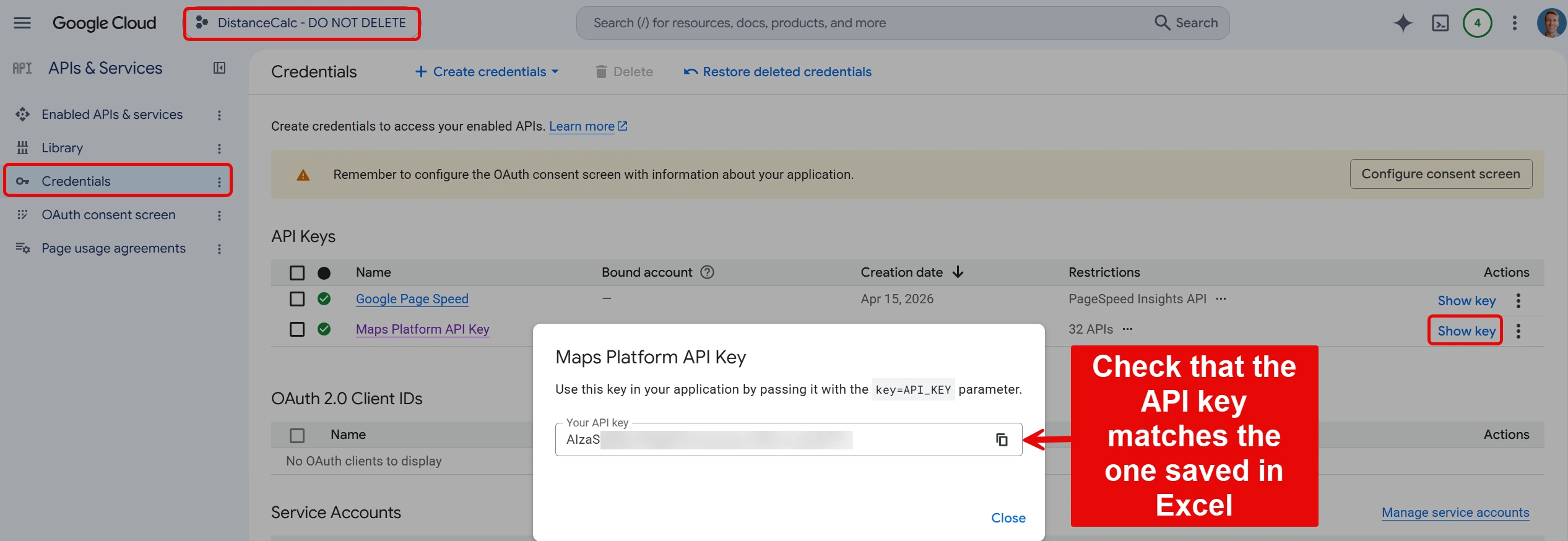
- Open Google Cloud Credentials and sign in.
- Select your project with the project name at the top.
- Under API Keys, click Show key and compare it with the key you pasted into PinPop. If you are not sure which key PinPop has, click Replace key under More options > Google key, paste it again and click Save and test.
If the key is not listed, select another project until you find it. Keep that project selected for the checks below.
2. Check that billing is active #
Open the menu at the top left > Billing. If Google says the project has no billing account, click Link a billing account. A key can exist while billing is off or a free trial has ended, and Google then refuses the APIs. More on this in Daily limit or billing error.
3. Enable the three APIs #
Open each page with the same project selected. If you see Enable, click it. If you see Manage or API Enabled, it is already on.
A key made for another Python & VBA add-in often has the Maps JavaScript API on but not the Geocoding API or the Maps Static API.
4. Check the key restrictions #
On the Credentials page, click the name of your key:
- Under API restrictions, if Restrict key is selected, tick Maps JavaScript API, Geocoding API and Maps Static API. An API that is enabled on the project but not ticked here is still refused.
- Under Application restrictions, if Websites is selected, add both entries:
https://addins.pythonandvba.comandhttps://addins.pythonandvba.com/*. - If the key is restricted to IP addresses or to mobile apps, it cannot work in Excel. Create a separate key with Websites restrictions for PinPop.
Click Save.
5. Test the key #
Google needs a few minutes to apply a change. Then open More options > Google key and click Test key. A line passes when its API answers, and a line that fails still says what to do, for example:
- Maps JavaScript API: the map loads.
- Geocoding API: Enable the Geocoding API for this key.
- Maps Static API: pictures and exports work.
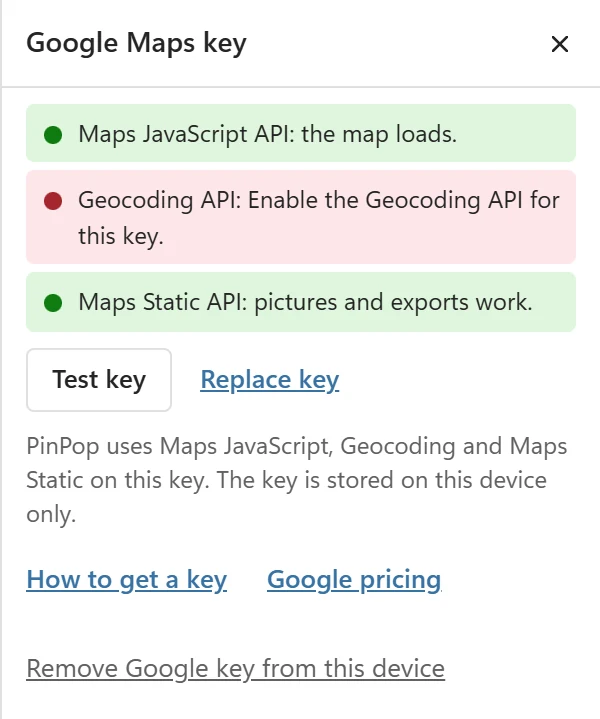
Here the Geocoding API is still missing. When all three pass, PinPop says Your Google key works for the map, lookups and pictures. If lookups had stopped, click Try again to continue them; the rows already written stay.
When the Maps JavaScript API was the problem, the map needs a fresh start after the fix: More options > Restart add-in.