
Google finds almost every complete address, but a missing city, a typo or an address that exists in several towns can give no result or the wrong place. PinPop marks those rows so you can fix them.
Find the rows #
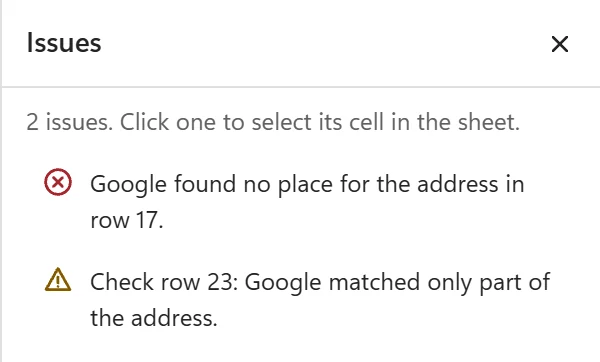
Open More options > Issues. The button shows a count when there is something to look at. The list names each row, for example:
- Google found no place for the address in row 17. The Match column says Not found and the row is not on the map.
- Check row 23: Google matched only part of the address. The Match column says Check. The pin is on the map but may be in the wrong place.
- Row 31 has no address and no coordinates.
Click an issue to select its cell in the sheet.
You can also sort or filter the table by the Match column: Approximate and Area rows are not issues, but their pins sit at the center of a town, a postal code or an area rather than at the building.
Fix the address #
Edit the address cells in Excel while the map is open. PinPop looks the row up again within a few seconds and writes the new coordinates and Match value. What helps most:
- Add the city and the country. “12 Main St” exists in thousands of towns. If your table has no Country column, add one; PinPop then asks Google for the right country first.
- Fix typos in street and town names, and put the postal code in its own column or in the address.
- Remove extras Google does not need: floor, room, “c/o”, opening hours or notes in the address cell. A unit or suite number is fine.
- Check the columns. If many rows are wrong, PinPop may use the wrong column: open More options > Edit data link and check Match your columns.
- Cells with formulas or errors: PinPop reads the value a cell shows. A cell showing
#N/Acounts as empty and is listed in Issues.
Google’s own advice on address quality is in Geocoding best practices.
The pin is in the wrong place, but the address is right #
- Type the correct coordinates over PinPop’s in Latitude and Longitude. You find them in Google Maps by right-clicking the place. PinPop never overwrites coordinates you typed, not even with Look up all addresses again.
- Or clear the row’s Latitude, Longitude and Match cells to have it looked up again.
Many rows wrong at once #
- All pins in one country although the list is international: add a Country column.
- Pins in the sea or at 0, 0: the coordinate columns may be swapped or empty. See Use latitude and longitude.
- Addresses changed while no map was open: run More options > Look up all addresses again.
Still stuck? Contact support with the address as it is in the cell and the Match value PinPop wrote.