
When the map cannot show, PinPop puts a card with the reason in its place. Find the message you see below. For most problems, More options > Restart add-in after the fix brings the map back.
The frame stays blank or keeps loading #
- The Office script could not be loaded. Check the internet connection, then use Restart add-in in More options. Excel could not fetch Microsoft’s Office script from appsforoffice.microsoft.com.
- Excel did not respond. Use Restart add-in in More options, or reopen the workbook. Excel was busy or stuck. Restart add-in; if that does not help, close and reopen the workbook.
- Nothing at all: check that the internet works and that a company firewall or proxy allows addins.pythonandvba.com, appsforoffice.microsoft.com and maps.googleapis.com. Then reopen the workbook.
Add your Google Maps key #
The card Add your Google Maps key means this device has no key yet. Each device, and each browser for Excel on the web, needs it once. Paste the key and click Save and test. See Get a Google Maps API key.
On a workbook someone else made, the saved picture of the map fills the frame with the line Saved picture. Add a Google Maps key to make it live. That is expected: see Share a workbook with a map.
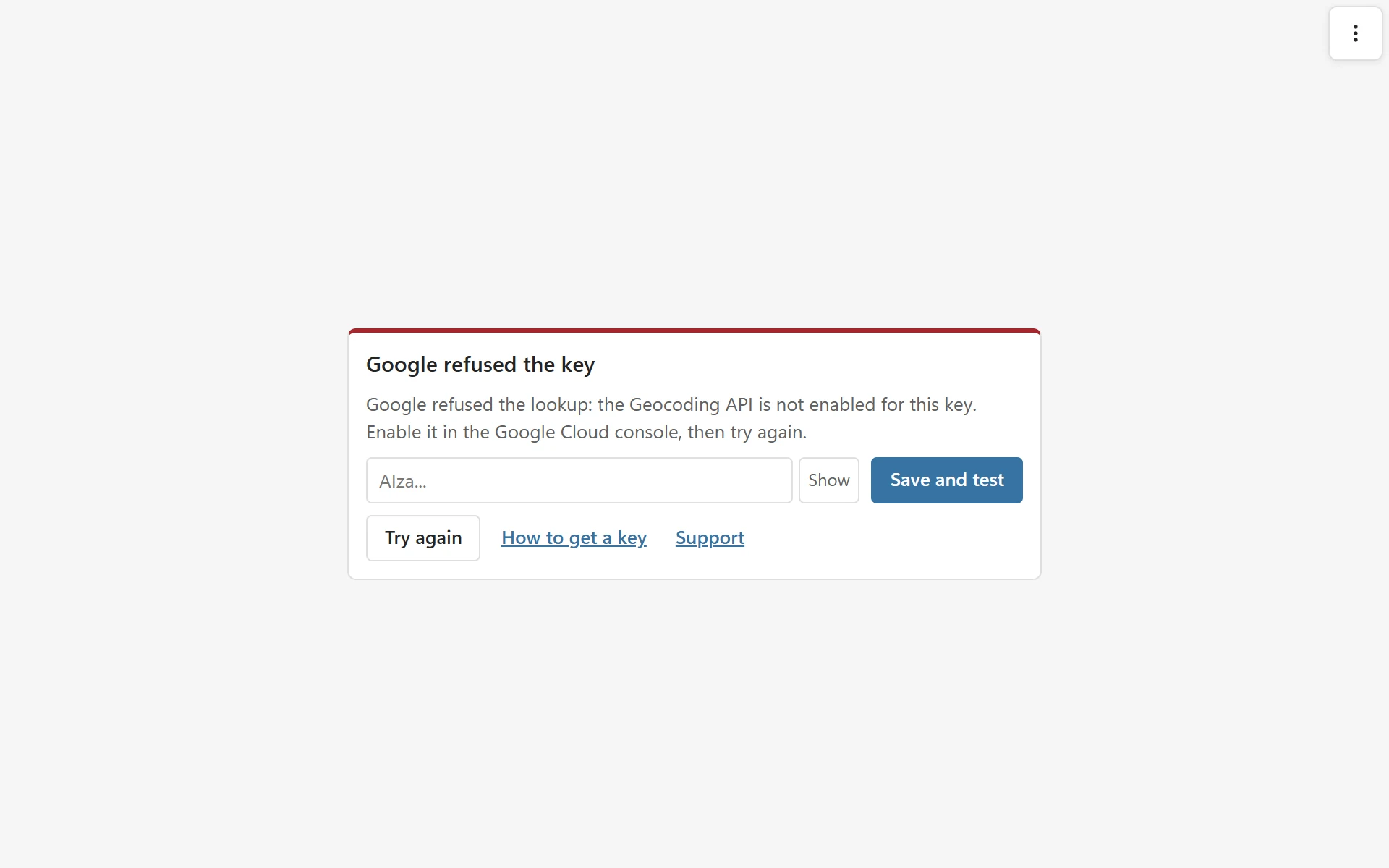
Google refused the key #
Google did not accept the key for the map. The card shows the reason, and the field below it lets you click Save and test to try another key.
The usual causes are a missing Maps JavaScript API, a website restriction that leaves out addins.pythonandvba.com, or billing that is off. Google says the API is not activated walks through the checks.
The map did not load #
- Google Maps did not start. Check the internet connection, then try again. Click Try again.
- Google Maps could not be loaded. A firewall, proxy or browser setting may block maps.googleapis.com. Ask your IT team to allow maps.googleapis.com and maps.gstatic.com, or try Excel on the web from another network.
- The banner No internet connection. Map tiles and lookups need the internet. The map comes back when the connection does.
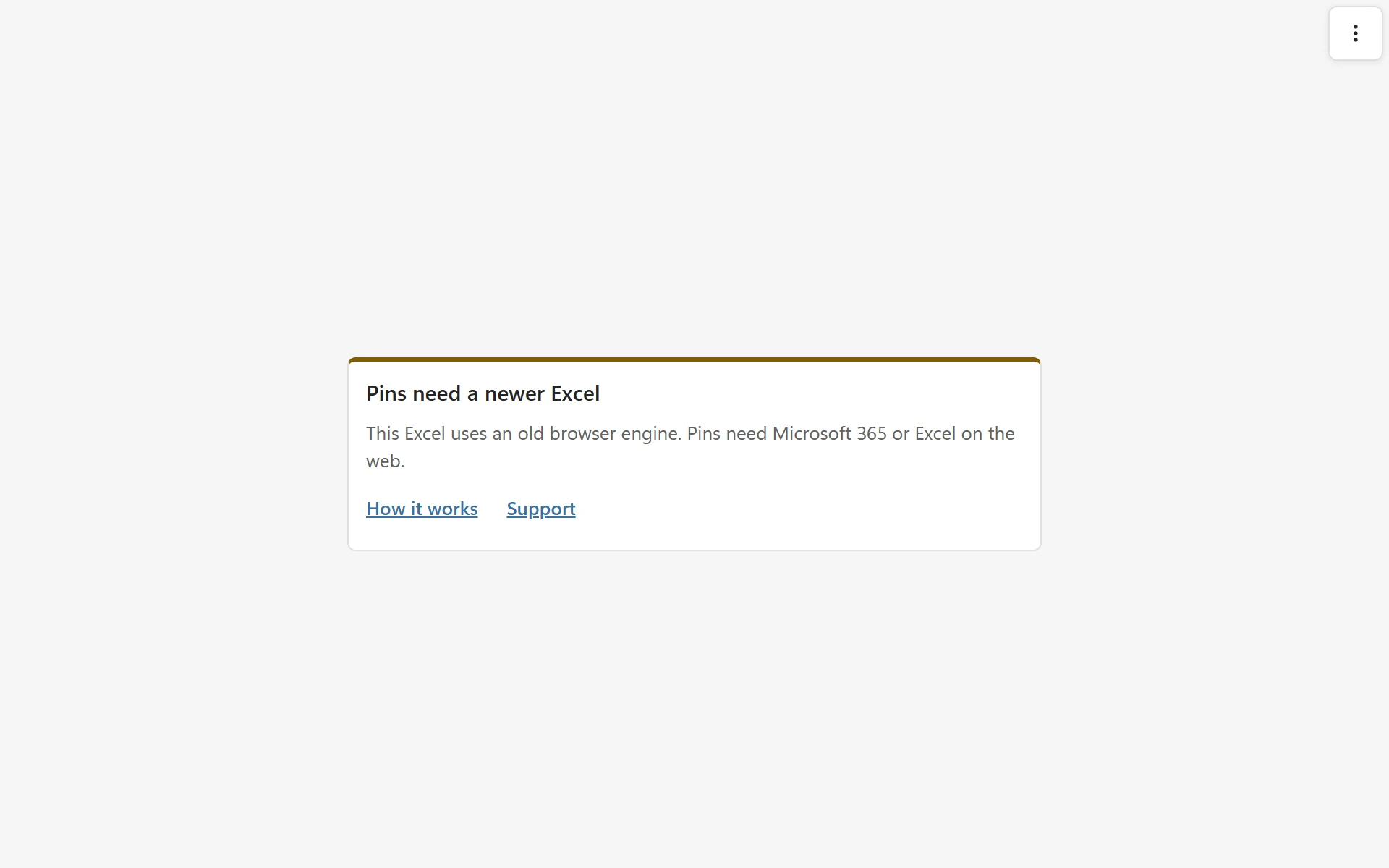
Pins need a newer Excel #
PinPop draws the pins with WebGL 2, which some Excel 2021 installs on Windows lack because they still use an old browser engine. The card says:
This Excel uses an old browser engine. Pins need Microsoft 365 or Excel on the web.
Use Excel on the web with the same workbook, or update to Microsoft 365.
The map has no table #
- This map has no table yet: click a cell inside your table, then Link data.
- The table of this map is gone: the table was deleted, renamed or moved to another file. Click a cell in the table and link it again.
- The table has no rows: add rows with addresses or coordinates, or use Edit data link to pick another table.
- Nothing to show yet: the rows have addresses but no coordinates. Click Look up.
This workbook already has a map #
The free version shows one map per workbook. Click Show this map instead, delete the other map, or use Pro for more maps. See Plans and licensing.
Still not working #
Open More options > Diagnostics, click Copy diagnostics and send it with a short description to support.