
No device found. Please check KDE Connect on your phone.
This means your phone is not detected at all. Most of the time, KDE Connect isn’t running on the phone, or the phone is on a different network.✅ Steps to fix:
1. Make sure KDE Connect is installed on your phone
If it’s not installed, download it from the Play Store and open the app.
2. Connect both devices to the same Wi-Fi
Mobile data won’t work. Your phone and computer must be on the same Wi-Fi network.
3. Open KDE Connect on your phone
Once open, it should start scanning for nearby devices.
4. Click “Refresh Devices” in KDE Connect Desktop
Your phone should now appear in the list.

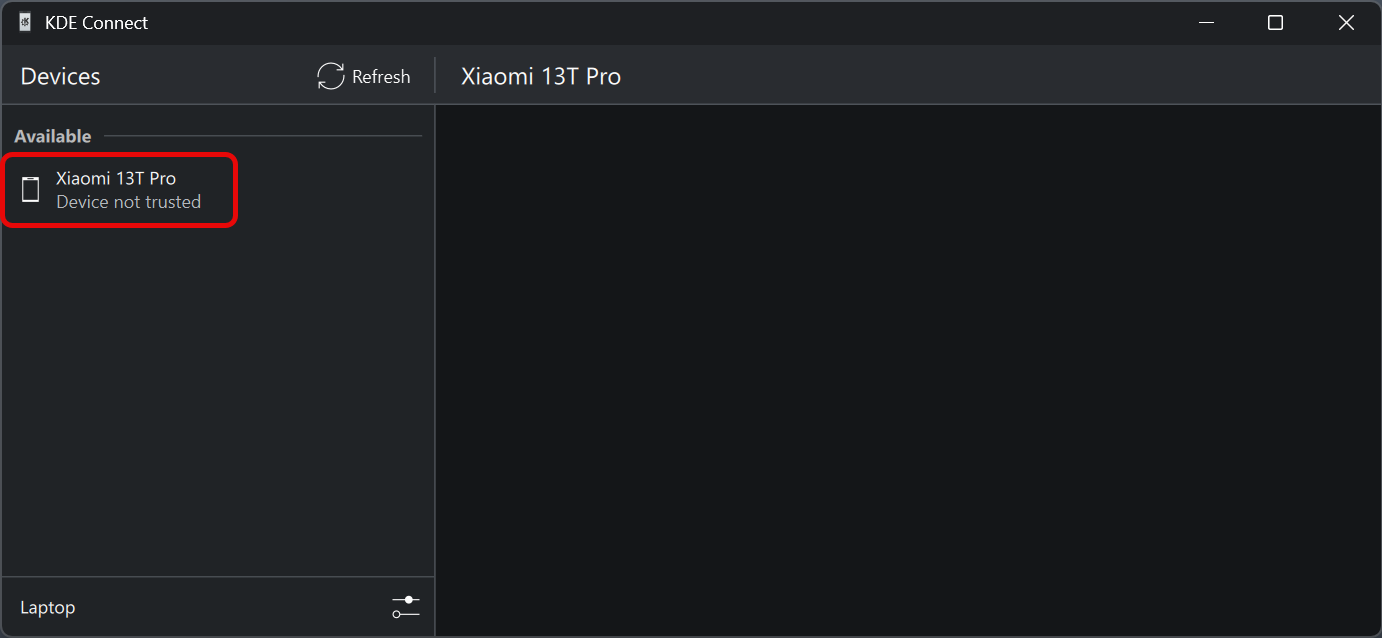
5. Pair your devices
– Select your phone on the left panel and click Pair
– On your phone, tap Accept when the request appears
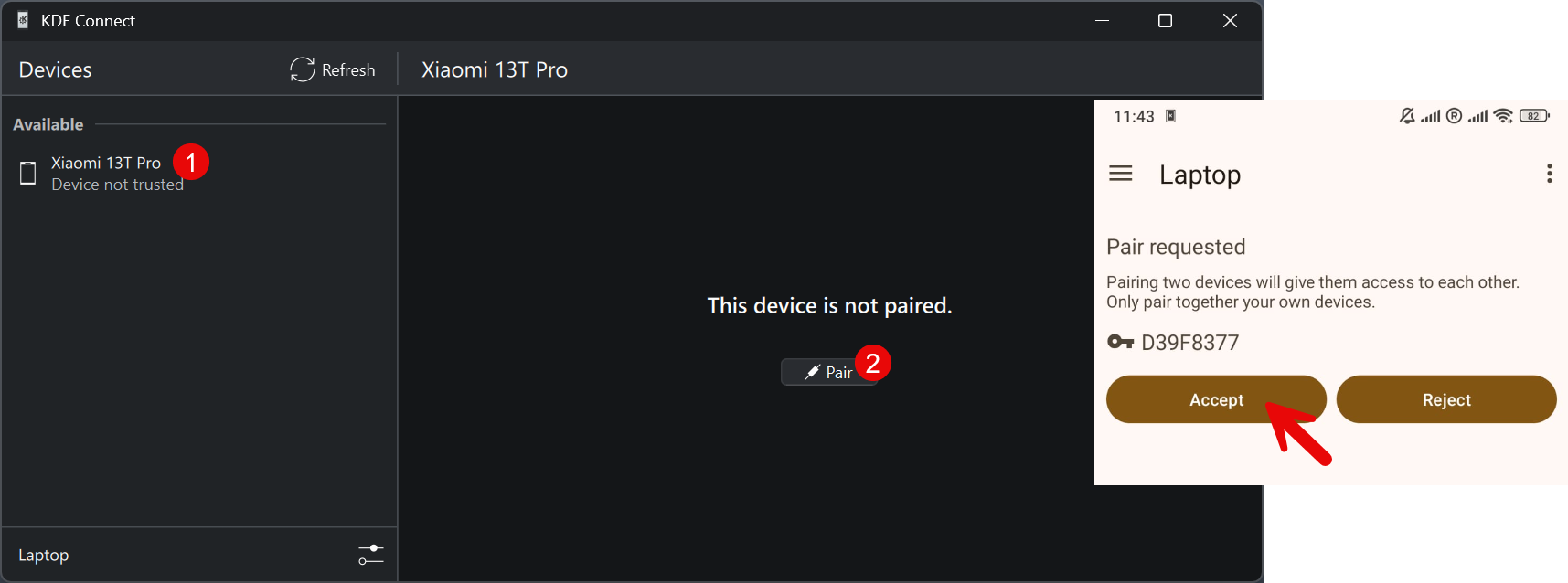
You should now see Device trusted and connected in KDE Connect. Go back to Excel and click Connect Your Phone to confirm everything works.
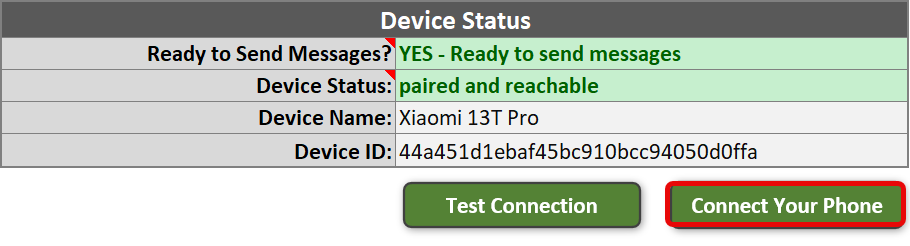
If you’ve done all the steps above and your phone still isn’t found, there may be an issue with your KDE Connect installation. Please run the KDE Connect Diagnostic Tool to check what’s going wrong:
https://pythonandvba.com/docs/quicktext/troubleshooting/quicktext-run-kde-connect-diagnostic-tool/
Once you’ve run the tool, email me the logfile. The video on the page shows exactly how to do this.
Device is paired but not reachable.
This usually means the KDE Connect app on your phone has stopped running or cannot be reached.✅ Steps to fix:
1. Check if KDE Connect is running
Open the KDE Connect app on your phone. If it’s not running, start it manually.
2. Disable battery-saving mode
Battery optimization can stop background apps like KDE Connect. In your phone settings, exclude KDE Connect from battery-saving features. Learn how to disable it here.
3. Make sure both devices are on the same Wi-Fi
Your phone and your computer must be connected to the same Wi-Fi network. Mobile data won’t work.
After doing the steps above, click the Test Connection button to check if your phone is now reachable.
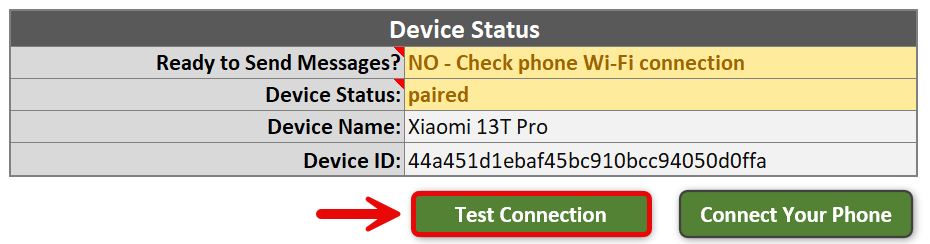
Device is reachable but not paired.
KDE Connect sees your device, so both the phone and computer are on the same Wi-Fi and have KDE Connect installed. The only thing missing is permission to let them talk to each other — pairing.✅ Steps to fix:
1. Open KDE Connect on your computer
Your phone should show up as available. Select it and click the Pair button.

2. Check your phone
You’ll get a pairing request in the KDE Connect app. Tap Accept to confirm.

3. Connection confirmed
After pairing, the status should change to Device trusted and connected on the desktop app.

Now go back to Excel and click Test Connection to confirm everything is working.

Error: KDE Connect is not installed or not in the system PATH.
This means QuickText cannot find KDE Connect on your computer. There are two possible reasons for this.
1. KDE Connect is not installed
If you haven’t installed KDE Connect yet, you can get it from the Microsoft Store or use the offline installer.
2. KDE Connect is installed but QuickText can’t find it
This can happen if KDE Connect was installed in a custom folder, or if the Windows PATH settings are missing. In that case, you need to tell QuickText where KDE Connect is installed on your computer.
The video below walks you through exactly how to do this:
Error checking KDE Connect installation: ERROR: Permission denied
This error usually means your antivirus or firewall is blocking QuickText.Some antivirus or firewall tools can falsely flag QuickText as a risk, even though there is nothing harmful inside. Well-known programs like Kaspersky and Windows Defender show it as safe.
See more details here: Antivirus or Firewall Warning / False Positive
What you can do:
– Temporarily turn off your antivirus or firewall and run QuickText again.
– Or, add QuickText as an exception (whitelist it) in your antivirus or firewall settings.
If this solves the issue, please send me a quick email (contact@pythonandvba.com) and let me know which antivirus or firewall software you are using. I’ll reach out to them to fix the false positive, so you (and others) won’t need to whitelist QuickText in the future.
Excel freezes or crashes when you Click “Connect your phone”
If you click the “Connect your phone” button in QuickText and Excel just freezes or crashes, here’s what’s likely going on and what you can do to fix it.What’s the problem?
When you hit “Connect your phone,” QuickText tries to run a few commands in the background to check your KDE Connect connection. Some antivirus or firewall tools block these commands, which causes QuickText to hang. Sometimes, Excel might crash or stay stuck.
Why does this happen?
QuickText uses VBA macros and small scripts in the background to talk to your phone and send messages. Many antivirus programs don’t like files that automate tasks or open the command prompt, even if the file is safe. This is common with any automation tool that works with Excel.
What should you do?
1. Temporarily turn off your antivirus or firewall.
Try the “Connect your phone” button again. If it works, you know your security software is blocking QuickText.
2. Add QuickText to your antivirus or firewall’s whitelist (exceptions).
Look up how to add a file or folder to your security tool’s exceptions list. Once added, turn your antivirus or firewall back on.
3. Still stuck?
Click here to email me (contact@pythonandvba.com) your antivirus or firewall name.
I’ll try to contact the company and get QuickText whitelisted.
Is QuickText safe?
Yes. I check QuickText daily on VirusTotal. Big antivirus tools like Kaspersky and Windows Defender show it as clean. Sometimes, a smaller antivirus will flag it. When that happens, I send a report to the vendor. If they don’t reply, the warning might stay for a while.
If you want to see the VirusTotal results, check here: https://pythonandvba.com/docs/quicktext/quicktext-antivirus-or-firewall-warning-false-positive/
