
AI Categorizer sorts each row of a list into one of the categories you define, for example bank transactions into the accounts of your chart of accounts, customer comments into topics, or job titles into departments. For every row it picks one of your categories, or Other when none of them fits.
Try it on the sample first #
Open the menu (top left), go to Insert sample data and choose Bank lines to P&L accounts or Customer comments to topics. The pane selects everything for you, so you can click Run and watch a full run on 25 bank lines or 20 comments. To check the answers row by row, download a sample with its answer key:
- Bank lines to P&L accounts (sample sheet, chart of accounts and answer key)
- Customer comments to topics (sample sheet, topic list and answer key)
1. Select the rows to sort #
Click any cell inside your list. One cell is enough: the add-in takes the whole block of data around it and shows the address and the number of rows. The first row is read as headers; if your list has no headers, the pane asks you to confirm before it continues. Result columns the add-in wrote earlier are left out.
Then tick the columns that describe each row, usually just one: the transaction description, the comment, the job title. The pane suggests the column with the longest text. Dates and amounts are not needed; AI Categorizer reads text, not numbers.
2. Select your categories #
Choose where the categories come from:
- From a range: click one cell in a category list you already have, such as your chart of accounts. Pick the column with the category names (for example the account name), an optional column with descriptions, and tick any columns you want copied next to each row, each in its own column (for example the account number).
- Type them: one row per category, with a name field and an optional description field, for example
Software and subscriptionswithSaaS, cloud apps, licences. You can paste a list copied from Excel into a name field.
Leave Allow Other when nothing fits on unless every row must get one of your categories. Set up your categories covers both options, the limits and the messages, and Write categories that work explains how to get better answers from the same list.
3. Add a question, check the estimate and run #
The question is optional. It tells the AI what the rows are and what to choose, in up to 300 characters. Click a suggestion to use it:
- “Which P&L account should this bank transaction be booked to?”
- “Which topic is this customer comment about?”
- General: “Which category best describes this record?” (also used when you leave the field empty)
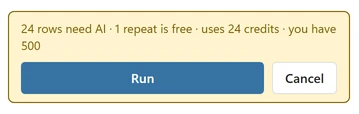
The pane then shows how many rows need the AI, how many are free (repeats and rows that already have a result) and how many credits that uses. Nothing is sent until you click Run. The confidence threshold and where the results go are in Settings.
While it runs, the pane shows the progress and the time left, and writes results as they arrive. Cancel stops cleanly and keeps every row that is already done.
4. Read the results #
The add-in adds these columns next to your rows:
- Category: one of your categories, or Other.
- Confidence: how sure the AI is, from 0 to 1.
- Status: one of the values below.
- <column> (category): one column for each column of your category list you chose to copy, for example “Cost center (category)”.
| Status | What it means |
|---|---|
| Categorized | The AI chose one of your categories with a confidence at or above your threshold. |
| Review | The AI chose one of your categories with a confidence below your threshold. These rows get a light fill. Check them. |
| Other | None of your categories fits this row. See Why did a row get Other? |
At the end, the pane sums it up in one line: “{rows} rows · {sorted} categorized · {review} to review · {other} other”. Show review rows filters your list to the rows that need a look. When many rows come back as Other, the pane says so: “{other} rows fit none of your categories. Look at them: a missing category is the usual reason.”
Where the results go #
By default the result columns go right next to your rows. In Settings you can send them to a column you choose, or to a new sheet called AI Categorizer results, and turn the light fill on Review rows off.
Running again and clearing #
- A second run skips rows that already have a result, so an interrupted run simply continues and new rows added at the bottom are the only ones sent. Choose Redo all to answer every row again (this uses credits again), for example after you changed your categories.
- Changed which columns are copied in step 2? Run again: the copied columns next to the results are added or removed from your category list, without credits and without clearing anything.
- Clear results removes only the result columns the add-in wrote, after asking you. Your own data is never changed.
Tips #
- Categories that do not overlap give the best results. “Travel” and “Transport” in the same list will split rows between them.
- A short description is the fastest way to fix a category that keeps catching the wrong rows.
- Up to 50,000 rows per run. For lists in the thousands, read Work with big lists.