
Video tutorial #
How to use:
- Download kde_connect_diagnostic.bat
- Right-click the downloaded file, select Properties, and unblock it if needed.
- Double-click the
kde_connect_diagnostic.batfile to run it. - Share the diagnostic results (log file) with QuickText support.
Fix 1: Enable app execution aliases #
Apply this fix only if the log reports that the Store command alias is unavailable. QuickText Excel 2.0 also checks usual installation folders; if Test Connection works in Excel, a terminal PATH issue does not require a reinstall.
- Open Settings
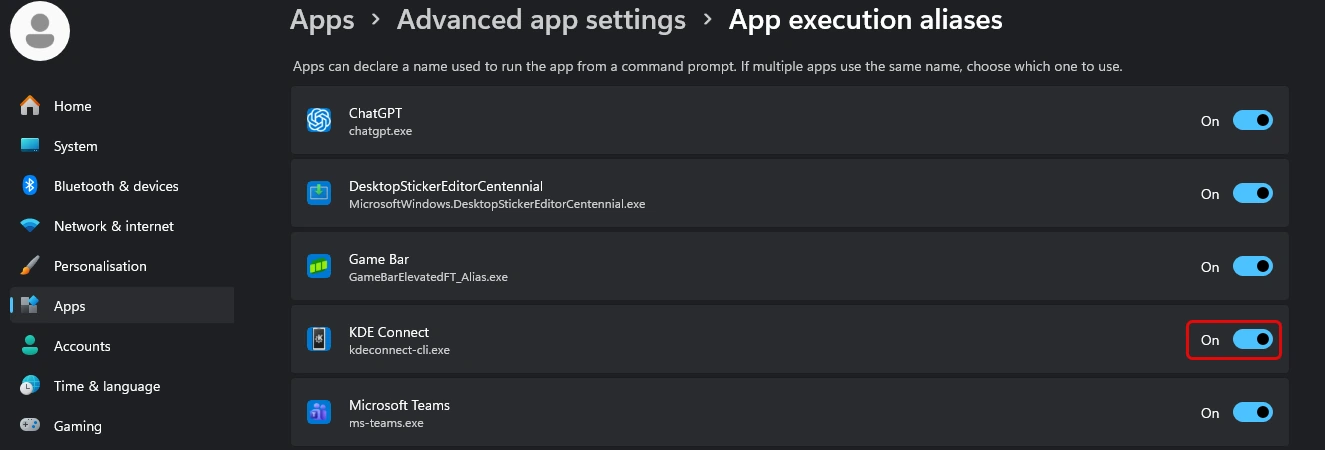
- Navigate to Apps → Advanced app settings → App execution aliases
- Scroll down and find KDE Connect
- Ensure the toggle is ON (enabled)
Fix 2: Add Windows app path to environment variables #
Step-by-step instructions
- Press Win + R, type
sysdm.cpl, and press Enter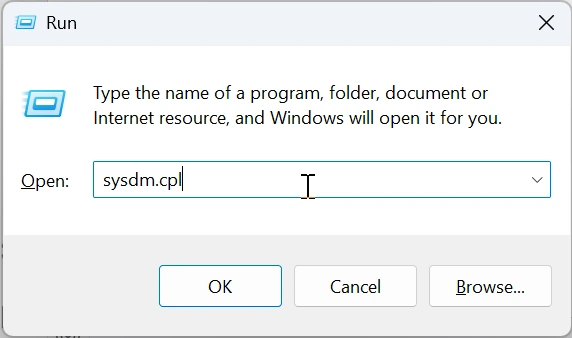
- Click the Advanced tab
- Click the Environment Variables button
- Under User variables for <username>, find and select Path
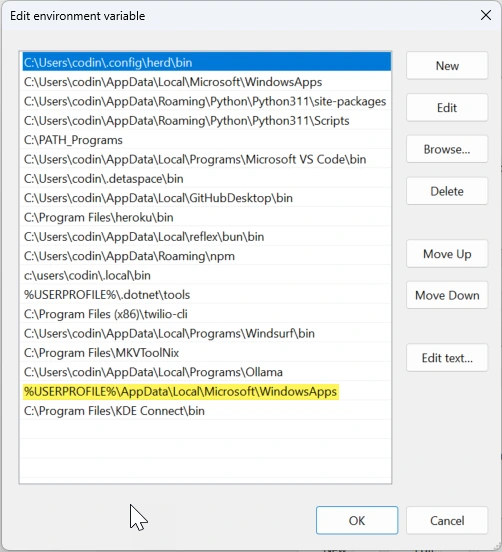
- Click Edit
- Check if the following path already exists:
%USERPROFILE%\AppData\Local\Microsoft\WindowsApps - If it doesn’t exist, click New and add the path
- Click OK on all dialogs to save changes
After all steps: Restart your computer and run the diagnostic tool again
Fix 3: Use KDE Connect Desktop installer #
Step-by-step instructions
Uninstall the Windows Store Version
- Click the Start button or press the Windows key
- Type KDE Connect in the search bar
- Right-click on KDE Connect in the search results
- Select Uninstall
- Confirm the uninstallation
Install the Desktop Version
- Go to kdeconnect.kde.org/download.html
- Download the Windows installer
- Run the installer and follow the installation steps
Add KDE Connect to Environment Variables
After installing the desktop version, you need to add it to your PATH:
- Press Win + R, type
sysdm.cpl, and press Enter - Click the Advanced tab
- Click the Environment Variables button
- Under User variables, find and select Path
- Click Edit
- Click New
- Add the path:
C:\Program Files\KDE Connect\bin - Click OK on all dialogs to save changes

After all steps: Restart your computer and run the diagnostic tool again