
Messages not going through? Find your situation in the table below and jump to the fix.
| What you see | Go to |
|---|---|
| Status stays Handed to phone, but no text arrives | See the fix |
| Status says Failed | See the fix |
| Status says Skipped | See the fix |
| Your phone shows “Paired, but not reachable” | See the fix |
| The text went out, but the conversation is missing from your Messages app | See the fix |
| The text is in your Messages app, but the person never got it | See the fix |
| Your phone shows a popup about sending many texts | See the fix |
Status stays “handed to phone” and no text arrives #
Handed to phone means QuickText gave the message to your phone and the phone has not confirmed that it went out. That confirmation normally arrives within seconds and the status becomes Sent. If it stays on Handed to phone and no text turns up, the cause is almost always on the phone side.
- Allow SMS on your phone. This is the number one cause. Android has to give KDE Connect permission to send texts, and it is easy to miss. See the SMS permissions guide.
- Keep KDE Connect running on the phone. Do not swipe it away while sending, and set its battery to Unrestricted so Android does not close it in the background.
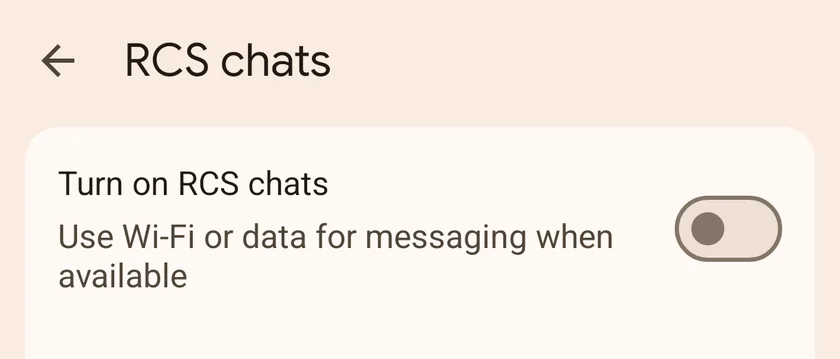
- Turn off RCS chat in Google Messages. If you use Google Messages, RCS can get in the way of sending through KDE Connect. Open Google Messages, tap your profile picture, go to Messages settings > RCS chats, and turn off Turn on RCS chats.
- Try a different SMS app. Some SMS apps do not play well with KDE Connect. Install a different one, set it as your default SMS app, and try again. Fossify Messages and Google Messages are both good choices.
Still nothing after all four? The message may be getting lost at the carrier level. See the carrier section below.
Status says “failed” #
Failed means QuickText recorded a failure while handing the message to the phone or receiving its result. Read the detail in History. Before retrying an uncertain result, check the phone’s message history to avoid sending a duplicate.
- Open the Your phone page and check your phone shows Ready to send. If it does not, follow Phone paired but not reachable below.
- Wake the phone, make sure it is on the same Wi-Fi as your PC, and open the KDE Connect app on it once.
- Send again. On the finished screen, use Send remaining so only people who have not gotten the message yet are texted. Check the previous results before retrying; a send status does not prove whether the recipient received a message.
QuickText hangs or fails right when you connect the phone
Antivirus or firewall software can block QuickText from talking to KDE Connect, which shows up as failures or a frozen screen.
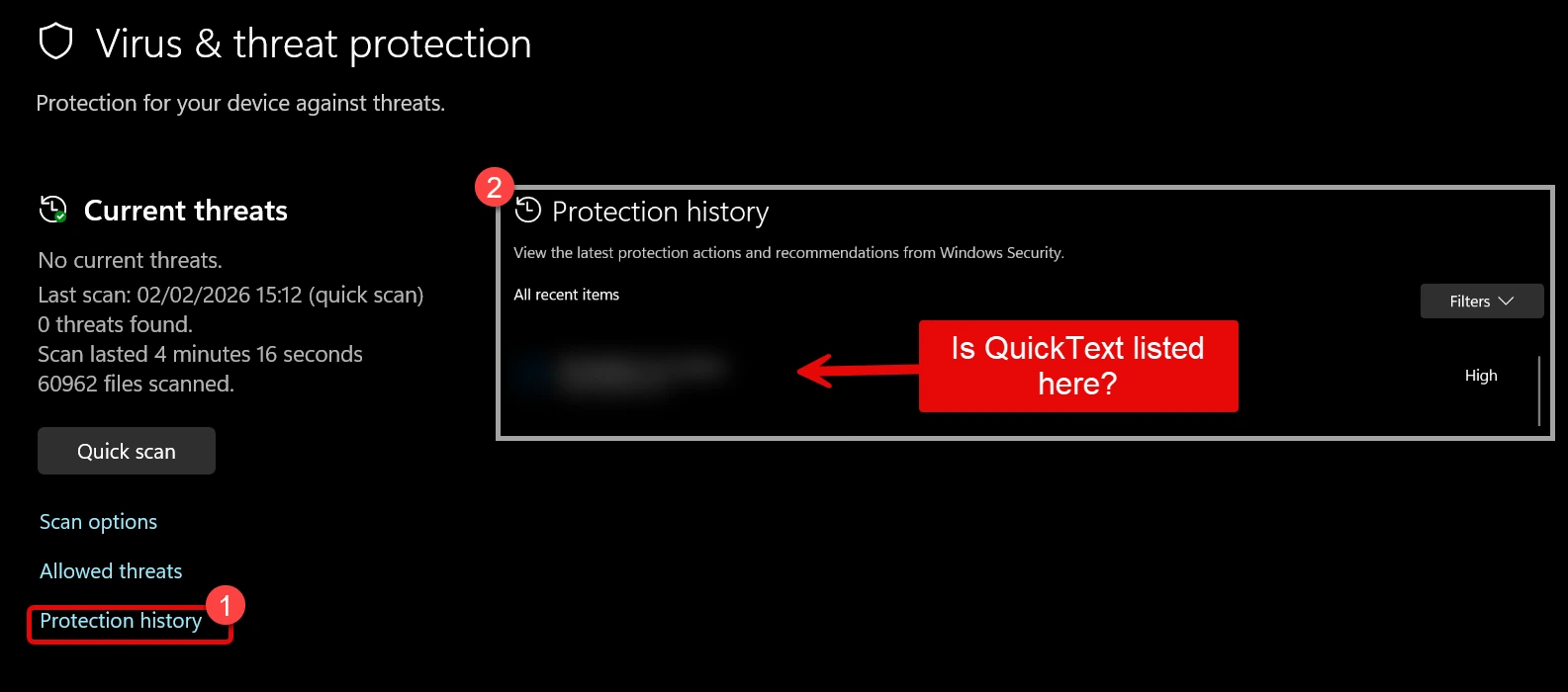
- Check recent blocked-app events in your security software. In Windows Security, open Virus & threat protection > Protection history.
- If an event names QuickText, verify the official installer and ask your IT team or security vendor to allow that specific operation. Keep antivirus and firewall protection enabled.
Check the exact security event and confirm that the file came from the official download. A general scan result does not diagnose the event on this PC. See Antivirus or firewall warning (false positive).
Status says “skipped” #
Skipped means QuickText did not try to send to that person. Check the reason shown in History:
- Blocked contact. The contact is on the opt-out list. Review the block reason and keep opted-out contacts excluded unless they have explicitly opted back in.
- No phone number. The contact has no number saved. Add one on the Contacts page.
- The message came out empty. This happens when the whole message sat inside a personalization tag that had no value and no fallback. Add a fallback like
{{first_name|there}}, or check the message is not blank for that person.
Phone paired but not reachable #
Paired means your phone and PC know each other. Not reachable means the phone is not answering right now. One of these four steps brings it back in almost every case.
- Open the KDE Connect app on the phone. Android puts background apps to sleep. Opening it once reconnects within a few seconds. This alone fixes most cases.
- Let it run in the background. In the phone settings, exclude KDE Connect from battery optimization (sometimes called battery saver or app sleep).
- Same Wi-Fi on both sides. Phone and PC must be on the same reachable local network; the PC may use Ethernet. Mobile data does not work, and guest networks often block devices from seeing each other.
- Click Refresh after each step. On the Your phone page, the row turns green as soon as the phone answers. The phone-row Send a test checks reachability. Use the separate SMS test card to confirm text sending.
QuickText finds no phone at all (firewall)
The video shows the Windows Firewall controls. In QuickText Desktop, allow QuickText SMS on your trusted private network; a separate KDE Connect program is not needed on your PC.
If no phone shows up even though both are on the same Wi-Fi, Windows Firewall may be blocking QuickText. QuickText listens for your phone itself now, so it is the app that needs to be allowed.
Quick check in Windows Defender:
- Open Windows Security from the Start menu.
- Go to Virus & threat protection > Protection history.
- If QuickText appears there as blocked, click it and choose Allow.
Allow QuickText through the firewall: the connection to your phone uses ports 1714 to 1764. Easiest way: on the Your phone page click Check my setup. When no phone is found it offers a button that opens the Windows Firewall settings, where QuickText SMS must be allowed for private networks.
The text went out, but the conversation is missing from your Messages app #
Your carrier charged for the text, or the person got it, but the conversation doesn’t show in your Messages app. You most likely archived that conversation at some point. Google Messages hides archived conversations from the main list. A text sent through QuickText doesn’t bring a conversation back, but a new text from that person or one you send from inside Messages does.
- Search for the number. In your Messages app, search for the phone number or contact name. If the sent texts are there, everything worked.
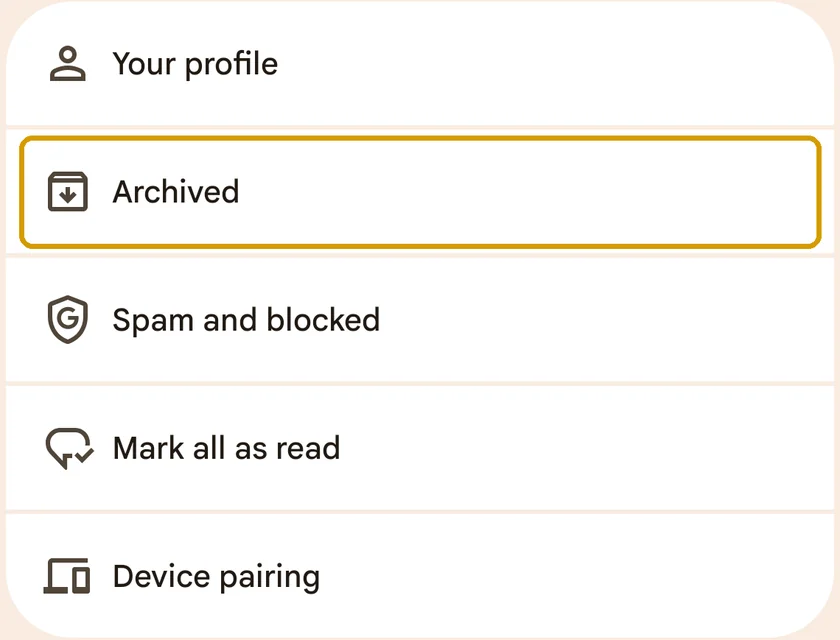
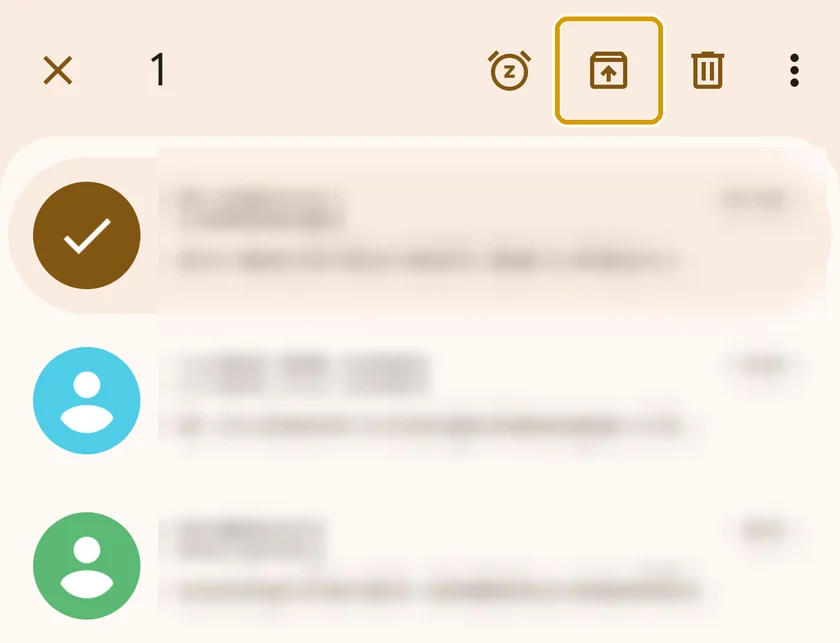
- Unarchive the conversation. In Google Messages, tap your profile picture, tap Archived, long-press the conversation and tap Unarchive. Future texts to that number show in the main list again.
Your phone doesn’t notify you about texts you send, and that includes texts sent through QuickText. Open the conversation to see them.
The text is in your Messages app, but the person never got it #
Sent in your Messages app means your mobile carrier accepted the message. Delivery is then decided by each recipient’s carrier and phone. QuickText, KDE Connect, and your phone have all done their part at this point, so the causes and fixes below are about carriers and recipients, not about your setup.
Possible causes include carrier filtering, a recipient phone or app issue, an incorrect number and unavailable delivery reports. A small manual test can help narrow the problem, but no single status identifies every cause.
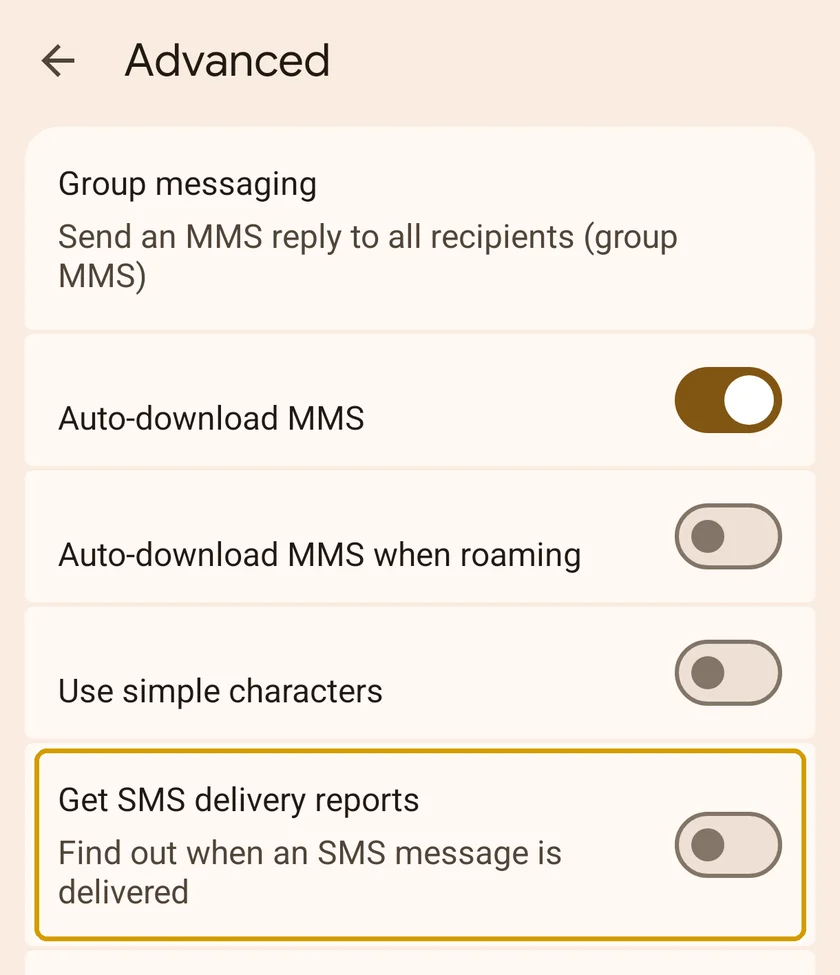
- Turn on delivery reports. In Google Messages on your phone, tap your profile picture, go to Messages settings > Advanced, and turn on Get SMS delivery reports.
- Text one or two affected people directly from the Messages app, in your own words.
- Read the result. An absent delivery receipt does not prove that a carrier dropped the message: delivery reports can be unavailable or delayed. A Delivered receipt is not a read receipt. Ask the recipient to check their messages and filtered folders, and ask the carrier to investigate if needed.
Why carriers filter texts, and why nobody sees it happen
Many similar texts from a personal number to a large group is exactly the pattern carriers filter as spam, especially in the US. The filtering is silent: your phone still shows “sent”, no error appears anywhere, and your own carrier’s hotline cannot see it either. “No restrictions on your number” means your account is fine; the filtering happens later, at each receiving carrier, and every carrier decides on its own. That is also why the same campaign reaches some people and not others.
Filters weigh volume, pace, wording, links, and whether people ever reply to you. Identical wording sent to hundreds of numbers scores worst. Personalized texts that people answer score best.
If a normal text sent by hand also fails, ask your carrier to check the account and route. That result alone does not prove a restriction; also verify the number and recipient’s phone.
iPhones can hide texts from unknown numbers
iPhones with Screen Unknown Senders turned on (Filter Unknown Senders on older iPhones) move texts from numbers that are not saved as contacts into a separate list, without any notification. The message arrived, but the person never saw it. It sits under Messages > Filters > Unknown Senders. Once the person saves your number as a contact, or has replied to you a few times, your texts appear normally again.
Make the next campaign easier to deliver. Personalize with contact fields, add wording variations, avoid links, and send smaller groups spread across the day. If you send fast, raise the pause: on the Compose page, open Sending options and click Change timing. The Message check points most of this out while you write, and SMS best practices: dos and don’ts covers wording, pacing, and carrier limits in detail.
One honest limit: texting many hundreds of people from a personal number always carries some filtering risk, because carriers reserve that volume for registered business-texting services. Good wording and pacing improve your odds. They do not guarantee delivery.
Your phone shows a popup about sending many texts #
Android shows this warning when an app sends a lot of texts in a short time. It is a built-in safety feature, not an error.
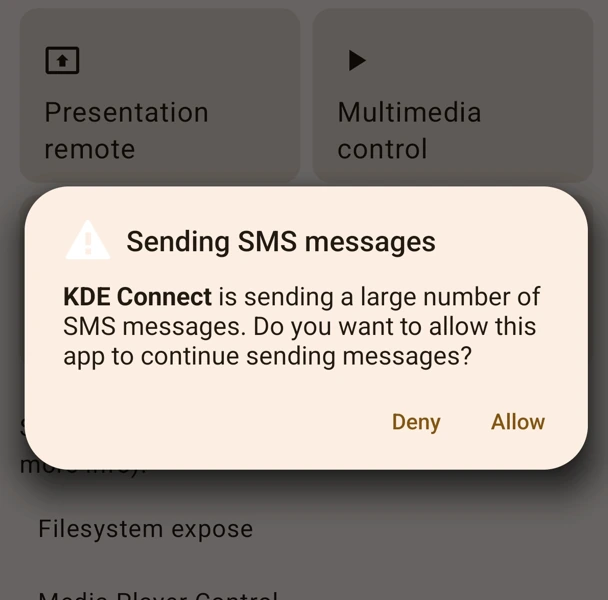
Since you meant to send these, tap Allow and QuickText keeps going. To see it less often, slow the pace down: on the Compose page, open Sending options and click Change timing and add a few seconds between messages.